> ## Documentation Index
> Fetch the complete documentation index at: https://help.privy.com/llms.txt
> Use this file to discover all available pages before exploring further.
# Manage Your Profile
> Edit your user profile, preferences, and notification settings.
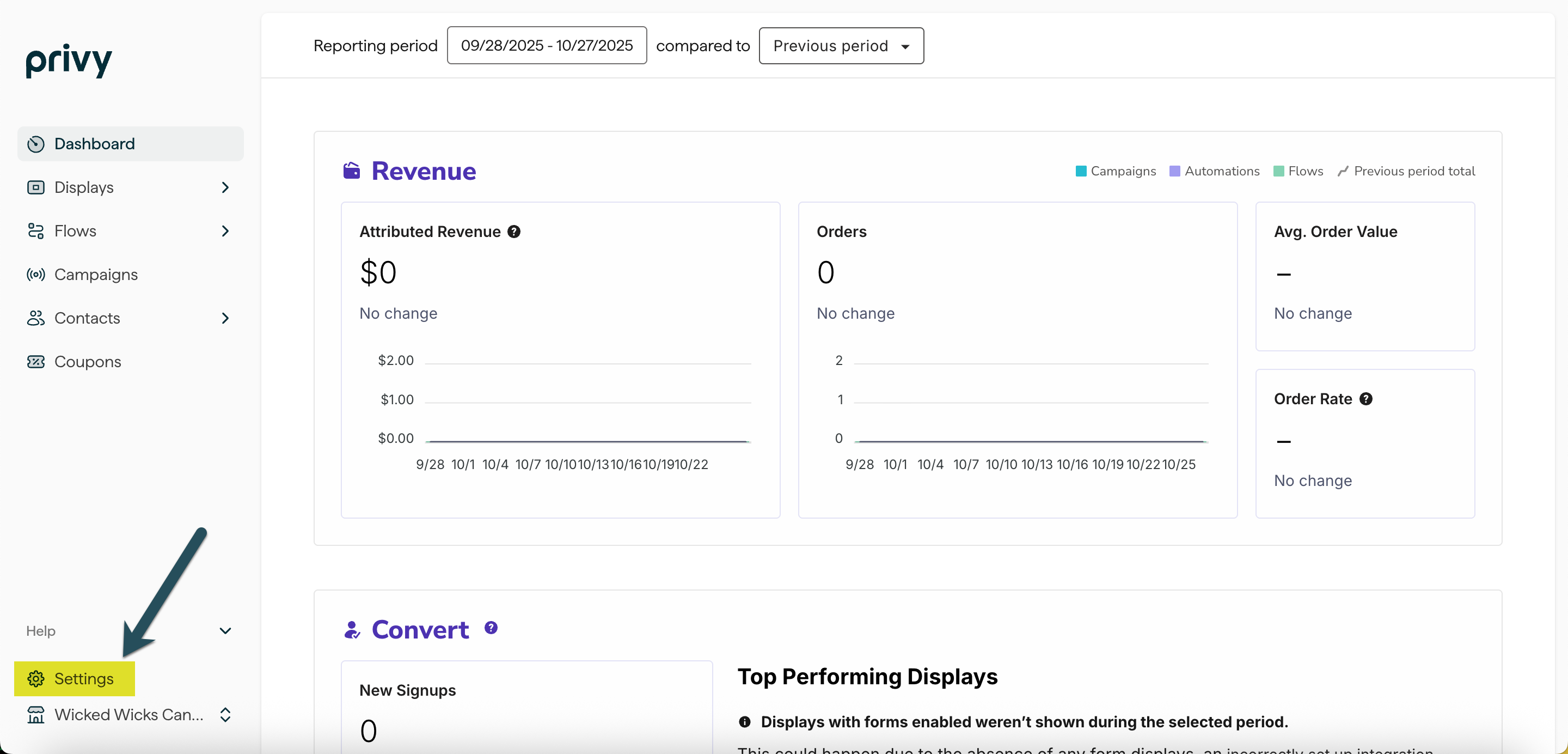
You can manage your personal account preferences and settings, such as your name, contact information, language, notifications, and password. These settings will only affect your own personal user profile and every account you access with the provided email address.
To manage these settings, click your Business Name in the top right corner, then **Account Settings**.
 ## Updating your user profile
### User Name and Contact Information
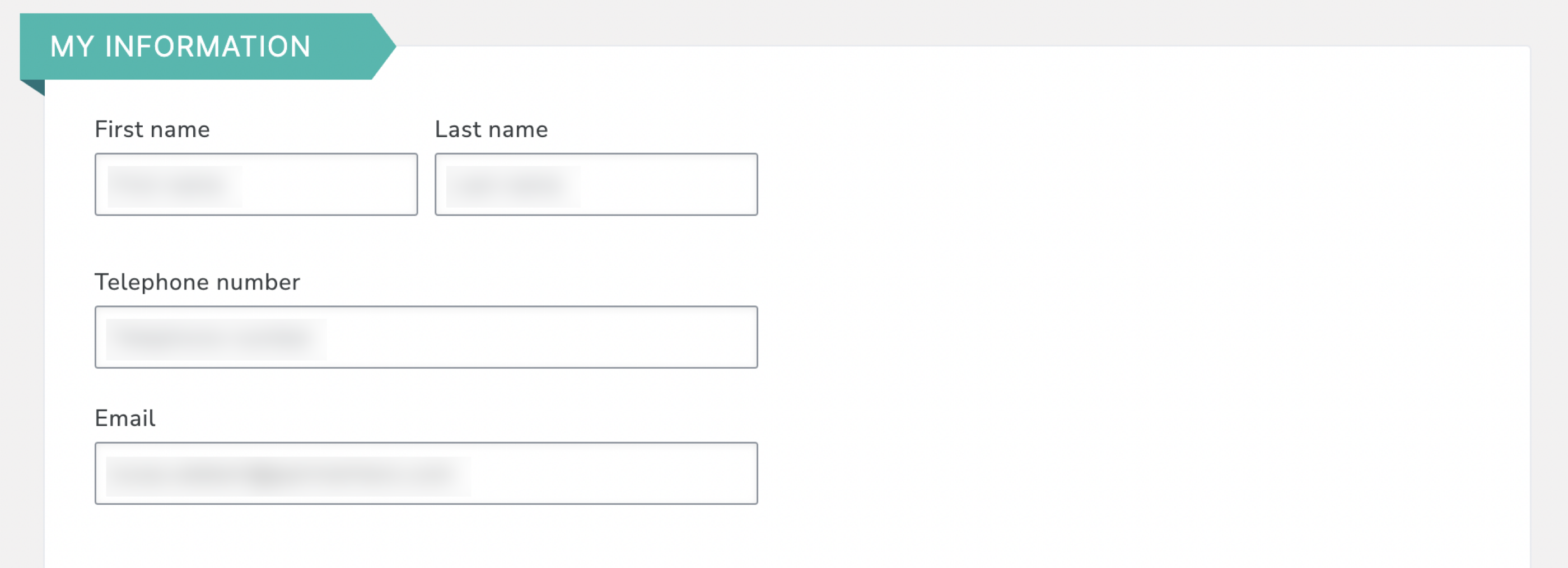
Users must update their names and contact information themselves. Other users, even if they are the account owners, cannot edit this information on their behalf.
To change your name and contact information:
* Navigate to [My Information](https://dashboard.privy.com/settings/info).
* Click on the appropriate field.
* Input the updated information.
* Scroll down and click the **Save** button.
## Updating your user profile
### User Name and Contact Information
Users must update their names and contact information themselves. Other users, even if they are the account owners, cannot edit this information on their behalf.
To change your name and contact information:
* Navigate to [My Information](https://dashboard.privy.com/settings/info).
* Click on the appropriate field.
* Input the updated information.
* Scroll down and click the **Save** button.
 ### Language Preference
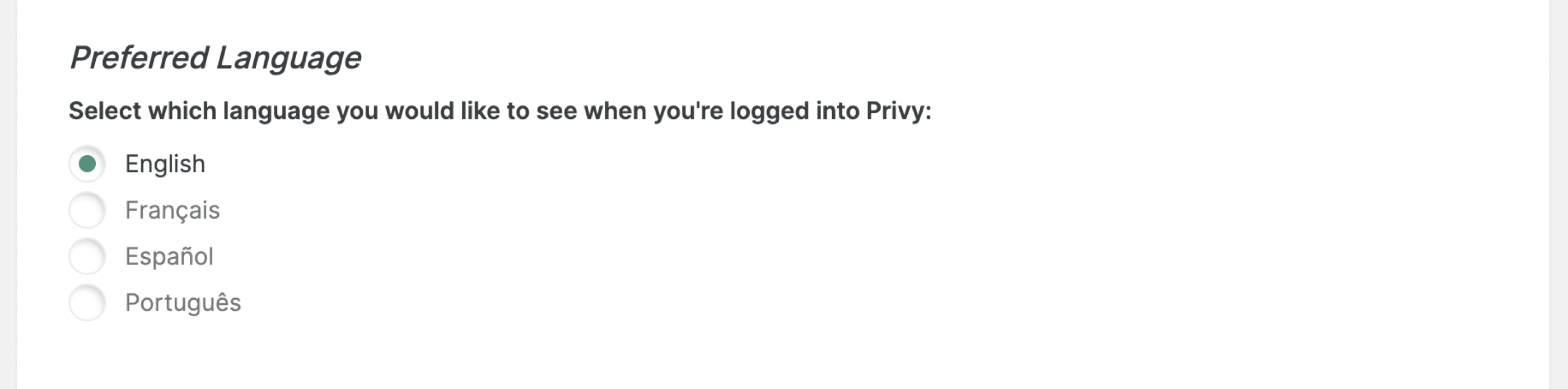
The language setting controls the language that is displayed in Privy's user interface. Privy is currently available in English (US), Spanish (Castilian), French (Metropolitan), and Portuguese (Brazilian).
To change the language that displays when you log into Privy:
* Navigate to [Account Information](https://dashboard.privy.com/settings/info).
* Select the desired language option.
* Scroll down and click the **Save** button.
### Language Preference
The language setting controls the language that is displayed in Privy's user interface. Privy is currently available in English (US), Spanish (Castilian), French (Metropolitan), and Portuguese (Brazilian).
To change the language that displays when you log into Privy:
* Navigate to [Account Information](https://dashboard.privy.com/settings/info).
* Select the desired language option.
* Scroll down and click the **Save** button.
 ### Email notifications
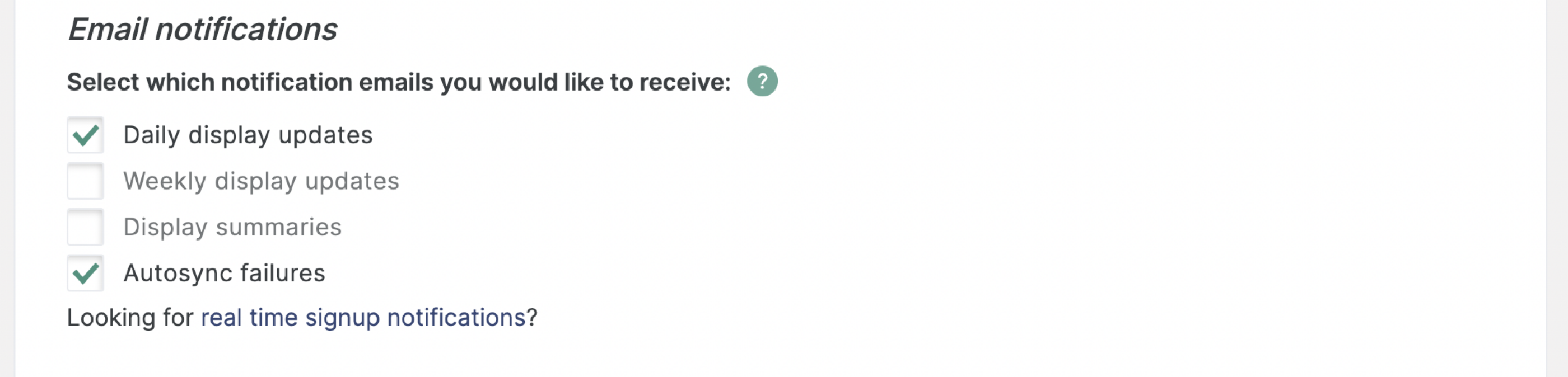
Privy's email notifications provide insight into the performance of your Convert displays and other activities in your account. The available options include:
This email provides insight into the views, signups, orders, and revenue generated by your active displays. It is sent each morning.
This email provides insight into the views, signups, orders, and revenue generated by your active displays. It is sent each Monday morning.
Provides insight into the performance of displays that have ended, such as those with a predetermined start and end time.
This feature provides an alert when a display fails to sync emails to a [Linked Account](https://dashboard.privy.com/settings/accounts) via the display's [sync rules](https://help.privy.com/docs/learn/displays/settings-overview#sync-integrations).
To manage your Privy notifications:
* Navigate to [My Information](https://dashboard.privy.com/settings/info).
* Check the desired options.
* Scroll down and click the **Save** button.
Add [notifications@privy.com](mailto:notifications@privy.com) to your email address book to help ensure the delivery of these notifications.
### Email notifications
Privy's email notifications provide insight into the performance of your Convert displays and other activities in your account. The available options include:
This email provides insight into the views, signups, orders, and revenue generated by your active displays. It is sent each morning.
This email provides insight into the views, signups, orders, and revenue generated by your active displays. It is sent each Monday morning.
Provides insight into the performance of displays that have ended, such as those with a predetermined start and end time.
This feature provides an alert when a display fails to sync emails to a [Linked Account](https://dashboard.privy.com/settings/accounts) via the display's [sync rules](https://help.privy.com/docs/learn/displays/settings-overview#sync-integrations).
To manage your Privy notifications:
* Navigate to [My Information](https://dashboard.privy.com/settings/info).
* Check the desired options.
* Scroll down and click the **Save** button.
Add [notifications@privy.com](mailto:notifications@privy.com) to your email address book to help ensure the delivery of these notifications.
 ## Change your password
To update your password from within Privy:
* Navigate to [My Information](https://dashboard.privy.com/settings/info).
* Scroll down and click the **Change Password** button.
* Fill out the prompt and click **Save New Password**.
To update a forgotten password when you cannot log in:
* Navigate to the [Privy Login](https://dashboard.privy.com/users/sign_in) page.
* Select the **Forgot your password** option.
* Enter the email address associated with your user account.
* Follow the steps sent to your email. The instructions come from [support@privy.com](mailto:support@privy.com). Please add this address to your email address book to ensure proper delivery.
**Note:** The reset link included in the email expires after 6 hours.
## Change your password
To update your password from within Privy:
* Navigate to [My Information](https://dashboard.privy.com/settings/info).
* Scroll down and click the **Change Password** button.
* Fill out the prompt and click **Save New Password**.
To update a forgotten password when you cannot log in:
* Navigate to the [Privy Login](https://dashboard.privy.com/users/sign_in) page.
* Select the **Forgot your password** option.
* Enter the email address associated with your user account.
* Follow the steps sent to your email. The instructions come from [support@privy.com](mailto:support@privy.com). Please add this address to your email address book to ensure proper delivery.
**Note:** The reset link included in the email expires after 6 hours.
 ## Troubleshoot common login issues
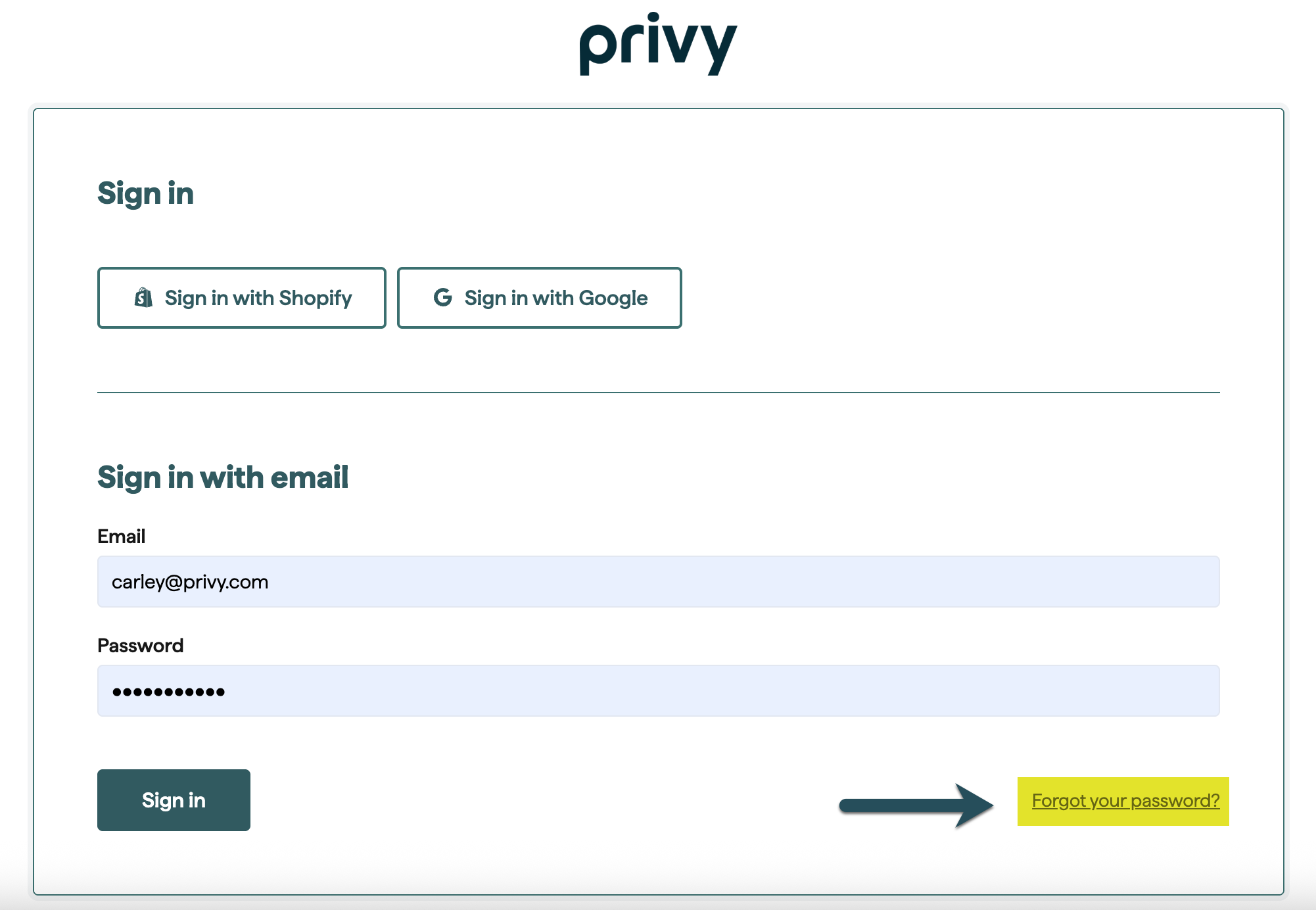
Are you having trouble accessing your Privy account? Check out these solutions to common login issues:
This error message indicates that the credentials you are using are invalid. Account credentials are case-sensitive, and passwords must be at least eight characters long. If additional attempts don't help, visit the [Privy Login](https://dashboard.privy.com/users/sign_in) page and select the **Forgot your password** option.
**Note:** If you log in through an integrated account, such as Shopify or BigCommerce, you won't be able to reset your password via Privy. Instead, password changes should take place directly through the third-party portal.
First, check your promotions and spam folders. If you still can't locate the password reset instructions, add [support@privy.com](mailto:support@privy.com) to your address book and request another password reset. If the email is still not arriving in your inbox, please contact your email admin to check if additional security measures might be preventing this message from reaching you.
This error message typically indicates that there is a conflict between your login credentials and identifiable account cookies or that there is an issue with Privy as a whole.
First, visit Privy's [Status Page](https://status.privy.com/) and check for platform-specific issues. If there are no ongoing issues, please try to log into Privy using another browser or incognito mode. If you successfully log in from the alternate browser, clear the cache and cookies of your regular browser by following the relevant guide linked below and try to log in again.
* [Google Chrome](https://support.google.com/chrome/answer/95582?hl=en)
* [Apple Safari](https://support.apple.com/en-ie/guide/safari/sfri47acf5d6/mac)
* [Mozilla Firefox](https://support.mozilla.org/en-US/kb/how-clear-firefox-cache)
* [Internet Explorer](https://support.microsoft.com/en-gb/help/17438/windows-internet-explorer-view-delete-browsing-history#ie=ie-11)
* [Microsoft Edge](https://support.microsoft.com/en-ie/help/10607/microsoft-edge-view-delete-browser-history)
If the issue persists, please [submit a support request](mailto:support@privy.com).
Issues encountered when using Google SSO (Single Sign-on) to access Privy typically fall into the following categories:
1. Your account wasn't created using SSO, so you will need to manually input your Google email address and separate Privy password instead.
2. The account you are attempting to use is incorrect. It is common for Google Chrome users to [switch between multiple accounts](https://support.google.com/docs/answer/2405894?hl=en\&co=GENIE.Platform%3DDesktop\&oco=0). Please make sure the account you use with Privy is also the one selected in your Chrome settings.
3. The connection between your Google account and Privy has been disrupted or expired. The support team must remove the account's association with Privy so that you can log in again and "refresh" the connection. To fix this issue, [submit a support request](mailto:support@privy.com) and provide the email address you use for SSO.
If you are still unable to log into your account, please [submit a support request](mailto:support@privy.com).
Issues encountered when using Shopify to access Privy typically fall into the following categories:
1. The connection between your Shopify account and Privy has been disrupted or expired. Remove the Privy app from your Shopify account, [reinstall the Privy app](https://privy.helpscoutdocs.com/article/65-install-privy-on-shopify), and attempt to log in again.
2. You did not use [the Privy app](https://apps.shopify.com/privy) to integrate your Shopify and Privy accounts. Instead, you manually installed the Privy code on your store. You cannot log in with your Shopify credentials if this is the case as Shopify and Privy cannot authenticate your information.
If you would like to recover an old or inactive Privy account, please [submit a support request](mailto:support@privy.com). In the request, include the account name and the email address associated with the account. The support agent may request additional information for security purposes or to locate the correct account.
**Note**: If you requested an account deletion, all of the account's identifiable information is scrubbed within 30 days. Once the information is removed, it cannot be restored.
## Troubleshoot common login issues
Are you having trouble accessing your Privy account? Check out these solutions to common login issues:
This error message indicates that the credentials you are using are invalid. Account credentials are case-sensitive, and passwords must be at least eight characters long. If additional attempts don't help, visit the [Privy Login](https://dashboard.privy.com/users/sign_in) page and select the **Forgot your password** option.
**Note:** If you log in through an integrated account, such as Shopify or BigCommerce, you won't be able to reset your password via Privy. Instead, password changes should take place directly through the third-party portal.
First, check your promotions and spam folders. If you still can't locate the password reset instructions, add [support@privy.com](mailto:support@privy.com) to your address book and request another password reset. If the email is still not arriving in your inbox, please contact your email admin to check if additional security measures might be preventing this message from reaching you.
This error message typically indicates that there is a conflict between your login credentials and identifiable account cookies or that there is an issue with Privy as a whole.
First, visit Privy's [Status Page](https://status.privy.com/) and check for platform-specific issues. If there are no ongoing issues, please try to log into Privy using another browser or incognito mode. If you successfully log in from the alternate browser, clear the cache and cookies of your regular browser by following the relevant guide linked below and try to log in again.
* [Google Chrome](https://support.google.com/chrome/answer/95582?hl=en)
* [Apple Safari](https://support.apple.com/en-ie/guide/safari/sfri47acf5d6/mac)
* [Mozilla Firefox](https://support.mozilla.org/en-US/kb/how-clear-firefox-cache)
* [Internet Explorer](https://support.microsoft.com/en-gb/help/17438/windows-internet-explorer-view-delete-browsing-history#ie=ie-11)
* [Microsoft Edge](https://support.microsoft.com/en-ie/help/10607/microsoft-edge-view-delete-browser-history)
If the issue persists, please [submit a support request](mailto:support@privy.com).
Issues encountered when using Google SSO (Single Sign-on) to access Privy typically fall into the following categories:
1. Your account wasn't created using SSO, so you will need to manually input your Google email address and separate Privy password instead.
2. The account you are attempting to use is incorrect. It is common for Google Chrome users to [switch between multiple accounts](https://support.google.com/docs/answer/2405894?hl=en\&co=GENIE.Platform%3DDesktop\&oco=0). Please make sure the account you use with Privy is also the one selected in your Chrome settings.
3. The connection between your Google account and Privy has been disrupted or expired. The support team must remove the account's association with Privy so that you can log in again and "refresh" the connection. To fix this issue, [submit a support request](mailto:support@privy.com) and provide the email address you use for SSO.
If you are still unable to log into your account, please [submit a support request](mailto:support@privy.com).
Issues encountered when using Shopify to access Privy typically fall into the following categories:
1. The connection between your Shopify account and Privy has been disrupted or expired. Remove the Privy app from your Shopify account, [reinstall the Privy app](https://privy.helpscoutdocs.com/article/65-install-privy-on-shopify), and attempt to log in again.
2. You did not use [the Privy app](https://apps.shopify.com/privy) to integrate your Shopify and Privy accounts. Instead, you manually installed the Privy code on your store. You cannot log in with your Shopify credentials if this is the case as Shopify and Privy cannot authenticate your information.
If you would like to recover an old or inactive Privy account, please [submit a support request](mailto:support@privy.com). In the request, include the account name and the email address associated with the account. The support agent may request additional information for security purposes or to locate the correct account.
**Note**: If you requested an account deletion, all of the account's identifiable information is scrubbed within 30 days. Once the information is removed, it cannot be restored.