> ## Documentation Index
> Fetch the complete documentation index at: https://help.privy.com/llms.txt
> Use this file to discover all available pages before exploring further.
# Email Opt-In Methods
> Choose how contacts confirm consent to receive email from your displays.
Privy supports two email opt-in methods on every display that collects an email address: **Single Opt-In** and **Double Opt-In**. The method is set per display in **Advanced Settings → Email Opt-In**.
## Single Opt-In
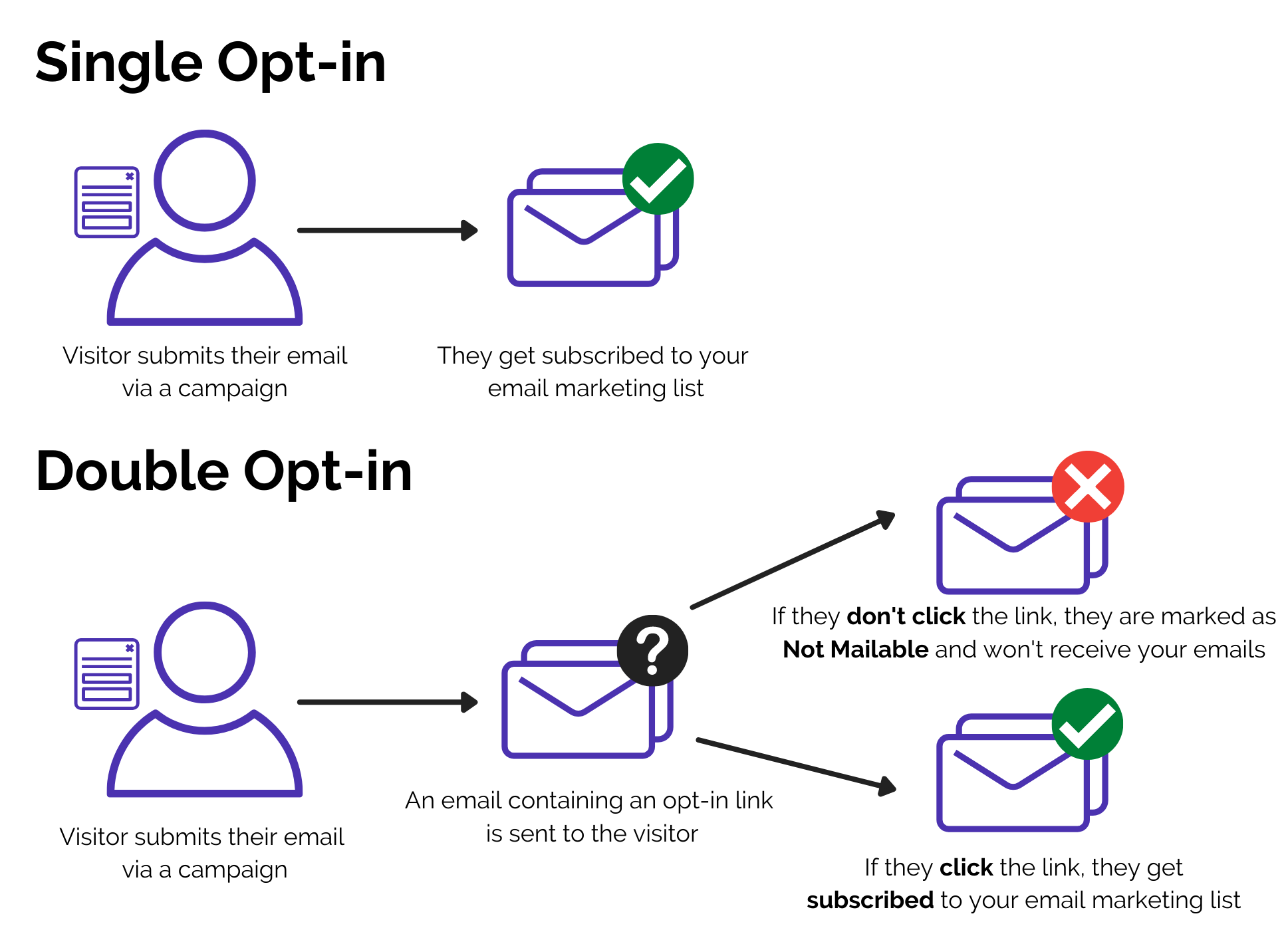
The contact submits the display and is immediately added to your mailable list — no additional confirmation step.
Single Opt-In is the default setting for every Privy template.
## Double Opt-In
Double Opt-In offers an extra confirmation step to verify each email address that signs up for your list. When this setting is enabled, contacts who sign up via your display will automatically receive a follow-up email with a link to confirm their email subscription.
### Double Opt-In vs. Single Opt-In
Unlike Single Opt-In, where visitors provide their email address through a display and are immediately added to an email list, Double Opt-In adds an additional layer of protection between the signup event and any future messaging. This extra protection helps prevent fake email addresses or contacts who aren't that interested in your emails from joining your mailing list.
 ### Benefits
Double Opt-In has a few stand-out benefits compared to Single Opt-In:
A double opt-in process helps to ensure that your list has only valid email addresses. New subscribers must click "confirm" in the confirmation email to be added to your contact list. This additional step prevents issues related to typos in the signup form, or visitors submitting email addresses that don't belong to them.
Additionally, if you have contacts who sign up but are only vaguely interested in your content, they might not be willing to confirm their subscription. Contacts like this won't do you any favors in the long run. Instead, you'll spend time and energy trying to re-engage someone who was never really interested in your business or email campaigns.
Compliance frameworks like GDPR don't require double opt-in, but it is considered a best practice. Double opt-in makes it easy to show that a contact knowingly opted in by clicking to verify their email address. It's also helpful to have extra protection from someone submitting someone else's email address without their knowledge.
The double opt-in process helps ensure that your list is of the highest quality by establishing that the confirmed contacts are real and interested. Hard bounces due to email spam traps and fake addresses hurt your email-sending reputation the most. Removing fake addresses means you are unlikely to get an alarming number of hard bounces when sending campaigns.
Meanwhile, the confirmation of a contact's interest means that they'll be more likely to engage (e.g., open or click) with your emails and less likely to unsubscribe or mark your messages as spam. Major email clients, such as Google's Gmail, track how recipients interact with emails from your domain. If the interactions with your messages are good, then additional emails from your domain will land in the recipient's inbox without issue. At the same time, negative or low interactions with your messages will increase the likelihood that they are suppressed or filtered to spam.
### Double Opt-In's Impact on Contacts
**What happens if a contact does not confirm their subscription?**
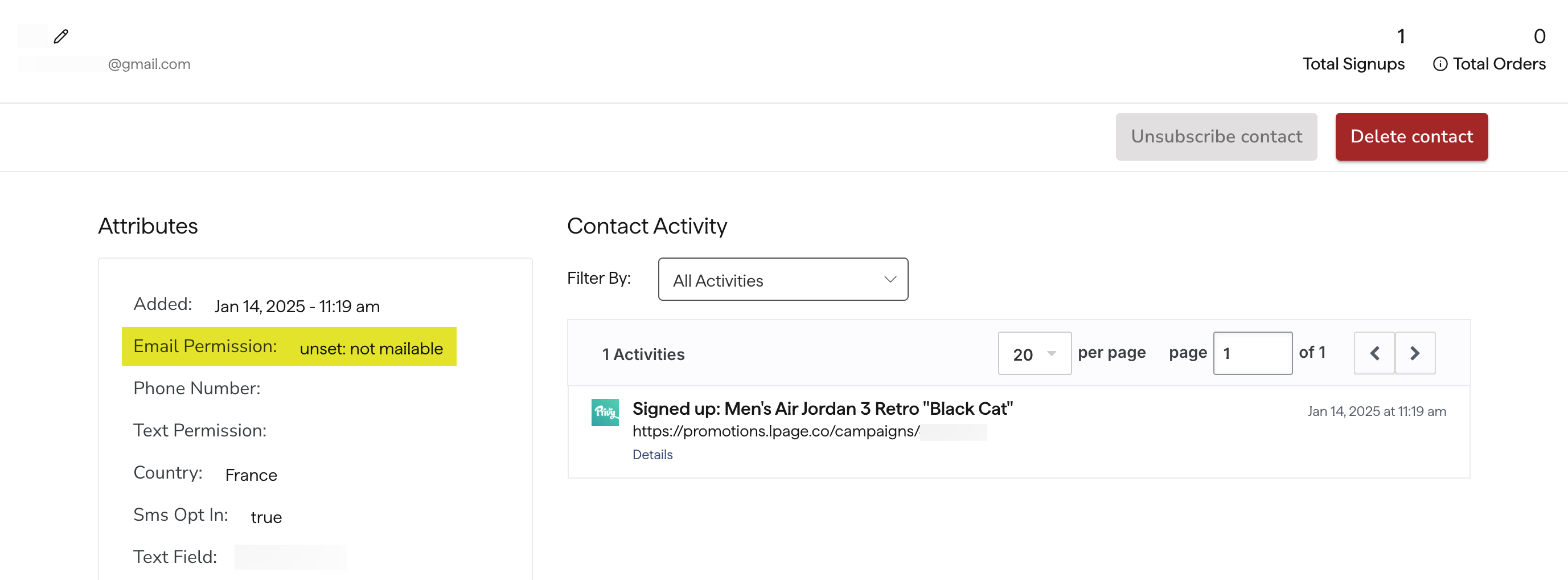
Suppose a visitor submits a display on your site with Double Opt-In enabled but fails to confirm their status in the double opt-in message. In that case, Privy creates a profile with the provided information (e.g., Name, Email, etc.) from the display submission and applies an "*unset: not mailable"* email permission to the profile. This permission means the contact won't be able to receive messages from you, including after signup or welcome series emails, until they confirm their status.
That said, the contact can still be shown a specific display using audience targeting. Their ineligibility for emails does not affect the information associated with their profile and cookie.
### Benefits
Double Opt-In has a few stand-out benefits compared to Single Opt-In:
A double opt-in process helps to ensure that your list has only valid email addresses. New subscribers must click "confirm" in the confirmation email to be added to your contact list. This additional step prevents issues related to typos in the signup form, or visitors submitting email addresses that don't belong to them.
Additionally, if you have contacts who sign up but are only vaguely interested in your content, they might not be willing to confirm their subscription. Contacts like this won't do you any favors in the long run. Instead, you'll spend time and energy trying to re-engage someone who was never really interested in your business or email campaigns.
Compliance frameworks like GDPR don't require double opt-in, but it is considered a best practice. Double opt-in makes it easy to show that a contact knowingly opted in by clicking to verify their email address. It's also helpful to have extra protection from someone submitting someone else's email address without their knowledge.
The double opt-in process helps ensure that your list is of the highest quality by establishing that the confirmed contacts are real and interested. Hard bounces due to email spam traps and fake addresses hurt your email-sending reputation the most. Removing fake addresses means you are unlikely to get an alarming number of hard bounces when sending campaigns.
Meanwhile, the confirmation of a contact's interest means that they'll be more likely to engage (e.g., open or click) with your emails and less likely to unsubscribe or mark your messages as spam. Major email clients, such as Google's Gmail, track how recipients interact with emails from your domain. If the interactions with your messages are good, then additional emails from your domain will land in the recipient's inbox without issue. At the same time, negative or low interactions with your messages will increase the likelihood that they are suppressed or filtered to spam.
### Double Opt-In's Impact on Contacts
**What happens if a contact does not confirm their subscription?**
Suppose a visitor submits a display on your site with Double Opt-In enabled but fails to confirm their status in the double opt-in message. In that case, Privy creates a profile with the provided information (e.g., Name, Email, etc.) from the display submission and applies an "*unset: not mailable"* email permission to the profile. This permission means the contact won't be able to receive messages from you, including after signup or welcome series emails, until they confirm their status.
That said, the contact can still be shown a specific display using audience targeting. Their ineligibility for emails does not affect the information associated with their profile and cookie.
 **How does Double Opt-In impact existing contacts?**
When Double Opt-In is enabled, contacts who have already signed up for a display using the Single Opt-In setting will remain mailable. The Double Opt-In process will only apply to new contacts.
**What if a customer asks me to opt in for them on their behalf?**
You are unable to manually opt for a customer to be added to your mailing list. If a customer expected to receive your emails but missed the double opt-in message, they should:
1. Search their inbox for the original opt-in message, including any promotional or spam folders specific to their email service provider.
2. If the original email cannot be located, the customer should submit another display with the Double Opt-In setting enabled. A new double opt-in email will be sent to them.
### How to enable Double Opt-In
* Navigate to [Displays](https://dashboard.privy.com/displays).
* Select or create a display that you'd like to utilize Double Opt-In.
* Head to the display's **Settings**.
* Click **Show Advanced Settings** in the lower left and select the **Email Opt-In** card.
* Select the **Double Opt-In** option and **Save**.
Contacts that sign up via this display will now go through the Double Opt-In process.
### Review your Double Opt-In Email
To review the double opt-in email and confirmation page that your contacts will see:
* Head to your **Settings** from the lower left side of your dashboard.
* Navigate to the [**Double Opt-In**](https://dashboard.privy.com/settings/double-opt-in) page under *Email Settings*.
**How does Double Opt-In impact existing contacts?**
When Double Opt-In is enabled, contacts who have already signed up for a display using the Single Opt-In setting will remain mailable. The Double Opt-In process will only apply to new contacts.
**What if a customer asks me to opt in for them on their behalf?**
You are unable to manually opt for a customer to be added to your mailing list. If a customer expected to receive your emails but missed the double opt-in message, they should:
1. Search their inbox for the original opt-in message, including any promotional or spam folders specific to their email service provider.
2. If the original email cannot be located, the customer should submit another display with the Double Opt-In setting enabled. A new double opt-in email will be sent to them.
### How to enable Double Opt-In
* Navigate to [Displays](https://dashboard.privy.com/displays).
* Select or create a display that you'd like to utilize Double Opt-In.
* Head to the display's **Settings**.
* Click **Show Advanced Settings** in the lower left and select the **Email Opt-In** card.
* Select the **Double Opt-In** option and **Save**.
Contacts that sign up via this display will now go through the Double Opt-In process.
### Review your Double Opt-In Email
To review the double opt-in email and confirmation page that your contacts will see:
* Head to your **Settings** from the lower left side of your dashboard.
* Navigate to the [**Double Opt-In**](https://dashboard.privy.com/settings/double-opt-in) page under *Email Settings*.
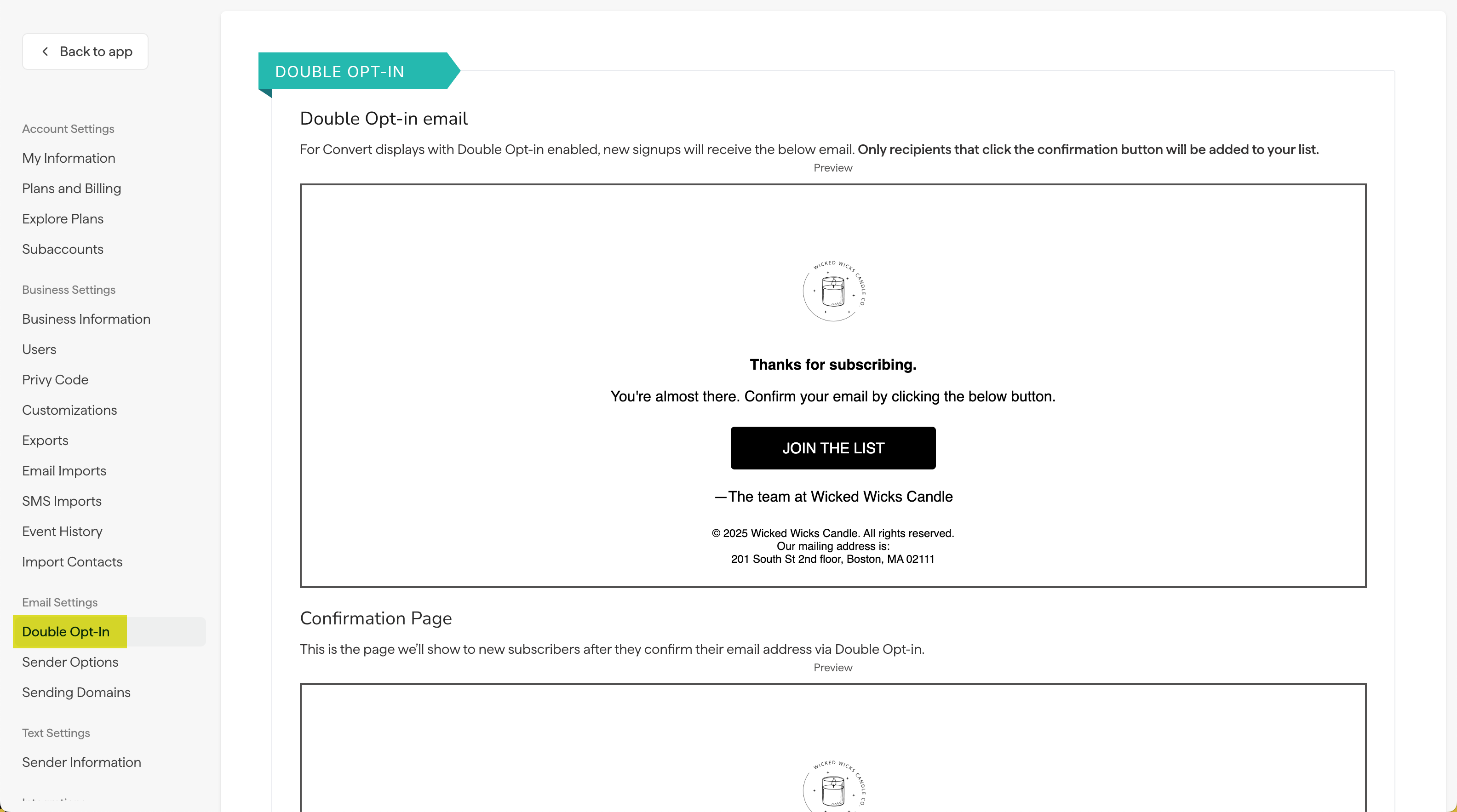 The logo, font, and colors used for these pieces of content are determined by your [brand settings](https://help.privy.com/docs/learn/account-settings-and-billing/business-settings/brand-settings). No additional customizations are available for the double opt-in email and page at this time.
## Best Practices
### Thank You Page
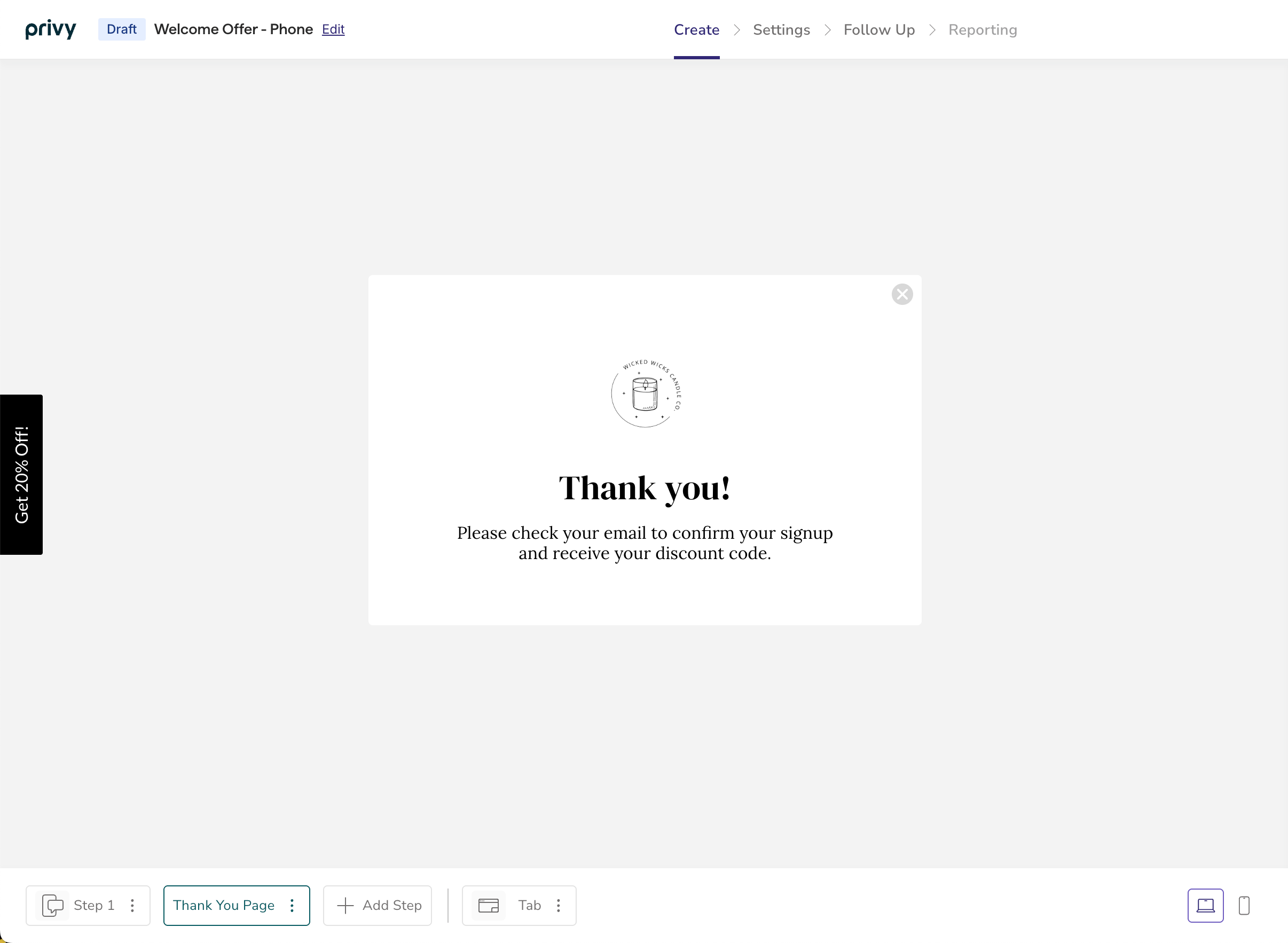
If you have Double Opt-In enabled, it's best practice for your display's Thank You Page to remind your contacts to check their inbox for an opt-in email. Make the reminder clear, concise, and action-oriented.
The logo, font, and colors used for these pieces of content are determined by your [brand settings](https://help.privy.com/docs/learn/account-settings-and-billing/business-settings/brand-settings). No additional customizations are available for the double opt-in email and page at this time.
## Best Practices
### Thank You Page
If you have Double Opt-In enabled, it's best practice for your display's Thank You Page to remind your contacts to check their inbox for an opt-in email. Make the reminder clear, concise, and action-oriented.
 ## SMS Sign-Ups
SMS sign-ups use a separate opt-in setting on each display. See [SMS Opt-In Methods](/docs/learn/contact-management/sms-opt-in) for the available methods and how to choose between them.
## SMS Sign-Ups
SMS sign-ups use a separate opt-in setting on each display. See [SMS Opt-In Methods](/docs/learn/contact-management/sms-opt-in) for the available methods and how to choose between them.