> ## Documentation Index
> Fetch the complete documentation index at: https://help.privy.com/llms.txt
> Use this file to discover all available pages before exploring further.
# Preference Center
> Keep subscribers by letting them choose which email topics they still want.
Most people who leave an email list are not done with your brand. They are done with getting every message you send. Preference Center gives them a page to stay subscribed to the topics they still want, and to turn the rest off, without leaving your list.
That is better for you than a hard unsubscribe. Someone who only wants store openings can keep those emails and skip promotions. You send fewer messages to people who already said no to that topic, which keeps engagement healthier and protects [deliverability](/docs/learn/deliverability/overview).
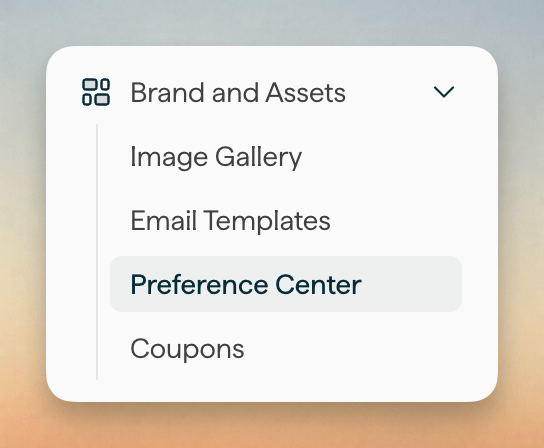
You can find the Preference Center in **Brand and Assets** in the sidebar.
 ## Match the page to your brand
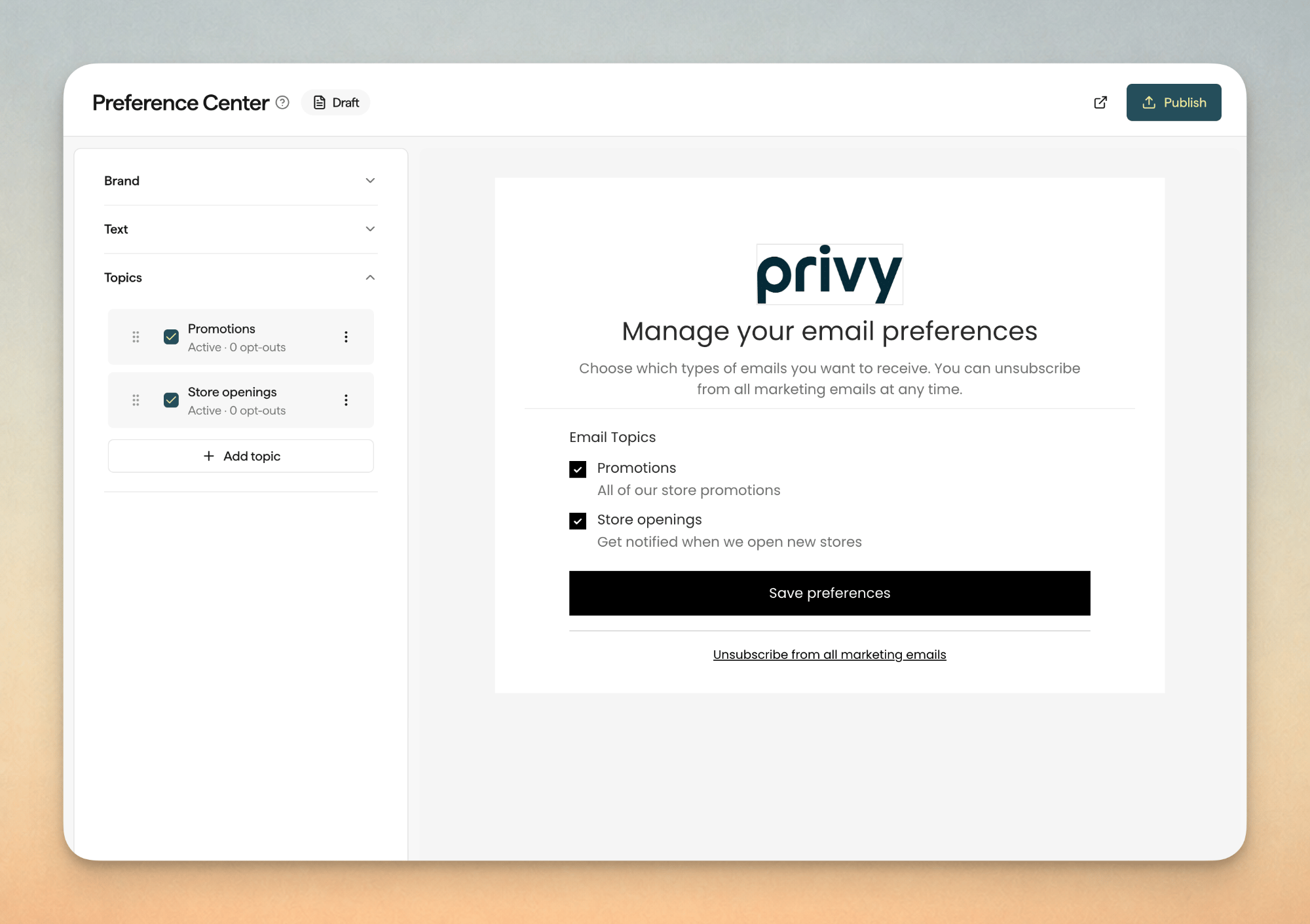
The page subscribers see should look like you. In **Brand**, set the **Logo**, **Color**, and **Font**, or keep what you already use in [Brand Settings](/docs/learn/account-settings-and-billing/business-settings/brand-settings). In **Text**, write the heading, intro, and save-button copy in your voice.
Those choices apply to the hosted page only. They do not change your emails.
## Match the page to your brand
The page subscribers see should look like you. In **Brand**, set the **Logo**, **Color**, and **Font**, or keep what you already use in [Brand Settings](/docs/learn/account-settings-and-billing/business-settings/brand-settings). In **Text**, write the heading, intro, and save-button copy in your voice.
Those choices apply to the hosted page only. They do not change your emails.
 ## Create topics that match how you email
Topics are the choices on that page. Add ones that match the emails you actually send, like promotions, new arrivals, or store openings, each with a **Name** and an optional **Description**. **Publish** when the page is ready. Emails can then include a **Manage Preferences** link.
If you unpublish later, those links go back to the Unsubscribe link. Topic opt-outs still apply.
Topic opt-outs only skip a send when that campaign has a topic. A campaign with **No topic** still goes to everyone who is mailable, including people who turned topics off.
## How subscribers use the page
They open **Manage Preferences**, choose topics, and save. They can change those choices later.
**Unsubscribe from all marketing emails** still stops every marketing email from your business. They cannot resubscribe from that page. To hear from you again, they need a form or checkout that collects email consent. See [Email Opt-In](/docs/learn/contact-management/email-opt-in) and [Understanding Reachability](/docs/learn/contact-management/understanding-reachability).
## Use topics when you send
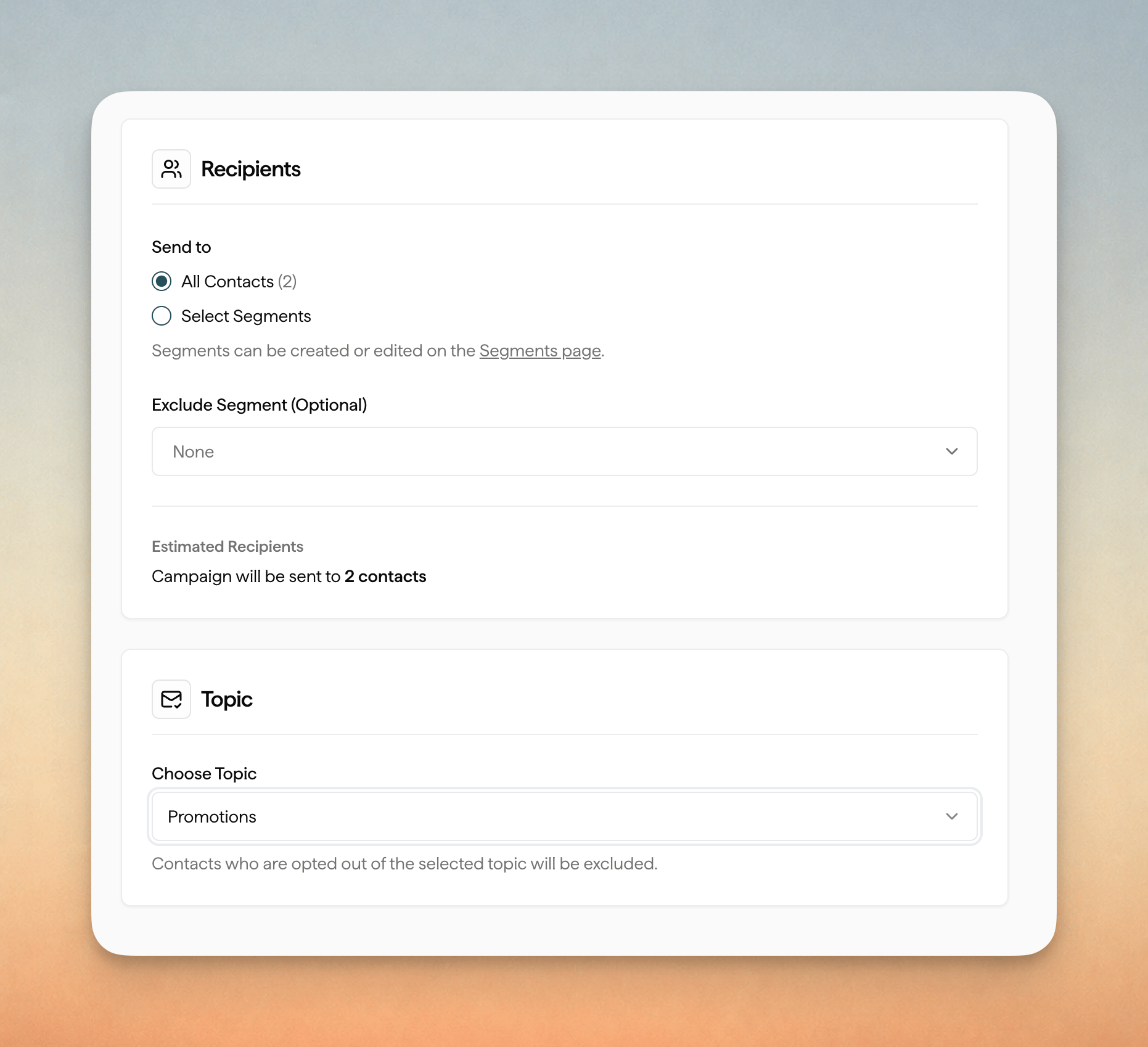
On the **Recipients** step of an email campaign, assign a **Topic** with **Choose Topic**. Anyone who turned that topic off is skipped. Leave **No topic** when the send should go to everyone who is still mailable. See [Send an Email Campaign](/docs/learn/email-campaigns/send-an-email-campaign).
## Create topics that match how you email
Topics are the choices on that page. Add ones that match the emails you actually send, like promotions, new arrivals, or store openings, each with a **Name** and an optional **Description**. **Publish** when the page is ready. Emails can then include a **Manage Preferences** link.
If you unpublish later, those links go back to the Unsubscribe link. Topic opt-outs still apply.
Topic opt-outs only skip a send when that campaign has a topic. A campaign with **No topic** still goes to everyone who is mailable, including people who turned topics off.
## How subscribers use the page
They open **Manage Preferences**, choose topics, and save. They can change those choices later.
**Unsubscribe from all marketing emails** still stops every marketing email from your business. They cannot resubscribe from that page. To hear from you again, they need a form or checkout that collects email consent. See [Email Opt-In](/docs/learn/contact-management/email-opt-in) and [Understanding Reachability](/docs/learn/contact-management/understanding-reachability).
## Use topics when you send
On the **Recipients** step of an email campaign, assign a **Topic** with **Choose Topic**. Anyone who turned that topic off is skipped. Leave **No topic** when the send should go to everyone who is still mailable. See [Send an Email Campaign](/docs/learn/email-campaigns/send-an-email-campaign).
 ## See who opted out of a topic
On a contact, **Opted Out Topics** lists what they turned off. Their activity can show when they opted out of, or opted back into, a topic.
## See who opted out of a topic
On a contact, **Opted Out Topics** lists what they turned off. Their activity can show when they opted out of, or opted back into, a topic.