> ## Documentation Index
> Fetch the complete documentation index at: https://help.privy.com/llms.txt
> Use this file to discover all available pages before exploring further.
# Add Tags to Your Contacts
> Tag your contacts to stay organized and use for future filtering and segmentation.
## What is a Privy Tag?
Privy Tags are labels that you create to organize your contacts. Privy Tags are highly customizable and can be applied during an import or via a contact's profile. Privy Tags can be used in a variety of ways to identify customers, such as wholesale clients, local customers, VIP customers, and more. Once a tag is applied, it becomes available for contact filtering and audience segmentation.
## Add Tags during a Contact Import
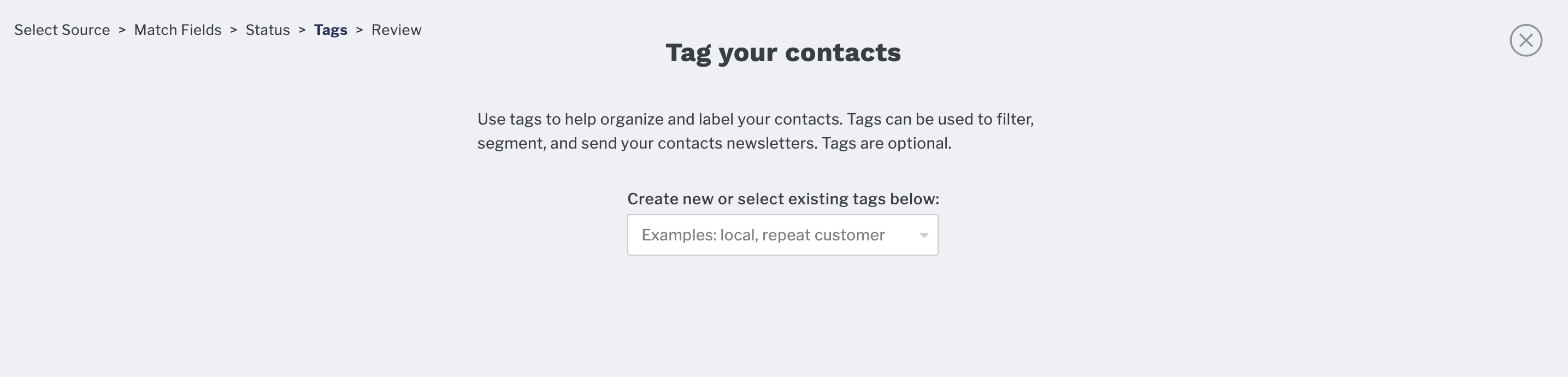
When you [import a spreadsheet](https://s3.amazonaws.com/privy.com/support/example_privy_import.csv) (CSV) of contacts, you will reach a **Tags** step. This step in the import process allows you to apply new or existing tags to all of the contacts included in the import file.
 ## Add Tags at signup via a display
To apply tags automatically when a contact signs up through a specific display, configure the **Signup Tagging** section in that display's settings. See [Signup Tagging](https://help.privy.com/docs/learn/displays/settings-overview#signup-tagging) under Display Advanced Settings.
## Add Tags to a Contact Profile
To add Privy Tags to contacts individually:
* Navigate to your [Contacts](https://dashboard.privy.com/contacts) page.
* Search for and select the contact that you'd like to tag.
* Select the **Add a tag** option from the *Attributes* section of the sidebar.
* Select an existing tag, or create a new one. You can add more than one tag, if desired. **Save.**
## Add or Remove Tags in Bulk
Apply or remove a tag across many contacts at once from the [Contacts](https://dashboard.privy.com/contacts) page:
* Filter the table to the contacts you want to tag, or leave it unfiltered.
* Select individual rows to act on specific contacts, or leave them unselected to act on every contact matching your filters. The Bulk Actions button shows the current selection count.
* Open the **Bulk Actions** menu and choose **Tag Contacts**.
* Choose **Add** or **Remove**, enter a tag name, and confirm. Tag names are saved in lowercase.
When you select rows individually, the action runs only on those contacts. When you leave rows unselected, the action runs on every contact matching your current filters; any rows you explicitly unchecked are skipped.
## Remove a Tag from a Contact Profile
To remove Privy Tags from a contact's profile:
* Navigate to your [Contacts](https://dashboard.privy.com/contacts) page.
* Search for and select the contact that you'd like to edit.
* Select the **Edit** option next to the contact's tags from the sidebar's *Attributes* section.
* Remove (X) the desired tags and **Save**.
## Put your Tags to work
Once a Privy Tag is applied to at least one contact, it becomes available for contact filtering, newsletter audience segmentation, and tag-based Flows.
### Apply Tags from a Flow
You can also apply tags automatically with a **Tag Contact** action in the [Flow builder](https://help.privy.com/docs/learn/flows/create-a-flow). When a contact reaches that step, Privy adds the Tag(s) you configured and they continue through the rest of the Flow. See [Create a Flow](https://help.privy.com/docs/learn/flows/create-a-flow#add-a-tag-contact-action) for setup steps.
### Trigger Flows from Tag changes
You can start a Flow when tags are added to or removed from a contact. In a [Start From Scratch](https://help.privy.com/docs/learn/flows/start-from-scratch) Flow, choose:
* **Contact Tagged** to start the Flow when one or more tags are applied.
* **Contact Untagged** to start the Flow when one or more tags are removed.
A tag-based Flow starts when the tag changes. Contacts who already have the tag will not enter until the tag is added or removed again after the Flow is active.
### Contact Filtering
* Navigate to your [Contacts](https://dashboard.privy.com/contacts) page.
* Click on the **Filters** dropdown menu and select the **Privy Tags** filter.
* Select which Tag(s) you'd like to filter by, and click **Apply** to apply the filters.
### Segmentation
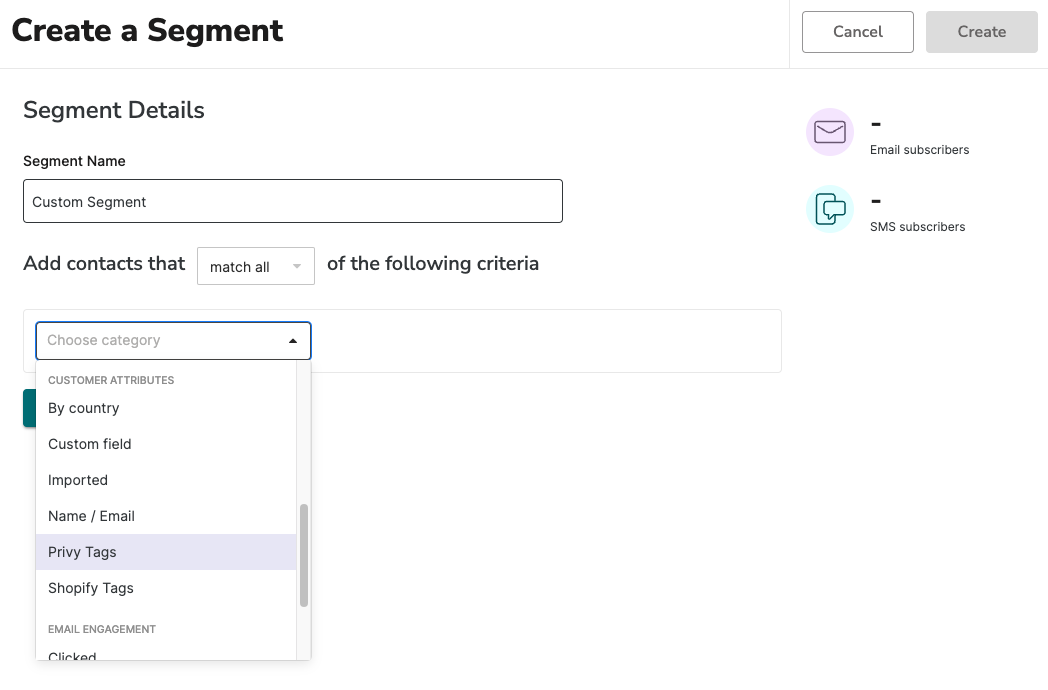
To use a tag for the segmentation of your Campaign recipients:
* Navigate to [Contacts > Segments](https://dashboard.privy.com/segments) on the left side of your dashboard.
* Select **Create Segment** in the upper right.
* Select the **Privy Tags** filter and select which Tag(s) you'd like to segment by.
## Add Tags at signup via a display
To apply tags automatically when a contact signs up through a specific display, configure the **Signup Tagging** section in that display's settings. See [Signup Tagging](https://help.privy.com/docs/learn/displays/settings-overview#signup-tagging) under Display Advanced Settings.
## Add Tags to a Contact Profile
To add Privy Tags to contacts individually:
* Navigate to your [Contacts](https://dashboard.privy.com/contacts) page.
* Search for and select the contact that you'd like to tag.
* Select the **Add a tag** option from the *Attributes* section of the sidebar.
* Select an existing tag, or create a new one. You can add more than one tag, if desired. **Save.**
## Add or Remove Tags in Bulk
Apply or remove a tag across many contacts at once from the [Contacts](https://dashboard.privy.com/contacts) page:
* Filter the table to the contacts you want to tag, or leave it unfiltered.
* Select individual rows to act on specific contacts, or leave them unselected to act on every contact matching your filters. The Bulk Actions button shows the current selection count.
* Open the **Bulk Actions** menu and choose **Tag Contacts**.
* Choose **Add** or **Remove**, enter a tag name, and confirm. Tag names are saved in lowercase.
When you select rows individually, the action runs only on those contacts. When you leave rows unselected, the action runs on every contact matching your current filters; any rows you explicitly unchecked are skipped.
## Remove a Tag from a Contact Profile
To remove Privy Tags from a contact's profile:
* Navigate to your [Contacts](https://dashboard.privy.com/contacts) page.
* Search for and select the contact that you'd like to edit.
* Select the **Edit** option next to the contact's tags from the sidebar's *Attributes* section.
* Remove (X) the desired tags and **Save**.
## Put your Tags to work
Once a Privy Tag is applied to at least one contact, it becomes available for contact filtering, newsletter audience segmentation, and tag-based Flows.
### Apply Tags from a Flow
You can also apply tags automatically with a **Tag Contact** action in the [Flow builder](https://help.privy.com/docs/learn/flows/create-a-flow). When a contact reaches that step, Privy adds the Tag(s) you configured and they continue through the rest of the Flow. See [Create a Flow](https://help.privy.com/docs/learn/flows/create-a-flow#add-a-tag-contact-action) for setup steps.
### Trigger Flows from Tag changes
You can start a Flow when tags are added to or removed from a contact. In a [Start From Scratch](https://help.privy.com/docs/learn/flows/start-from-scratch) Flow, choose:
* **Contact Tagged** to start the Flow when one or more tags are applied.
* **Contact Untagged** to start the Flow when one or more tags are removed.
A tag-based Flow starts when the tag changes. Contacts who already have the tag will not enter until the tag is added or removed again after the Flow is active.
### Contact Filtering
* Navigate to your [Contacts](https://dashboard.privy.com/contacts) page.
* Click on the **Filters** dropdown menu and select the **Privy Tags** filter.
* Select which Tag(s) you'd like to filter by, and click **Apply** to apply the filters.
### Segmentation
To use a tag for the segmentation of your Campaign recipients:
* Navigate to [Contacts > Segments](https://dashboard.privy.com/segments) on the left side of your dashboard.
* Select **Create Segment** in the upper right.
* Select the **Privy Tags** filter and select which Tag(s) you'd like to segment by.