> ## Documentation Index
> Fetch the complete documentation index at: https://help.privy.com/llms.txt
> Use this file to discover all available pages before exploring further.
# Coupon Codes
> Create, manage, and use coupon codes to reward new sign ups and incentivize purchases.
Coupon codes are great for rewarding loyal customers or encouraging visitors to take a specific action, such as signing up for your email list or completing a purchase. Follow the instructions below to learn how to create and manage coupons, as well as insert them into your content.
## Create a coupon
To create a new coupon code:
* Navigate to [Coupons](https://dashboard.privy.com/coupons) from the main navigation in your Privy dashboard.
* Select **New Coupon**.
* Give your new coupon a title, such as "Welcome Discount" — customers will not see this title.
* Select the source of your coupon. You will be able to select from three different locations:
* **Shopify** or **BigCommerce**. These options allow you to push discounts to Shopify or BigCommerce without leaving your Privy account. If you are integrated with one of these providers, this option should be your go-to.
* **Manual**. Suppose you're not a Shopify or BigCommerce customer. In that case, you can manually create coupons in Privy individually or in bulk by uploading a file of codes to be distributed one at a time.
If you are using a Manual coupon code, you must also create the coupon code(s) in your store in order for them to be valid at checkout.
* Select the type of coupon you'd like to use:
* **Master Coupon:** Deliver one single code given to all sign ups or email/text recipients (i.e., "HELLO10")
* **Unique Coupon:** Deliver codes that are uniquely generated for each individual sign up or email/text recipients. These appear as a random string of numbers and letters, and you have the option to add a prefix. (i.e., "HELLO-5HB28Z4")
* Configure your discount rules:
* Create your code (or your option Code Prefix, if using a Unique Coupon).
* Select your discount type (fixed amount, percentage, free shipping)
* Add any additional rules, such as minimum purchase amount.
* Set a schedule if your coupon needs specific start and end dates (this setting is optional). **Save.**
## Edit or delete a coupon
To edit a coupon's settings, or to delete it from Privy:
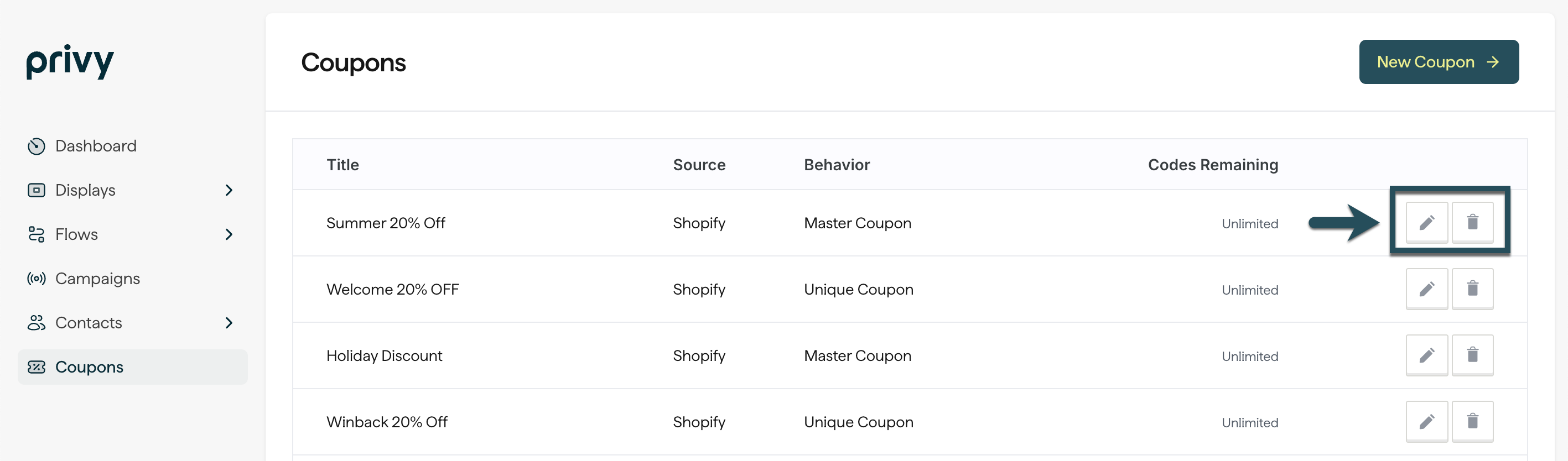
* Navigate to [Coupons](https://dashboard.privy.com/coupons) from the main navigation in your Privy dashboard.
* Locate the coupon you'd like to manage. Select either the **Edit** icon to edit the coupon's settings, or the **Delete** icon to remove it from Privy.
 ## Insert a coupon into your content
### Displays
**To attach a coupon to a display:**
1. Head to [Displays](https://dashboard.privy.com/displays).
2. Select an existing display or create a new display.
3. Head to the display's *Settings* tab and select the **Coupon** card.
4. Select which coupon you'd like to attach to the display.
5. Check the 'Auto apply coupon to card' option if you'd like to streamline the checkout process by removing the need for your customer to manually enter their coupon code at checkout. **Save.**
**To display your coupon code on your display's Thank You Page:**
1. In the display editor, navigate to your Thank You Page from the bottom navigation bar.
2. Add a text box and copy/paste the following variable: `{{ signup.coupon_code }}`
3. Make any other changes as needed, then **Save.**
**To display your coupon code in your After Signup Email:**
1. In the display editor, head to your **Follow-Up** step.
2. Select your After Signup Email.
3. When editing the text in your email, select the **Merge Tag** menu and choose the **Coupon Code** option to insert your code's variable into your content. **Save.**
### Email Campaigns
**To insert a coupon into your email campaign:**
1. Head to your [Campaigns](https://dashboard.privy.com/message-campaigns) page. Click on an existing draft, or create a new campaign.
2. Drag a Coupon block into your email body from the content menu on the left.
3. Choose the coupon code you'd like to attach.
**Note:** Unique coupon codes are not supported for BigCommerce users in Campaigns. To include a master coupon, [create the coupon code](https://support.bigcommerce.com/s/article/Using-Coupon-Codes?language=en_US#create) in your BigCommerce account first, and then incorporate the code directly into the content of your Privy newsletter (as a text element, in an image, etc.)
### Flows
**To attach a coupon to a Flow:**
1. Head to [Flows](https://dashboard.privy.com/flows). Select an existing draft, or create a new Flow.
2. Click to **Edit settings** on the left side.
3. Locate your **Coupon** setting and select which coupon you'd like to attach. **Save.**
**To insert a coupon in your Flow:**
1. Head to [Flows](https://dashboard.privy.com/flows). Select an existing draft, or create a new Flow.
2. Select the 'edit' icon at the bottom of the email you'd like to edit.
3. Once you're in the email editor, drag a Coupon block into your email body from the content menu on the left.
4. Confirm the coupon you'd like to attach and **save.**
### SMS
**To insert a coupon into an SMS Campaign:**
1. Head to your [Campaigns](https://dashboard.privy.com/message-campaigns). Select an existing draft, or create a new text message.
2. Click the **Coupon** icon in the bottom right corner of your message.
3. Attach your desired code from the dropdown beneath *Select Coupon Code*.
**To attach a coupon to an SMS message in a Flow:**
1. When editing your text message, select the **Personalization** dropdown menu and select **Coupon Code** to insert the attached coupon code into your content.
2. Scroll to the *Coupon* card and attach the desired coupon code.
3. **Save** your changes.
## Insert a coupon into your content
### Displays
**To attach a coupon to a display:**
1. Head to [Displays](https://dashboard.privy.com/displays).
2. Select an existing display or create a new display.
3. Head to the display's *Settings* tab and select the **Coupon** card.
4. Select which coupon you'd like to attach to the display.
5. Check the 'Auto apply coupon to card' option if you'd like to streamline the checkout process by removing the need for your customer to manually enter their coupon code at checkout. **Save.**
**To display your coupon code on your display's Thank You Page:**
1. In the display editor, navigate to your Thank You Page from the bottom navigation bar.
2. Add a text box and copy/paste the following variable: `{{ signup.coupon_code }}`
3. Make any other changes as needed, then **Save.**
**To display your coupon code in your After Signup Email:**
1. In the display editor, head to your **Follow-Up** step.
2. Select your After Signup Email.
3. When editing the text in your email, select the **Merge Tag** menu and choose the **Coupon Code** option to insert your code's variable into your content. **Save.**
### Email Campaigns
**To insert a coupon into your email campaign:**
1. Head to your [Campaigns](https://dashboard.privy.com/message-campaigns) page. Click on an existing draft, or create a new campaign.
2. Drag a Coupon block into your email body from the content menu on the left.
3. Choose the coupon code you'd like to attach.
**Note:** Unique coupon codes are not supported for BigCommerce users in Campaigns. To include a master coupon, [create the coupon code](https://support.bigcommerce.com/s/article/Using-Coupon-Codes?language=en_US#create) in your BigCommerce account first, and then incorporate the code directly into the content of your Privy newsletter (as a text element, in an image, etc.)
### Flows
**To attach a coupon to a Flow:**
1. Head to [Flows](https://dashboard.privy.com/flows). Select an existing draft, or create a new Flow.
2. Click to **Edit settings** on the left side.
3. Locate your **Coupon** setting and select which coupon you'd like to attach. **Save.**
**To insert a coupon in your Flow:**
1. Head to [Flows](https://dashboard.privy.com/flows). Select an existing draft, or create a new Flow.
2. Select the 'edit' icon at the bottom of the email you'd like to edit.
3. Once you're in the email editor, drag a Coupon block into your email body from the content menu on the left.
4. Confirm the coupon you'd like to attach and **save.**
### SMS
**To insert a coupon into an SMS Campaign:**
1. Head to your [Campaigns](https://dashboard.privy.com/message-campaigns). Select an existing draft, or create a new text message.
2. Click the **Coupon** icon in the bottom right corner of your message.
3. Attach your desired code from the dropdown beneath *Select Coupon Code*.
**To attach a coupon to an SMS message in a Flow:**
1. When editing your text message, select the **Personalization** dropdown menu and select **Coupon Code** to insert the attached coupon code into your content.
2. Scroll to the *Coupon* card and attach the desired coupon code.
3. **Save** your changes.