> ## Documentation Index
> Fetch the complete documentation index at: https://help.privy.com/llms.txt
> Use this file to discover all available pages before exploring further.
# Create a Landing Page
> Publish a sign up form that lives on its own URL so that you can grow your list from anywhere.
A Landing Page is a standalone web page that is specifically designed to receive and convert traffic from sources outside of your website — they're great for linking in advertisements, your social media, and even for using at in-person events.
Unlike a traditional web page, which typically encourages a visitor to explore additional content, a Landing Page is an entirely self-contained display designed with a single focus: convert the visitor into a lead.
## Create a new Landing Page
* Navigate to [Displays](https://dashboard.privy.com/displays).
* Click **Create new display**. This will open our Templates page.
* Our Landing Page needs to be built using our Classic display builder, so navigate to this builder by selecting the **Get started** option in the lower left corner of your screen.
* Name your display in the following prompt, specify whether you want to collect email, phone, or both, and select **Create display**.
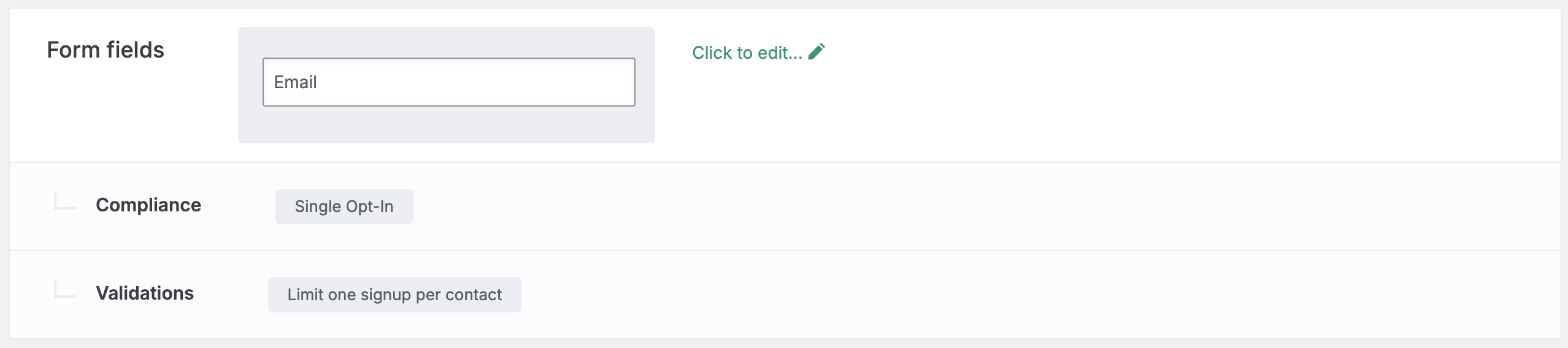
* In the *Create* step of the Classic display builder, you can click to edit:
* **Form Fields:** what information you want to collect at sign up.
* **Compliance:** whether you want new sign ups to go through a Single Opt-In or Double Opt-In process.
* **Validations:** set any rules to restrict who may sign up for your display.
 * Click to **Add a display**.
* On the following screen, select **Landing Page** from the left side. Browse the templates and choose which one you’d like to start with. Press **Choose selected** in the upper right corner to open the designer.
## Customize your Landing Page
Now that you’ve selected a template to start from, it’s time to customize your display’s appearance:
### Add new elements
To add a new text box or image, click **+ Add new element** on the left.
### Edit existing elements
To edit existing elements, click directly on them in your display. You can edit their settings, duplicate, or delete the element on the left.
Under your *Elements* on the left, you can drag your elements to reorder them and edit your display’s background color or image.
Once you're happy with your Landing Page's appearance, click **Save & Close** in the upper right corner.
## Customize your Thank You Page
After saving your changes, you’ll be brought back to the *Create* step of your display builder. You’ll want to customize your display’s Thank You Page to confirm your contact's sign up.
* Scroll down and click to edit your **Thank You Page Design**.
* If you're offering a coupon code in exchange for a sign up, be sure to include the `{{ signup.coupon_code }}` merge tag on your Thank You Page.
**Want to redirect new contacts to your website after signing up?** Press **+ Add element** on the left to add a button. Paste your website's URL and customize your button.
## Edit your settings
### Attach a coupon code
If you are offering a coupon code in exchange for a sign up, be sure to attach your coupon to your display:
* In your display's *Create* step, scroll to edit the **Coupon** section and select the desired Coupon from the dropdown menu. **Save.**
### Targeting
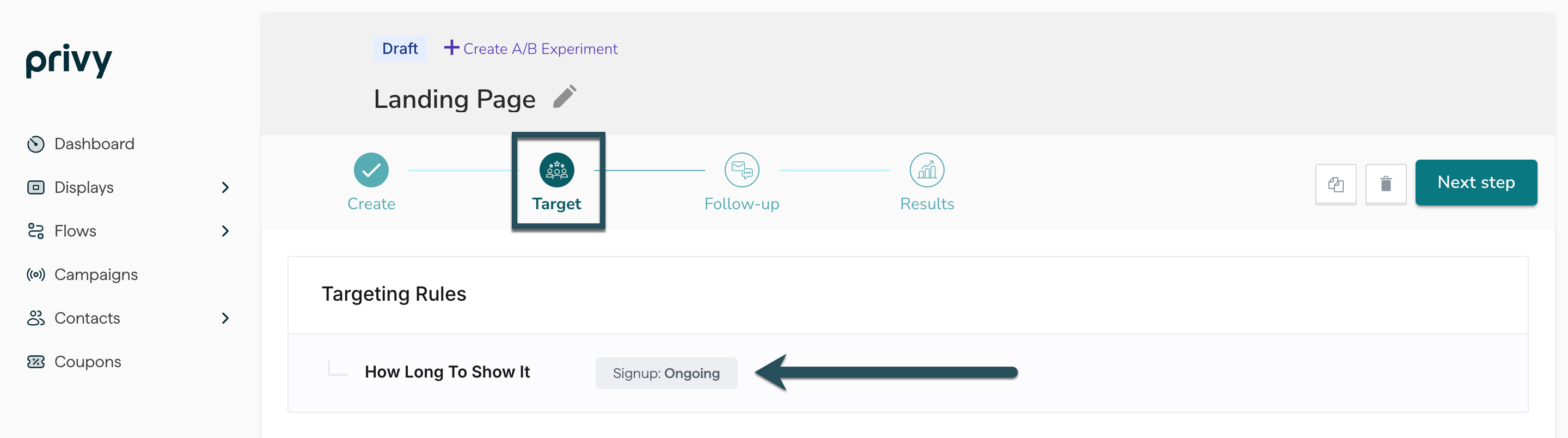
Since a Landing Page only appears when it is visited, the only audience targeting option revolves around how long the page is available. If you would like the display to expire after a fixed period, move to the *Target* step and update the **How Long to Show It** setting.
* Click to **Add a display**.
* On the following screen, select **Landing Page** from the left side. Browse the templates and choose which one you’d like to start with. Press **Choose selected** in the upper right corner to open the designer.
## Customize your Landing Page
Now that you’ve selected a template to start from, it’s time to customize your display’s appearance:
### Add new elements
To add a new text box or image, click **+ Add new element** on the left.
### Edit existing elements
To edit existing elements, click directly on them in your display. You can edit their settings, duplicate, or delete the element on the left.
Under your *Elements* on the left, you can drag your elements to reorder them and edit your display’s background color or image.
Once you're happy with your Landing Page's appearance, click **Save & Close** in the upper right corner.
## Customize your Thank You Page
After saving your changes, you’ll be brought back to the *Create* step of your display builder. You’ll want to customize your display’s Thank You Page to confirm your contact's sign up.
* Scroll down and click to edit your **Thank You Page Design**.
* If you're offering a coupon code in exchange for a sign up, be sure to include the `{{ signup.coupon_code }}` merge tag on your Thank You Page.
**Want to redirect new contacts to your website after signing up?** Press **+ Add element** on the left to add a button. Paste your website's URL and customize your button.
## Edit your settings
### Attach a coupon code
If you are offering a coupon code in exchange for a sign up, be sure to attach your coupon to your display:
* In your display's *Create* step, scroll to edit the **Coupon** section and select the desired Coupon from the dropdown menu. **Save.**
### Targeting
Since a Landing Page only appears when it is visited, the only audience targeting option revolves around how long the page is available. If you would like the display to expire after a fixed period, move to the *Target* step and update the **How Long to Show It** setting.
 ## Edit your Follow-Up actions
Once you’ve finalized your settings and audience targeting, you’ll want to make sure that you’re properly following up with your new sign up. Head to the *Follow-Up* step of your builder.
## Edit your Follow-Up actions
Once you’ve finalized your settings and audience targeting, you’ll want to make sure that you’re properly following up with your new sign up. Head to the *Follow-Up* step of your builder.
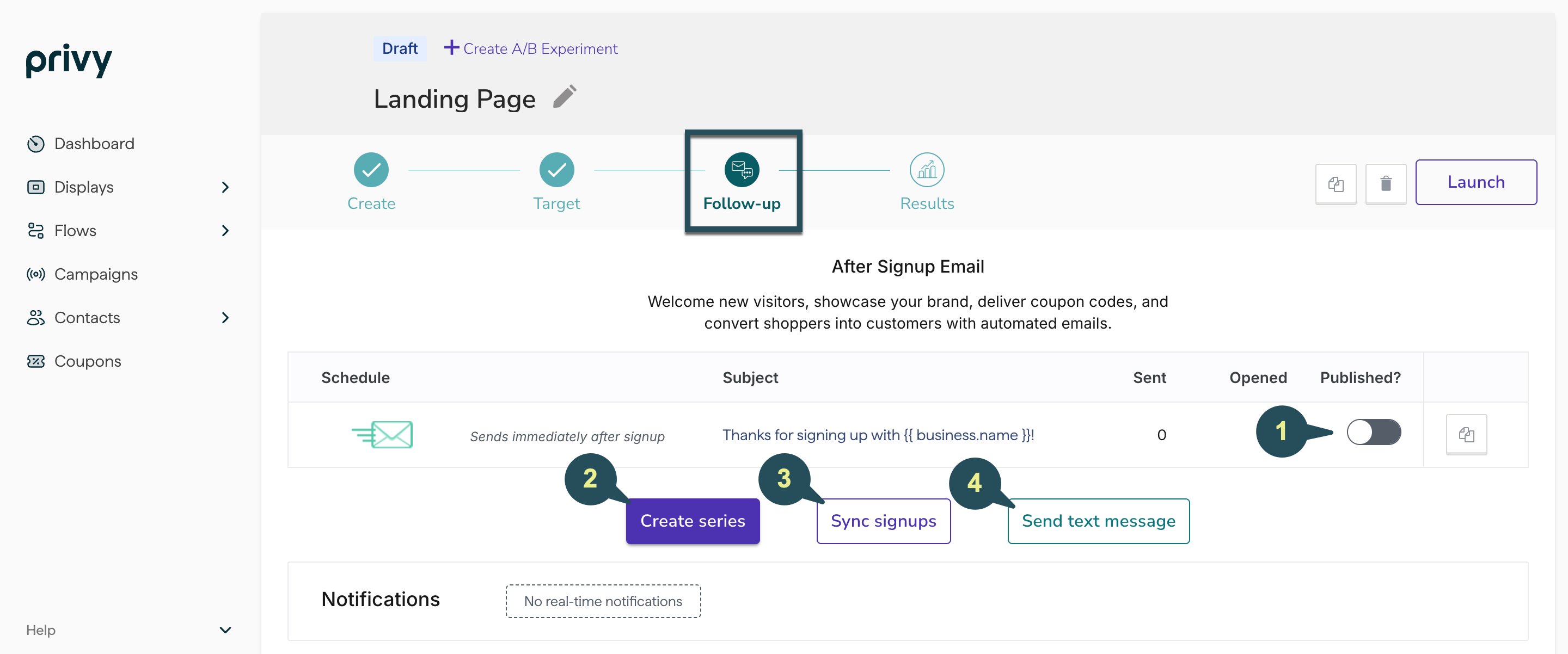 Click on your After Signup Email to view and edit your template, subject line, and sender info. [Learn more about our drag-and-drop email editor.](https://help.privy.com/docs/learn/email-campaigns/email-templates) Make sure that you **Publish** your email so that it sends to new sign ups.
If you want to create a series of more than one After Signup Email for this specific display, select this option.
If you're syncing new sign ups to a [Linked Account](https://help.privy.com/docs/learn/integrations/overview-integrations), be sure to add a sync rule here.
If you're on the Growth Plan and you're collecting SMS contacts with this display, you can create an After Signup Text to deliver to new contacts after they complete their Double Opt-In.
Enable or disable real-time notifications for your users. These notifications will alert the user of new display signups immediately. **Save**.
## Launch your Landing Page
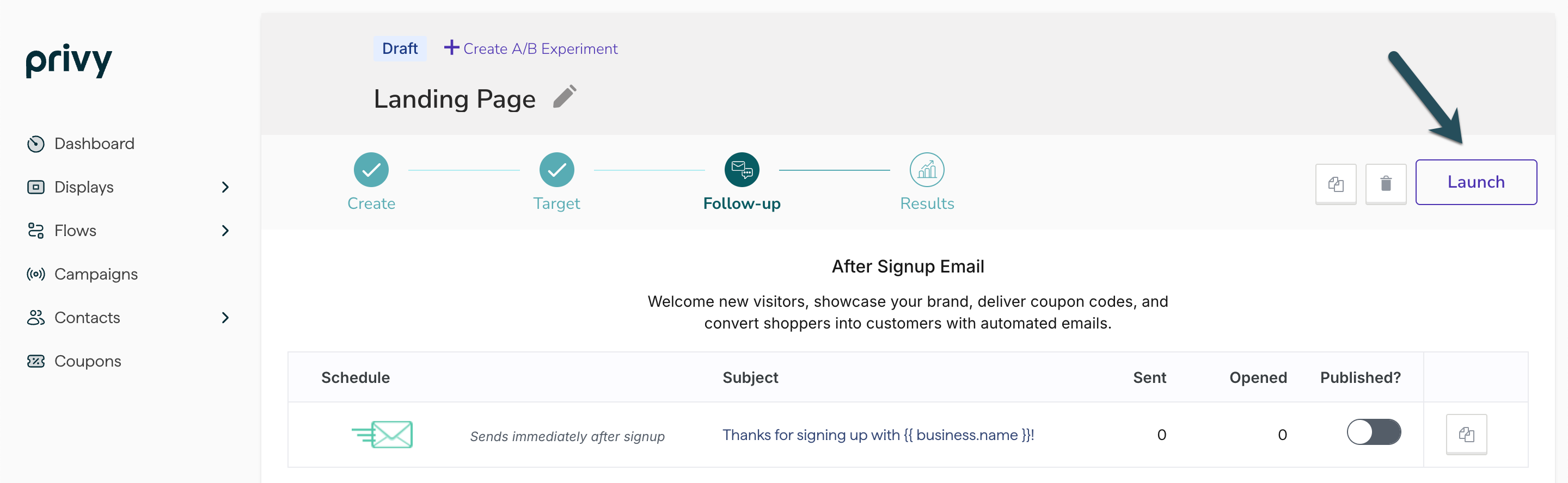
Once you’ve finalized your design, targeting, and follow-up actions, select the **Publish** button at the upper right of the *Follow-Up* step and confirm your decision in the prompt.
Click on your After Signup Email to view and edit your template, subject line, and sender info. [Learn more about our drag-and-drop email editor.](https://help.privy.com/docs/learn/email-campaigns/email-templates) Make sure that you **Publish** your email so that it sends to new sign ups.
If you want to create a series of more than one After Signup Email for this specific display, select this option.
If you're syncing new sign ups to a [Linked Account](https://help.privy.com/docs/learn/integrations/overview-integrations), be sure to add a sync rule here.
If you're on the Growth Plan and you're collecting SMS contacts with this display, you can create an After Signup Text to deliver to new contacts after they complete their Double Opt-In.
Enable or disable real-time notifications for your users. These notifications will alert the user of new display signups immediately. **Save**.
## Launch your Landing Page
Once you’ve finalized your design, targeting, and follow-up actions, select the **Publish** button at the upper right of the *Follow-Up* step and confirm your decision in the prompt.
 Your Landing Page is now live and available at the link listed in the *Create* step next to the **Landing Page Design** header! [You can also review its reporting at any time.](https://help.privy.com/docs/learn/displays/reporting-overview)
**Note:** The landing page URL will only show when the display is published. If you stop the display, the link will not appear until you have re-published it.
Your Landing Page is now live and available at the link listed in the *Create* step next to the **Landing Page Design** header! [You can also review its reporting at any time.](https://help.privy.com/docs/learn/displays/reporting-overview)
**Note:** The landing page URL will only show when the display is published. If you stop the display, the link will not appear until you have re-published it.