> ## Documentation Index
> Fetch the complete documentation index at: https://help.privy.com/llms.txt
> Use this file to discover all available pages before exploring further.
# Launch a Special Occasion Flow
> Send automated emails and SMS around birthdays, anniversaries, and other important dates on your contacts’ profiles.
**Special Occasion** flows (also called date-based flows) run on a schedule tied to a date stored on each contact—such as a birthday, anniversary, or another milestone you track. Use them to send timely offers, reminders, or personal messages when that date arrives.
Contacts must have a value for the date field you choose in the Flow trigger. Contacts without that date will not enter the Flow. Collect dates through [sign-up forms](https://help.privy.com/docs/learn/displays/form-fields-and-elements) or integrations that sync birthday or custom date fields (for example [Rivo](https://help.privy.com/docs/learn/integrations/rivo) or [Yotpo](https://help.privy.com/docs/learn/integrations/yotpo)).
## Create a new Special Occasion Flow
To get started:
* Navigate to **Flows** and click **Create Flow** in the upper right corner.
* Select **Special Occasion** from the template list.
## Customize trigger and audience settings
Select the **Trigger** block at the top of your Flow. The settings on the right control which date drives the Flow, when messages send relative to that date, and who may enter.
### 1. Occasion date and send timing
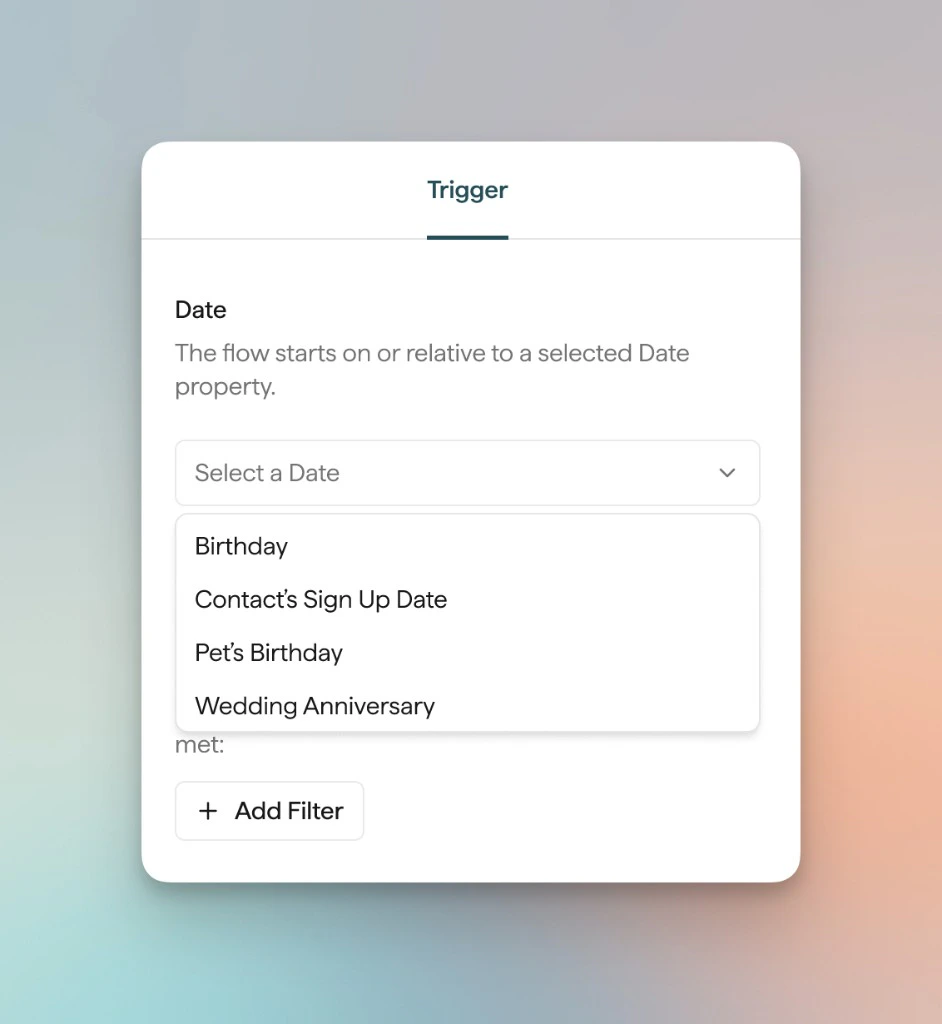
Under **Date**, the Flow starts on or relative to a **Date** property you select. Open **Select a Date** and choose which field to use—for example **Birthday**, **Contact’s Sign Up Date**, **Pet’s Birthday**, or **Wedding Anniversary**. Only contacts with a value for that field can enter this Flow.
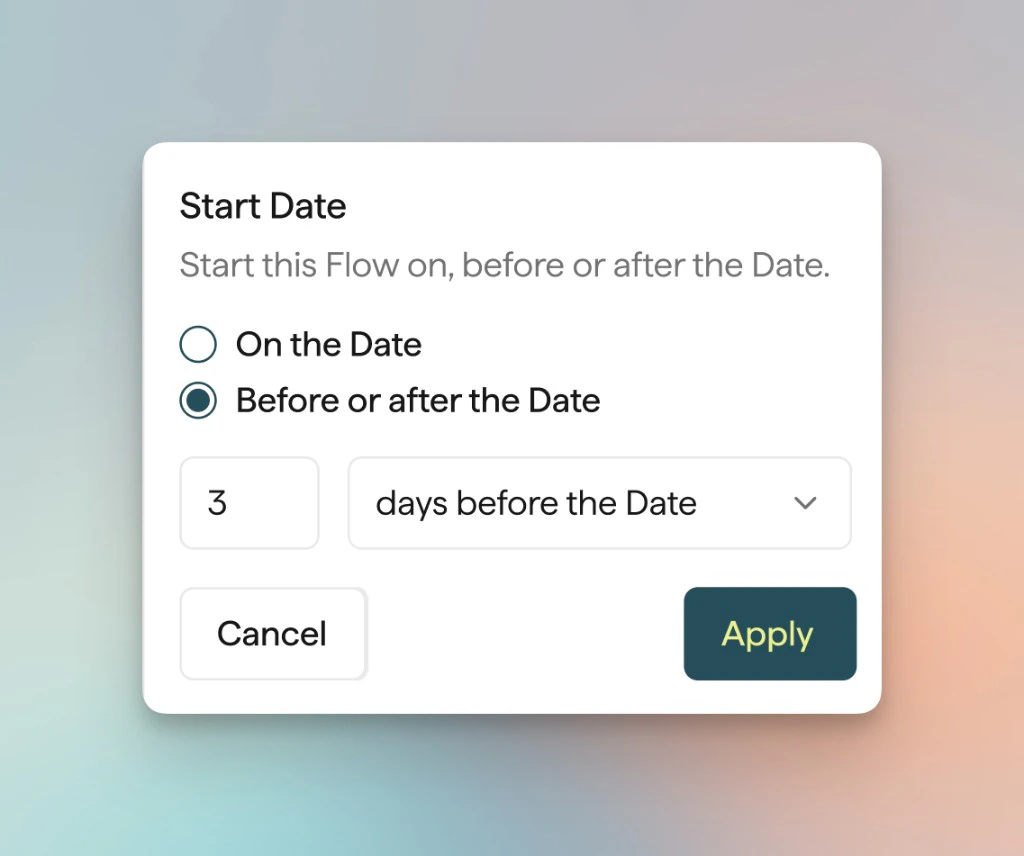
 Use **Start Date** to choose whether the Flow starts **On the Date** or **Before or after the Date**. If you choose before or after, enter a number and use the dropdown to set the offset (for example **days before the Date** or **days after the Date**), then click **Apply**.
 Use **time delays** between email and SMS blocks if you want multiple touches spread out before or after the occasion.
### 2. Flow Filters
Add **Flow Filters** (for example **+ Add Filter**) to limit which contacts can enter—for example by list membership, tags, or other attributes. Filters apply on top of the date-field requirement.
### 3. Exit Criteria
Optionally remove contacts from the Flow when they meet an exit condition (for example if they place an order while in the Flow), depending on your template and settings.
### 4. Entry Frequency
Control how often a contact may re-enter after they have already gone through this Flow—for example **No re-entry** once per year versus **Delayed re-entry** after a cooling-off period. Choose what matches how often you want the same person to receive this series.
## Personalize messages
* **Date Liquid tags:** Use the `date.*` merge tags (`date.month`, `date.day`, `date.year`, `date.age`, `date.property_name`) in Flow email and SMS content. See the **Special Occasion** table in [Product Merge Tags in Flows](https://help.privy.com/docs/learn/content/personalization-tags#special-occasion).
* **Product content:** In Flow emails, you can use [product merge tags](https://help.privy.com/docs/learn/content/personalization-tags#product-merge-tags-in-flows) and **Product** blocks where supported so recommendations or creative match the Flow context.
* **Tags:** Use a [Tag Contact](https://help.privy.com/docs/learn/flows/create-a-flow#add-a-tag-contact-action) action to label contacts as they move through the Flow (for example after they receive a birthday offer).
For step-by-step help adding emails, SMS, delays, splits, and other blocks, see [Create a Flow](https://help.privy.com/docs/learn/flows/create-a-flow).
## Publish your Flow
When you are ready, click **Publish** in the upper right. The Flow will run for eligible contacts according to your trigger, timing, and filters.
You can [review performance](https://help.privy.com/docs/learn/flows/reporting) at any time from **Reporting** in the Flow builder.
Use **time delays** between email and SMS blocks if you want multiple touches spread out before or after the occasion.
### 2. Flow Filters
Add **Flow Filters** (for example **+ Add Filter**) to limit which contacts can enter—for example by list membership, tags, or other attributes. Filters apply on top of the date-field requirement.
### 3. Exit Criteria
Optionally remove contacts from the Flow when they meet an exit condition (for example if they place an order while in the Flow), depending on your template and settings.
### 4. Entry Frequency
Control how often a contact may re-enter after they have already gone through this Flow—for example **No re-entry** once per year versus **Delayed re-entry** after a cooling-off period. Choose what matches how often you want the same person to receive this series.
## Personalize messages
* **Date Liquid tags:** Use the `date.*` merge tags (`date.month`, `date.day`, `date.year`, `date.age`, `date.property_name`) in Flow email and SMS content. See the **Special Occasion** table in [Product Merge Tags in Flows](https://help.privy.com/docs/learn/content/personalization-tags#special-occasion).
* **Product content:** In Flow emails, you can use [product merge tags](https://help.privy.com/docs/learn/content/personalization-tags#product-merge-tags-in-flows) and **Product** blocks where supported so recommendations or creative match the Flow context.
* **Tags:** Use a [Tag Contact](https://help.privy.com/docs/learn/flows/create-a-flow#add-a-tag-contact-action) action to label contacts as they move through the Flow (for example after they receive a birthday offer).
For step-by-step help adding emails, SMS, delays, splits, and other blocks, see [Create a Flow](https://help.privy.com/docs/learn/flows/create-a-flow).
## Publish your Flow
When you are ready, click **Publish** in the upper right. The Flow will run for eligible contacts according to your trigger, timing, and filters.
You can [review performance](https://help.privy.com/docs/learn/flows/reporting) at any time from **Reporting** in the Flow builder.