> ## Documentation Index
> Fetch the complete documentation index at: https://help.privy.com/llms.txt
> Use this file to discover all available pages before exploring further.
# Install Privy on BigCommerce
> Connect Privy to your BigCommerce store and start meaningfully engaging with customers.
A unique Privy code must be installed on your BigCommerce store to display your onsite campaigns, track visitor behavior (e.g., campaign views), and share other account information. The Privy app for BigCommerce performs this installation automatically without the need for development skills.
## Features of the integration
Installing Privy will not modify your store theme or change any store settings when installed through the marketplace. Installing the app will enable the following:
* **Privy Displays:** displays will show on your store's site
* **Reporting:** the collection of analytics information tied to your site and displays' views
* **Coupon Codes:** the creation and management of unique coupon codes for BigCommerce within Privy
* **Contact Management:** An option to export contacts directly from Privy's [contacts dashboard](https://dashboard.privy.com/contacts) to BigCommerce
## Limitations
* **Unique Coupon Codes:** Unique coupon codes are not supported for BigCommerce users in Campaigns. To include a master coupon, [create the coupon code](https://support.bigcommerce.com/s/article/Using-Coupon-Codes?language=en_US#create) in your BigCommerce account first, and then incorporate the code directly into the content of your Privy newsletter (as a text element, in an image, etc.)
* **Product Catalog Sync:** BigCommerce stores can currently use Abandoned Cart Email Flows and target displays by Cart Value, Cart Product ID, or Cart Variant ID. Cart Product ID and Cart Variant ID targeting requires entering numeric IDs in Audience Targeting settings for a Display. Product catalog sync, product or collection based segmentation, and product blocks in our email editor are in development and will be available soon.
## Setting up the integration
To install the Privy app for BigCommerce:
* Visit [Privy's listing](https://www.bigcommerce.com/apps/privy/?search=shop) in the BigCommerce App Marketplace.
* Click the **Get This App** button, provide your account credentials, and select the appropriate account if you have more than one associated with your information.
* On the app's information page, click the **Install** button.
* On the installation page, check the confirmation box and hit **Confirm**.
* Click **Connect** on the prompt and select a specific Privy account if more than one is detected.
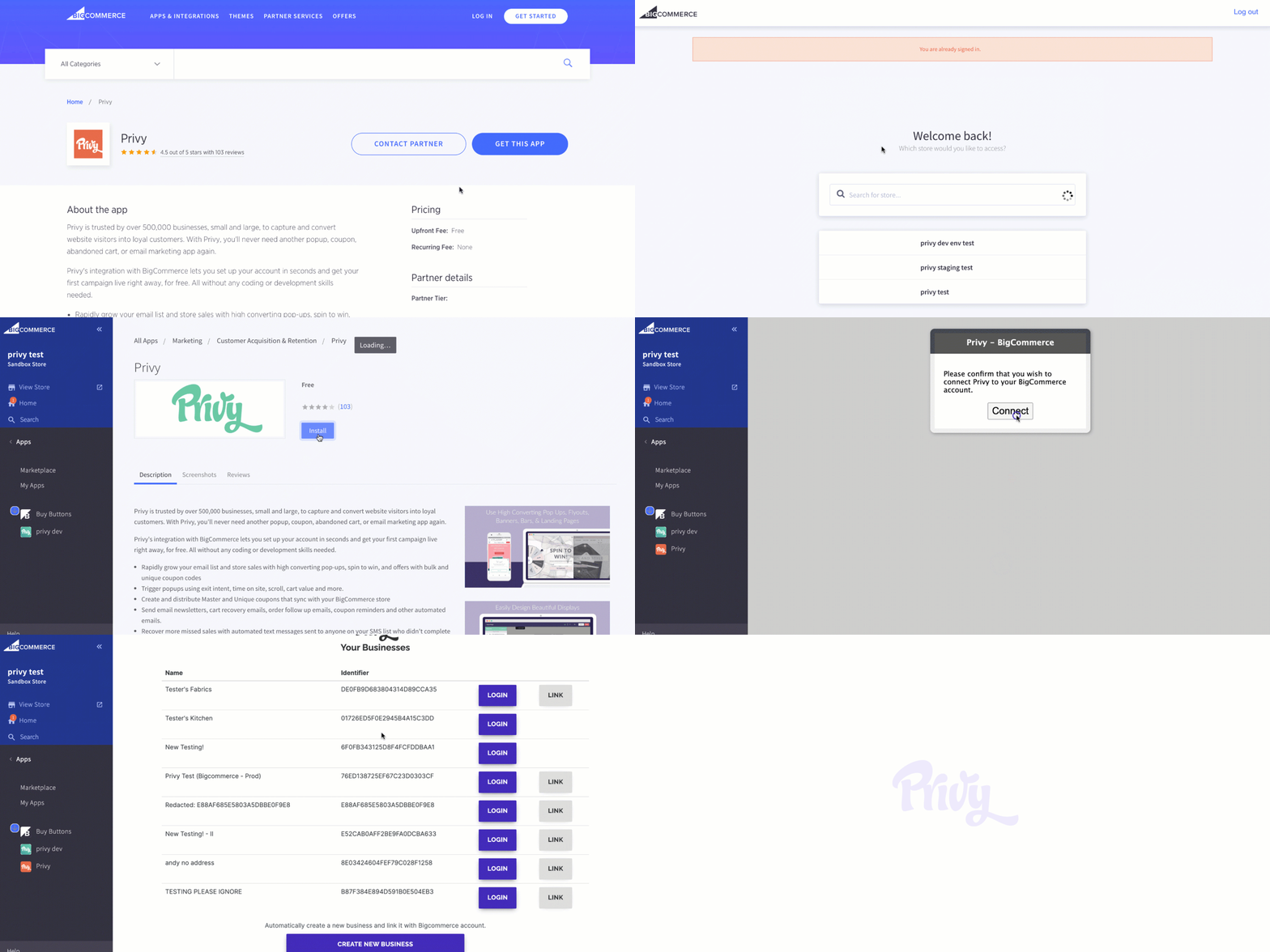 That's it! You'll now see the Linked Accounts section of your Privy account with BigCommerce listed as an active integration.
## Manual install
It is recommended that most users install the Privy app for BigCommerce automatically. Please confirm that the standard installation does not fit your situation before proceeding.
**To perform a manual install, you must determine your theme type.** BigCommerce supports two theme engines: Stencil and Blueprint. Stencil is BigCommerce's latest technology, and all new stores can only access Stencil themes. However, older stores use the legacy theme engine, Blueprint, which cannot render scripts inserted through the Script Manager.
Please use the steps and visual examples listed below to determine your store's current theme engine. The two engines offer distinct menu options and graphic styles. *Due to the number of theme variations and customizations, specific manual guidance cannot be provided for each theme available to users of the two theme engines.*
### Manual install on Blueprint Themes
To manually install Privy on a BigCommerce store using the Blueprint Theme:
* Copy your [Privy Code](https://dashboard.privy.com/settings/widget) from your Privy account's settings.
* From your BigCommerce dashboard, select Storefront Design. Under Design Options, select the **Themes** tab and then click **HTML/CSS** options. If you haven't made any previous changes to the default theme, you'll need to duplicate it before proceeding.
That's it! You'll now see the Linked Accounts section of your Privy account with BigCommerce listed as an active integration.
## Manual install
It is recommended that most users install the Privy app for BigCommerce automatically. Please confirm that the standard installation does not fit your situation before proceeding.
**To perform a manual install, you must determine your theme type.** BigCommerce supports two theme engines: Stencil and Blueprint. Stencil is BigCommerce's latest technology, and all new stores can only access Stencil themes. However, older stores use the legacy theme engine, Blueprint, which cannot render scripts inserted through the Script Manager.
Please use the steps and visual examples listed below to determine your store's current theme engine. The two engines offer distinct menu options and graphic styles. *Due to the number of theme variations and customizations, specific manual guidance cannot be provided for each theme available to users of the two theme engines.*
### Manual install on Blueprint Themes
To manually install Privy on a BigCommerce store using the Blueprint Theme:
* Copy your [Privy Code](https://dashboard.privy.com/settings/widget) from your Privy account's settings.
* From your BigCommerce dashboard, select Storefront Design. Under Design Options, select the **Themes** tab and then click **HTML/CSS** options. If you haven't made any previous changes to the default theme, you'll need to duplicate it before proceeding.
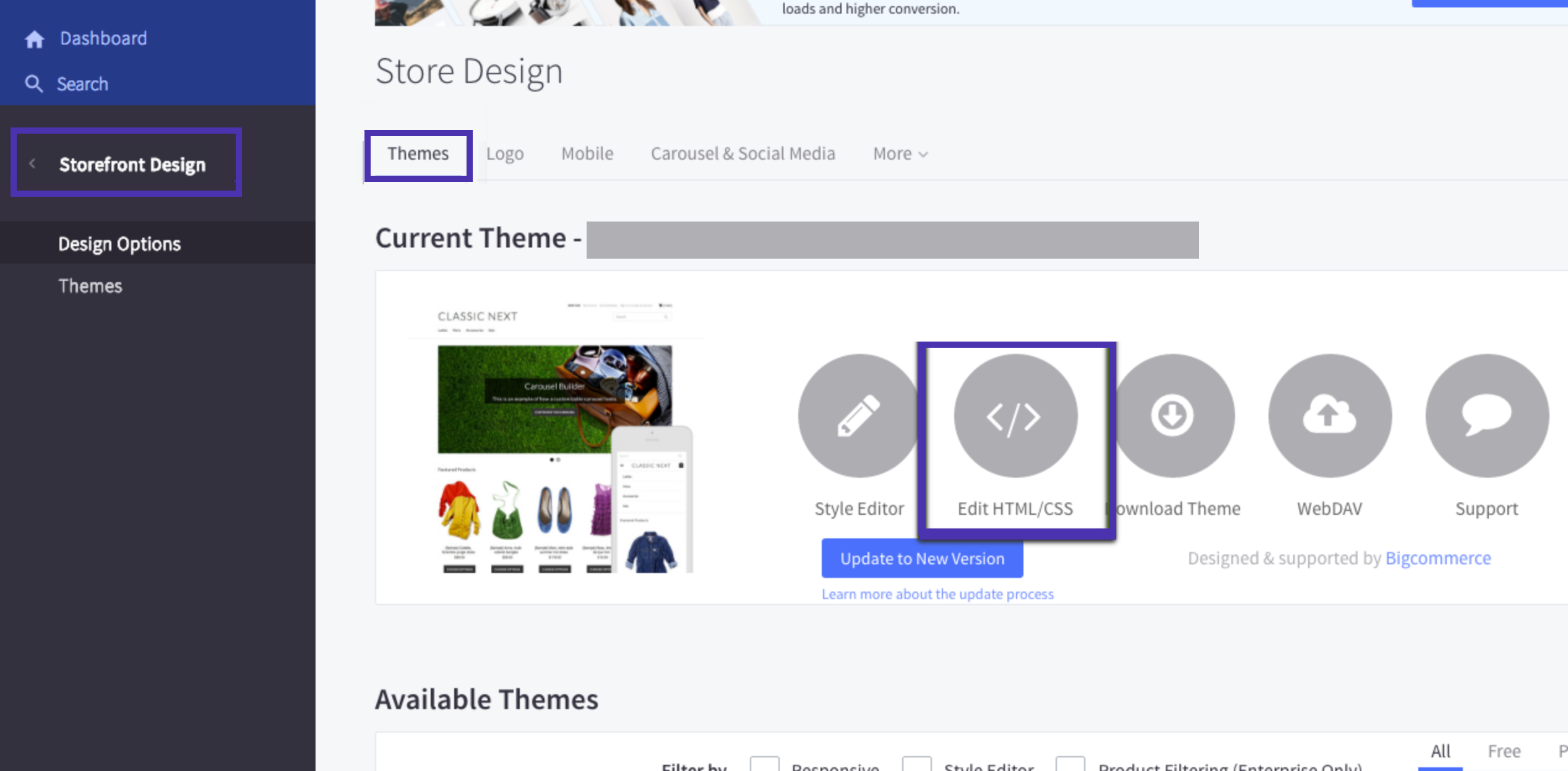 * In the new window, find and select the **Header.html** section from the sidebar.
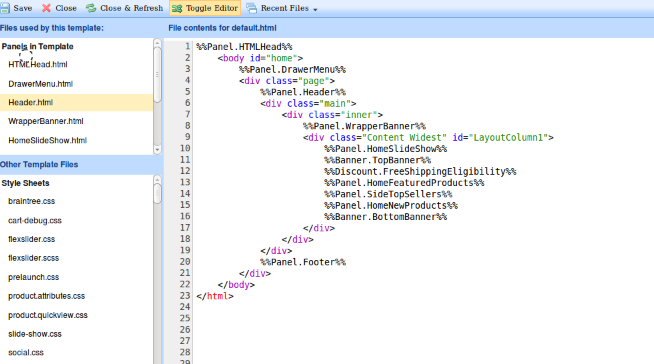 * Paste the copied Privy code to the bottom of the Header.html page, then click **Save**.
### Manual install on Stencil Themes
To manually install Privy on a BigCommerce store using the Stencil Theme:
* Copy your [Privy Code](https://dashboard.privy.com/settings/widget) from your Privy account's settings.
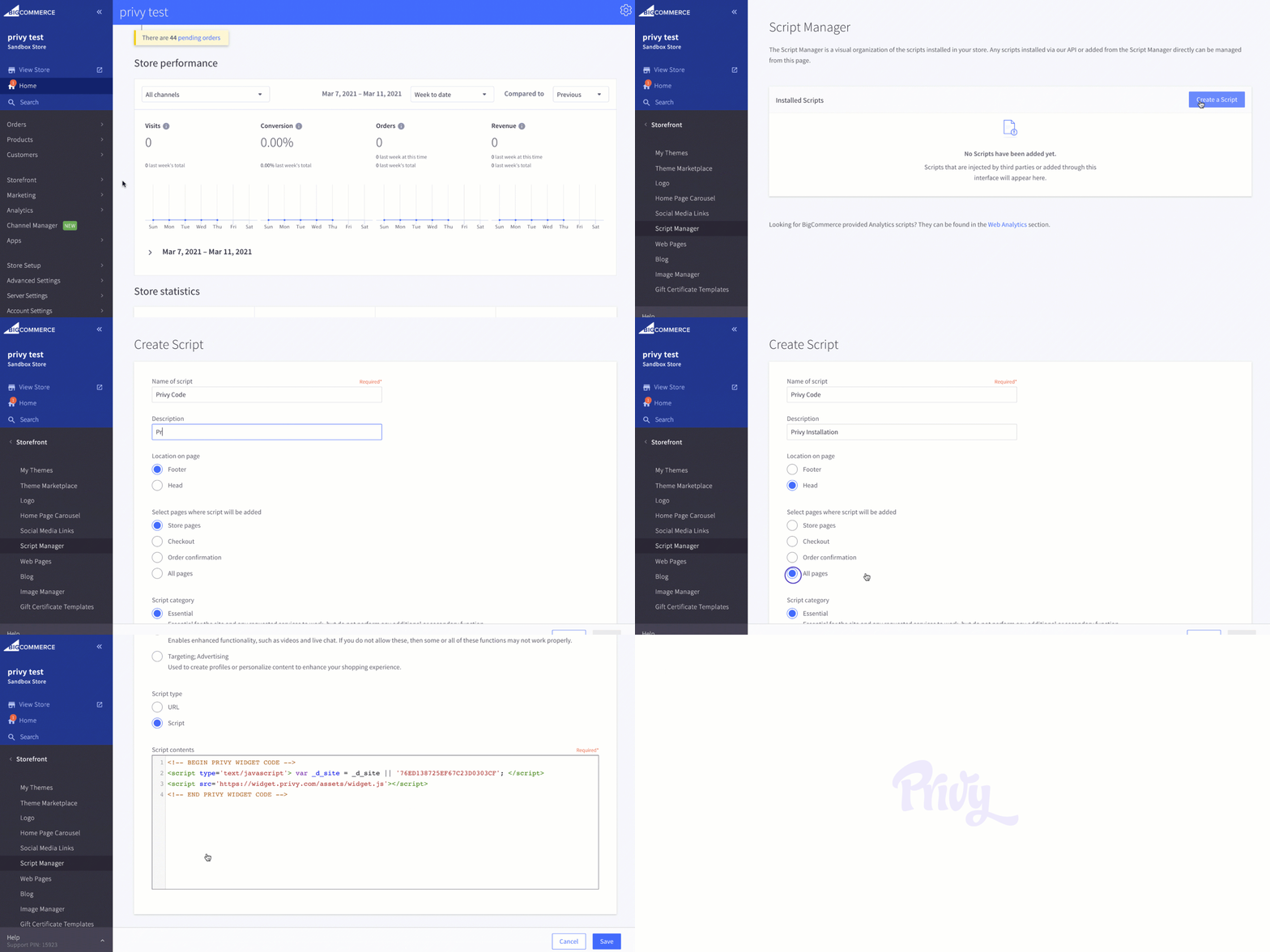
* From your dashboard in BigCommerce, select **Storefront** > **Script Manager** from the sidebar.
* Click the **Create a Script** option at the top-right. This will open a screen with form fields to create and install the Privy Code.
* Input a name and description that clearly indicates the code relates to Privy.
* Select the **Head** option under the location settings.
* Select the **All Pages** option under the page settings.
* Select the **Script** option under the script settings.
* Paste the copied code into the **Script contents** area and **Save**.
* Paste the copied Privy code to the bottom of the Header.html page, then click **Save**.
### Manual install on Stencil Themes
To manually install Privy on a BigCommerce store using the Stencil Theme:
* Copy your [Privy Code](https://dashboard.privy.com/settings/widget) from your Privy account's settings.
* From your dashboard in BigCommerce, select **Storefront** > **Script Manager** from the sidebar.
* Click the **Create a Script** option at the top-right. This will open a screen with form fields to create and install the Privy Code.
* Input a name and description that clearly indicates the code relates to Privy.
* Select the **Head** option under the location settings.
* Select the **All Pages** option under the page settings.
* Select the **Script** option under the script settings.
* Paste the copied code into the **Script contents** area and **Save**.
 [Contact Support](mailto:support@privy.com) for further troubleshooting steps and assistance.