> ## Documentation Index
> Fetch the complete documentation index at: https://help.privy.com/llms.txt
> Use this file to discover all available pages before exploring further.
# Review Results in Hubspot
> Track your sign up activity in Hubspot forms.
The Hubspot integration is no longer supported.
If you integrated Privy and Hubspot prior to December 2022, you can sync your sign ups to Hubspot by adding a sync rule to your displays. After launching your displays, the results will be available in your Hubspot account.
## Add a sync rule to your display
These rules must be added to each display individually.
1. Navigate to **Convert** > **All Displays**.
2. Select the display you'd like to sync and navigate to the **Settings** step of the display builder.
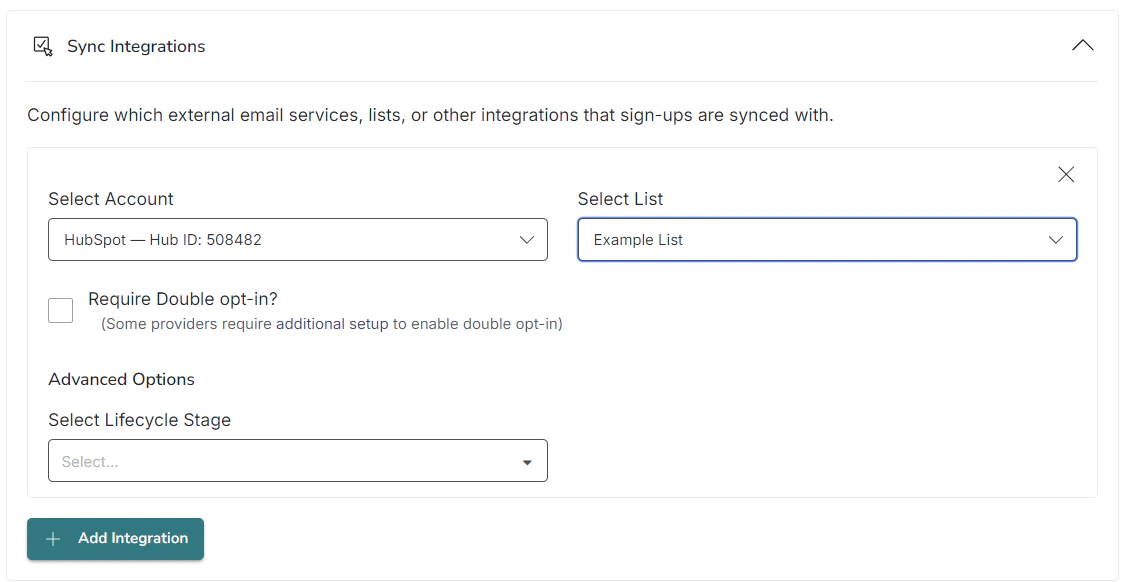
3. Click to **Show Advanced Settings** in the lower left. Select the **Sync Integrations** card and click to Add a new integration.
4. Select **Hubspot** from the dropdown menu, configure the presented options, and **Save**.
 **Note:** If you capture information beyond an email address, you must also ensure your form is mapped to the correct field in HubSpot. These mappings are case-sensitive.
Once you’ve successfully enabled and launched your campaign, you will be able to see the results within your Hubspot account in the “Forms” section. By default, Privy forms will be shown with the campaign number. We recommend changing the form's name to something more intuitive.
**Note:** If you capture information beyond an email address, you must also ensure your form is mapped to the correct field in HubSpot. These mappings are case-sensitive.
Once you’ve successfully enabled and launched your campaign, you will be able to see the results within your Hubspot account in the “Forms” section. By default, Privy forms will be shown with the campaign number. We recommend changing the form's name to something more intuitive.
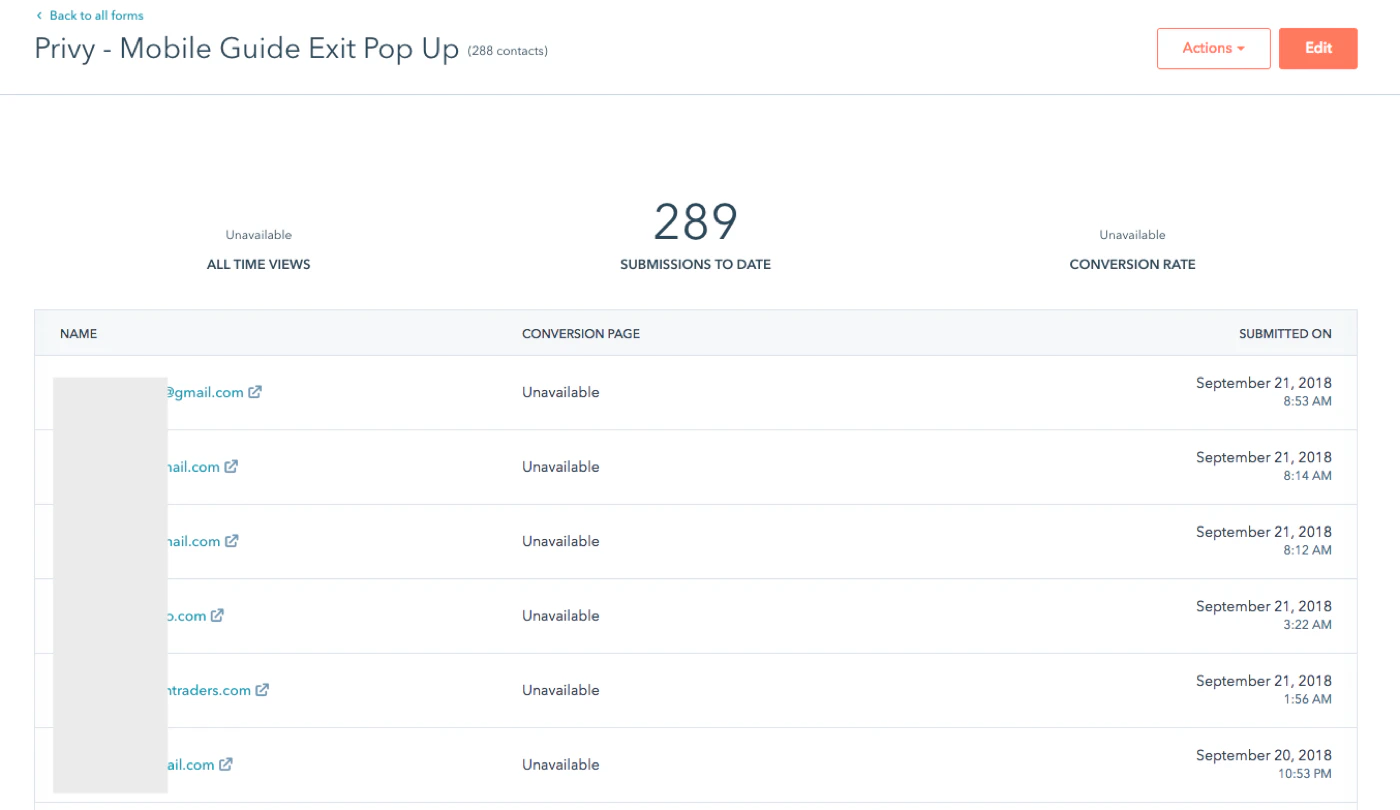 If you click on an individual submission, you can view that submission's details.
And this submission will show on the contact’s timeline.
If you click on an individual submission, you can view that submission's details.
And this submission will show on the contact’s timeline.
 This form will also be available in smart lists and workflows within HubSpot as a trigger event or filtering criteria.