> ## Documentation Index
> Fetch the complete documentation index at: https://help.privy.com/llms.txt
> Use this file to discover all available pages before exploring further.
# Connect Privy and Slack
> Track new leads generated by your Privy sign up displays in real-time.
When connecting Privy and your Slack app, you'll receive Slack notifications in real time, per display, whenever a new contact submits a sign up!
## Create a webhook
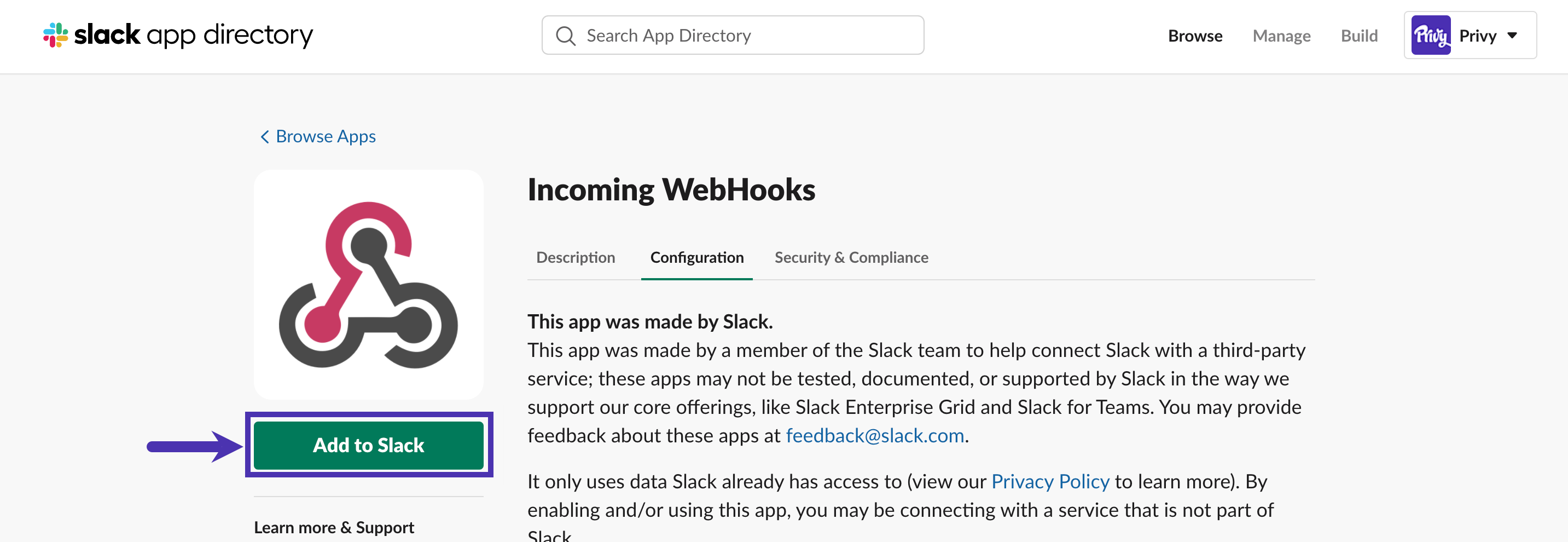
* Navigate to the [Incoming WebHooks](https://privy.slack.com/apps/A0F7XDUAZ-incoming-webhooks?next_id=0) app in the Slack directory.
* Click the **Add to Slack** button.
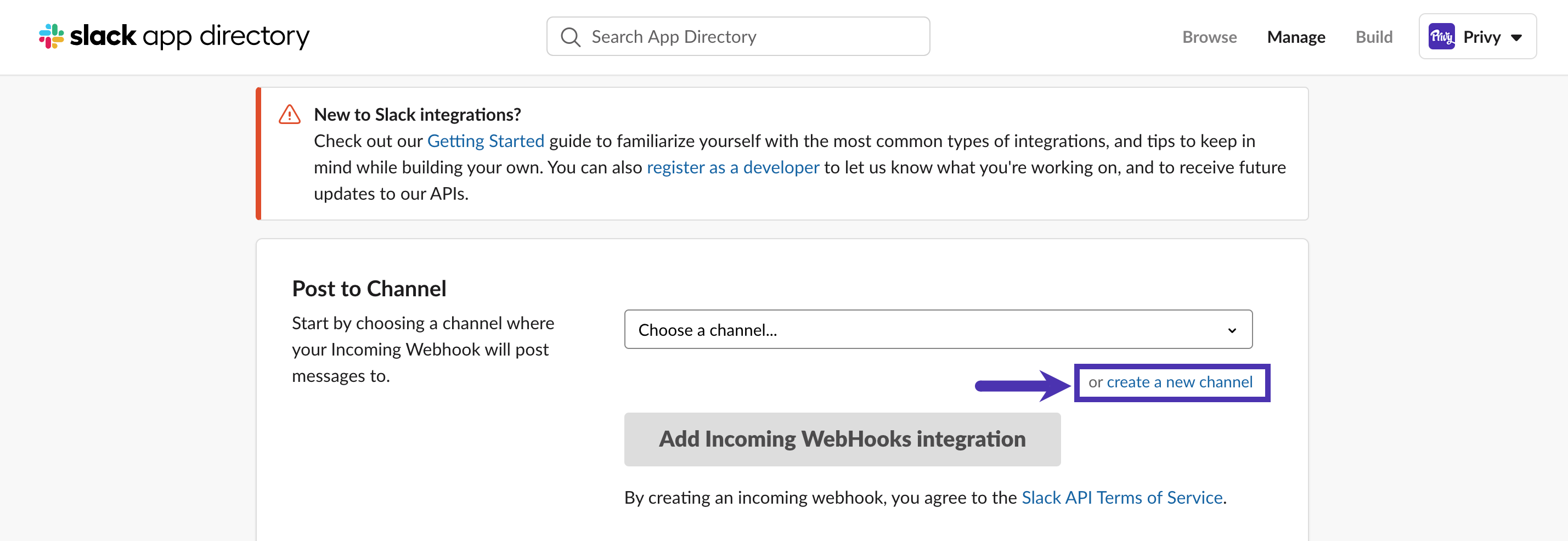
 * On the next screen, choose the **Create a new channel** option underneath the " *Choose a channel* " field.
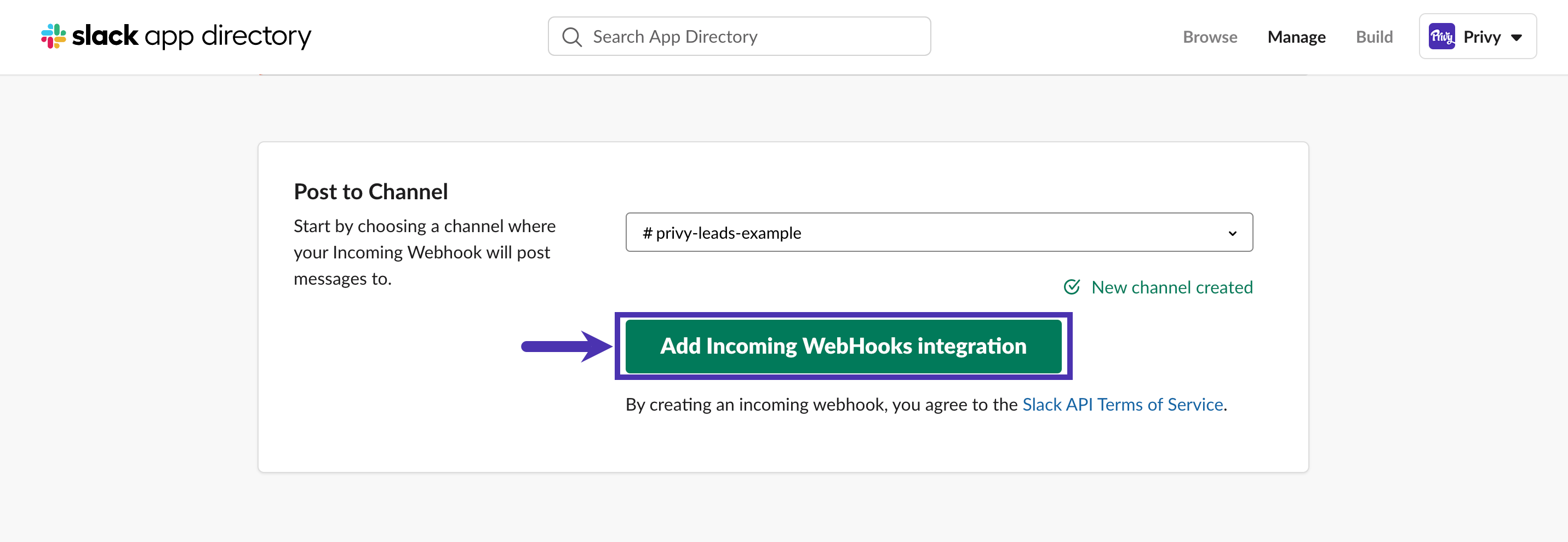
 * When prompted, give your channel a name, such as “privy-leads,” and then click the **Create** button. Once you’ve created your channel, you will be returned to the initial screen, where you should select the **Add Incoming Webhooks Integration** button.
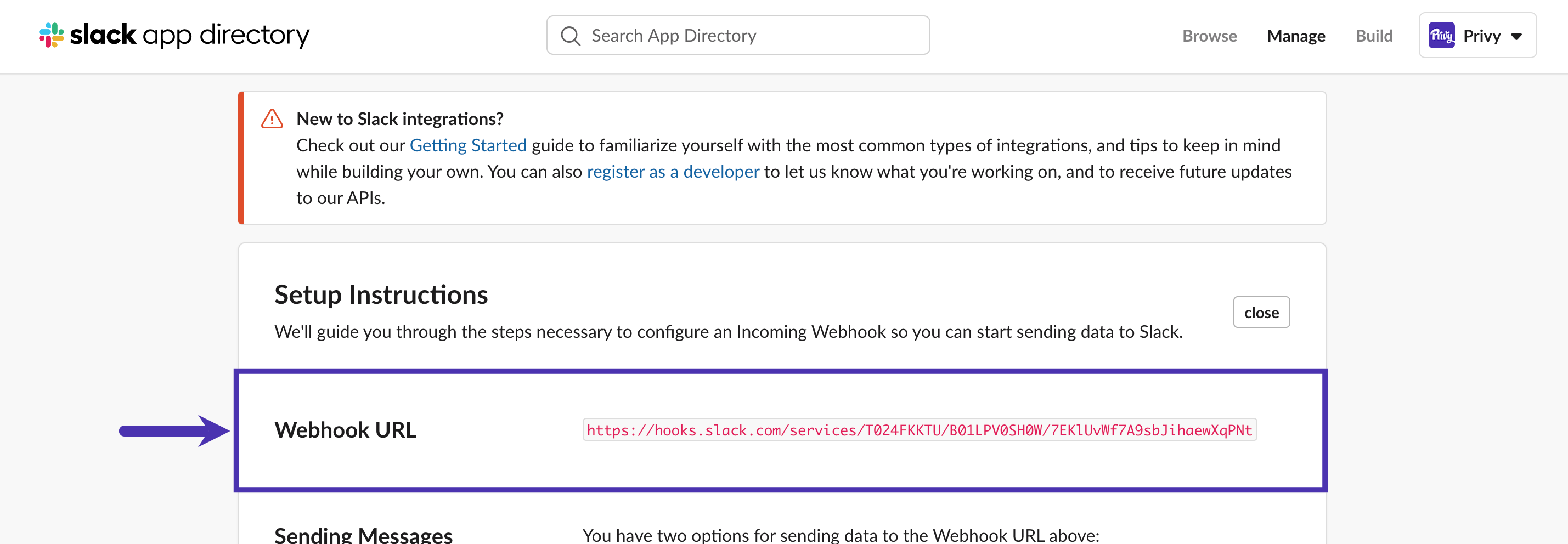
 * This action will bring you to another page that contains the **Webhook URL**. Copy the URL.
 ## Add the webhook in Privy
* In Privy, click the **Account** option from the navigation. Your business name appears there.
* Select the **Integrations** option from the dropdown menu.
* In the sidebar, select **Webhooks** under the *Integrations* section.
* Select the **Slack** option and paste your webhook URL into the URL field. Also, set the *Method* setting to "Post" and enable the *Signups* and *Orders* triggers.
## Add the webhook in Privy
* In Privy, click the **Account** option from the navigation. Your business name appears there.
* Select the **Integrations** option from the dropdown menu.
* In the sidebar, select **Webhooks** under the *Integrations* section.
* Select the **Slack** option and paste your webhook URL into the URL field. Also, set the *Method* setting to "Post" and enable the *Signups* and *Orders* triggers.
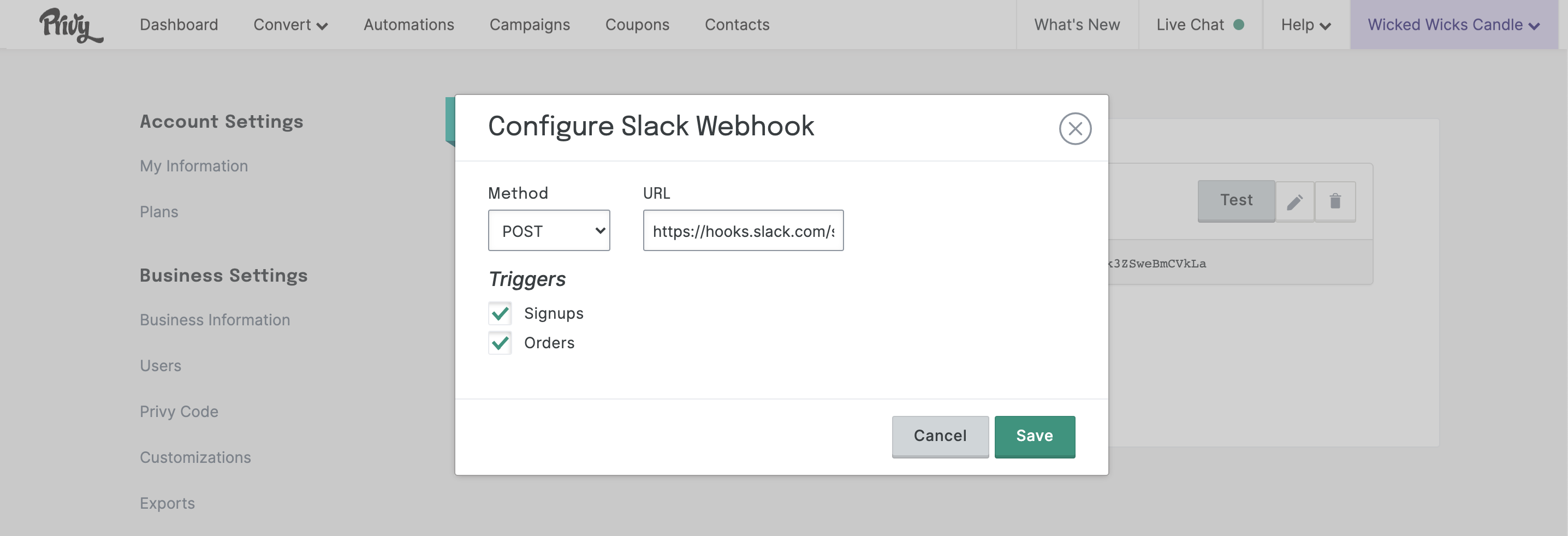 * Click the **Save** option to confirm your configuration. After saving, you can test the connection.
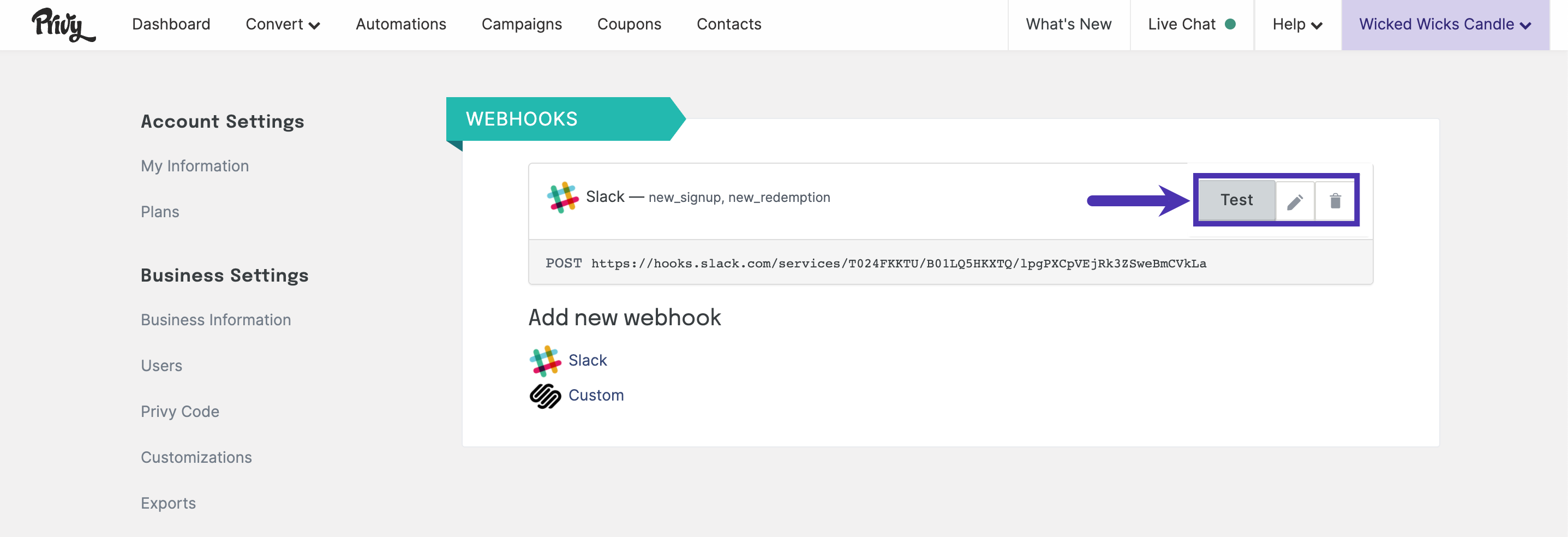 All set! You’re ready to see new leads generated by your Privy displays in real time.
