> ## Documentation Index
> Fetch the complete documentation index at: https://help.privy.com/llms.txt
> Use this file to discover all available pages before exploring further.
# Sync Contacts to Shopify
> Learn how your contacts sync between Privy and Shopify.
Privy automatically syncs all display signups to Shopify as mailable contacts after Privy is installed in your Shopify store. Each contact is added to your Shopify account's "Customers" list.
## What information is included?
By default, the contact's email address, as well as their first and last name (if included in the form), will be synced from your Privy display to your "Customers" list in Shopify. All of the synced contacts will be marked as `customer accepts email marketing` unless:
* **The display includes an Opt-In field**. This field requires the contact to enable an opt-in checkbox to signify that they want to receive your marketing emails. If the contact submits the display with the Opt-in option unchecked, they will be synced to your Shopify list with the `customer does not accept email marketing` status instead.
* **The contact unsubscribes**. If a contact unsubscribes after the initial signup through a Privy display or email, their contact information in Shopify will automatically update to reflect a `customer does not accept email marketing` status.
## Is more information available?
Yes. To sync additional information, such as [Shopify tags](https://help.shopify.com/en/manual/productivity-tools/using-tags):
1. Navigate to **Displays**.
2. Select the desired display and navigate to the **Follow-up** step of the display builder.
3. Click the **Sync signups** button, select **Shopify** from the dropdown menu, configure the presented options, and **Save**.
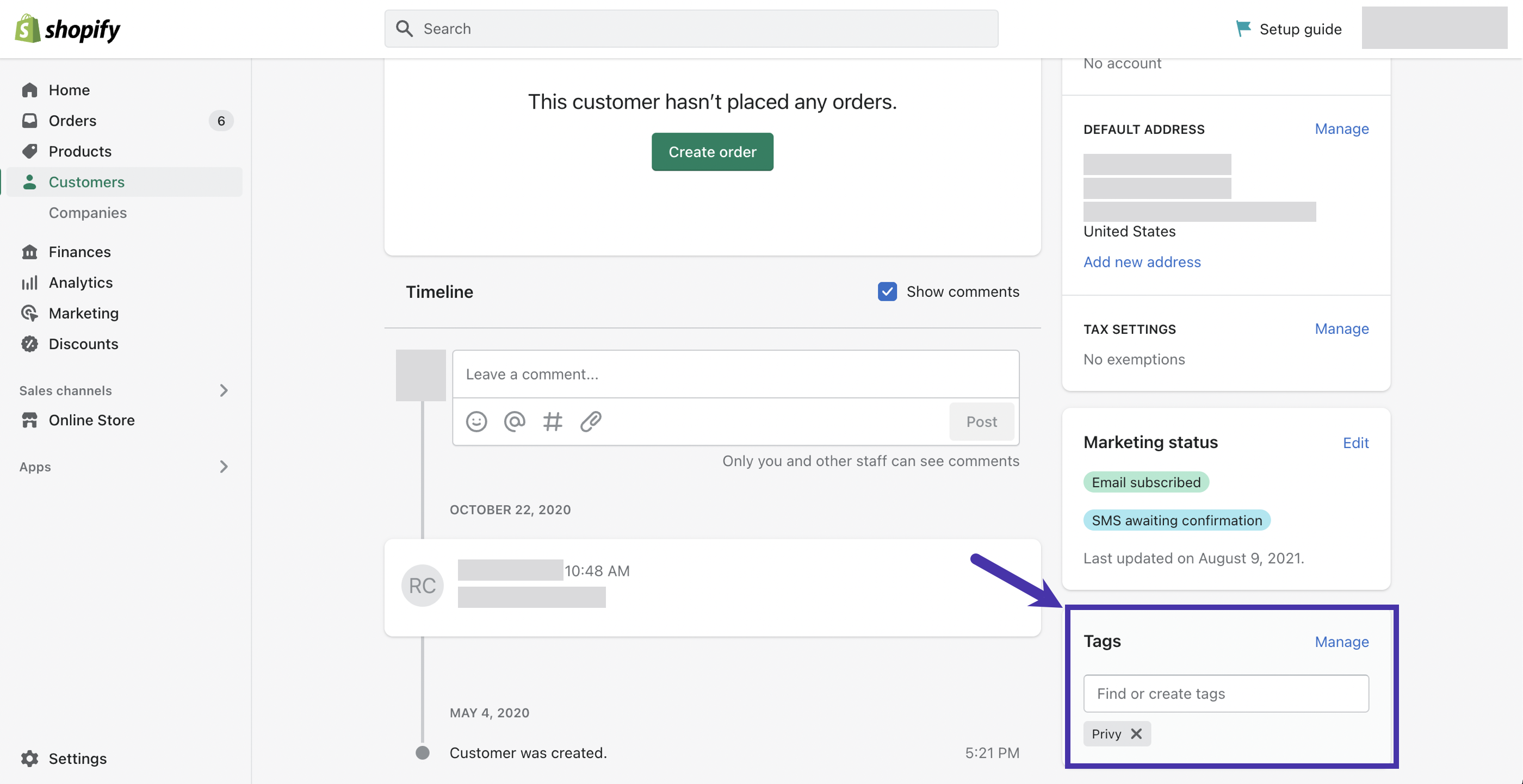
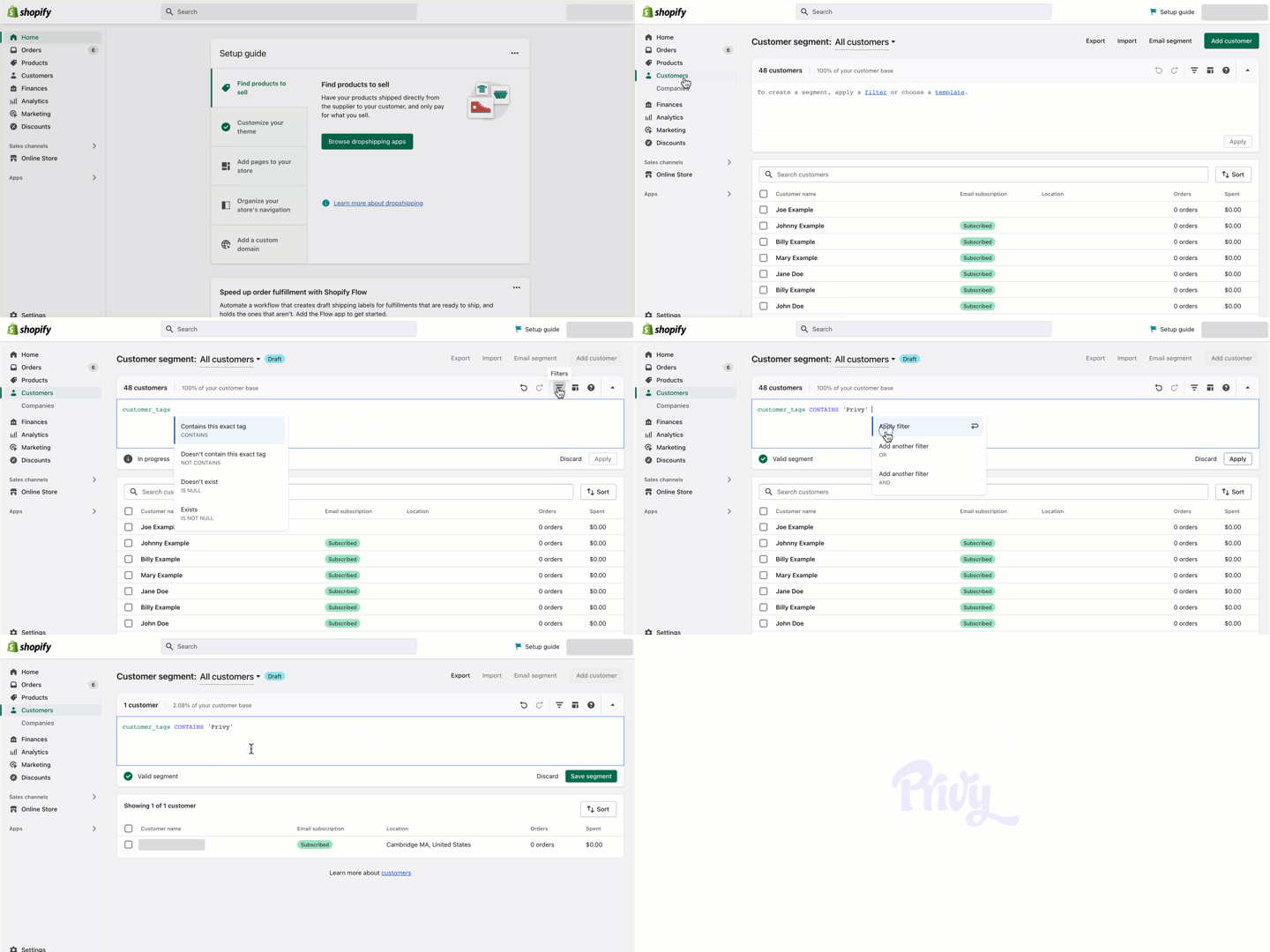
Submissions to this display will now include this information when syncing. Navigate to the "Customers" dashboard in your Shopify account to filter by the tag via the "Customer Tags" option.
 The information is also displayed in the "Tags" card when viewing a customer record in Shopify.