> ## Documentation Index
> Fetch the complete documentation index at: https://help.privy.com/llms.txt
> Use this file to discover all available pages before exploring further.
# Install Privy on WordPress.org
> Start growing your list with Privy displays on your WordPress site.
A unique Privy code must be installed on your WordPress.org website in order to display your displays and track your website events (e.g., display views).
## Install via plug-in
Follow the steps below to download and install the Privy plugin for WordPress. If you need the code to load asynchronously, which means it will load last, you will need to install the code manually.
* Click [here](https://s3.amazonaws.com/privy-production/assets/privy-wordpress-latest.zip) to download the WordPress Plugin and save it to your computer.
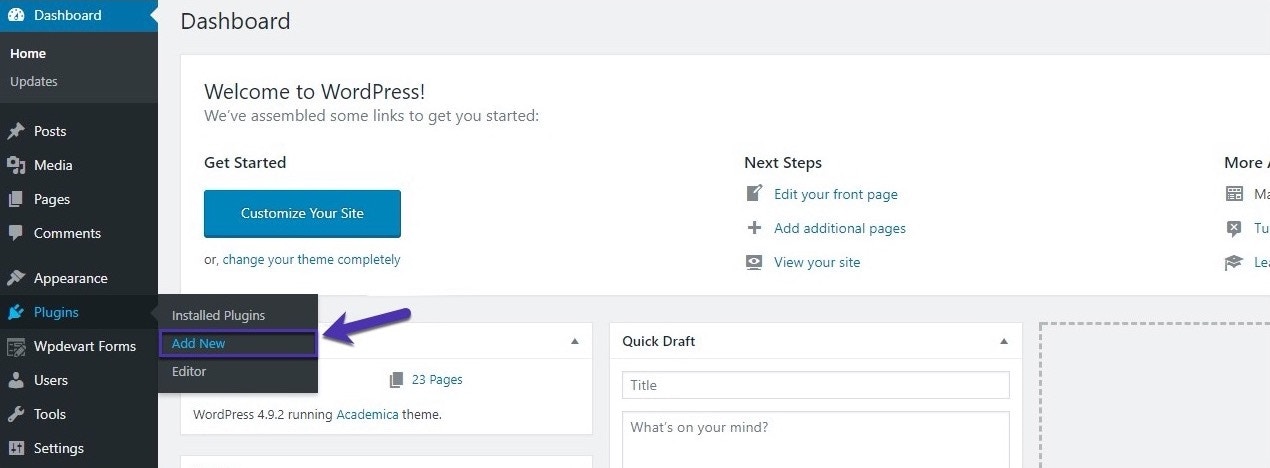
* Upload the **privy-wordpress.zip** file to your WordPress site. To do this, navigate to the **Admin dashboard** in your WordPress site and select **Plugins** > **Add New** from the sidebar.
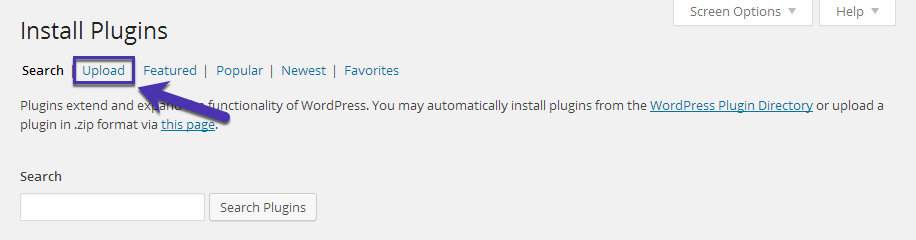
 * On the subsequent screen, select the **Upload** option.
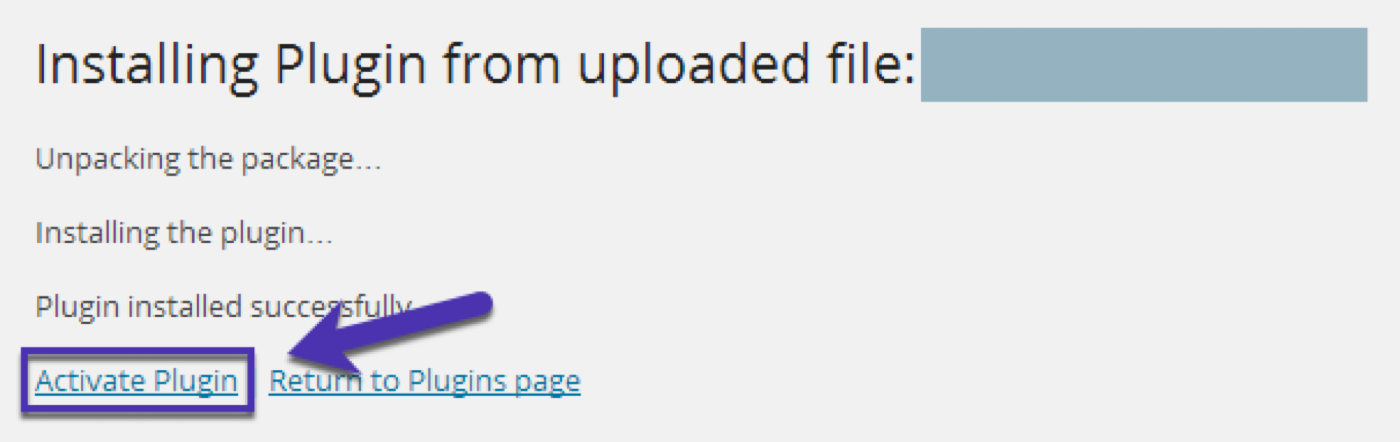
 * Once the upload is complete, click **Activate Plugin** to activate the plugin on your site.
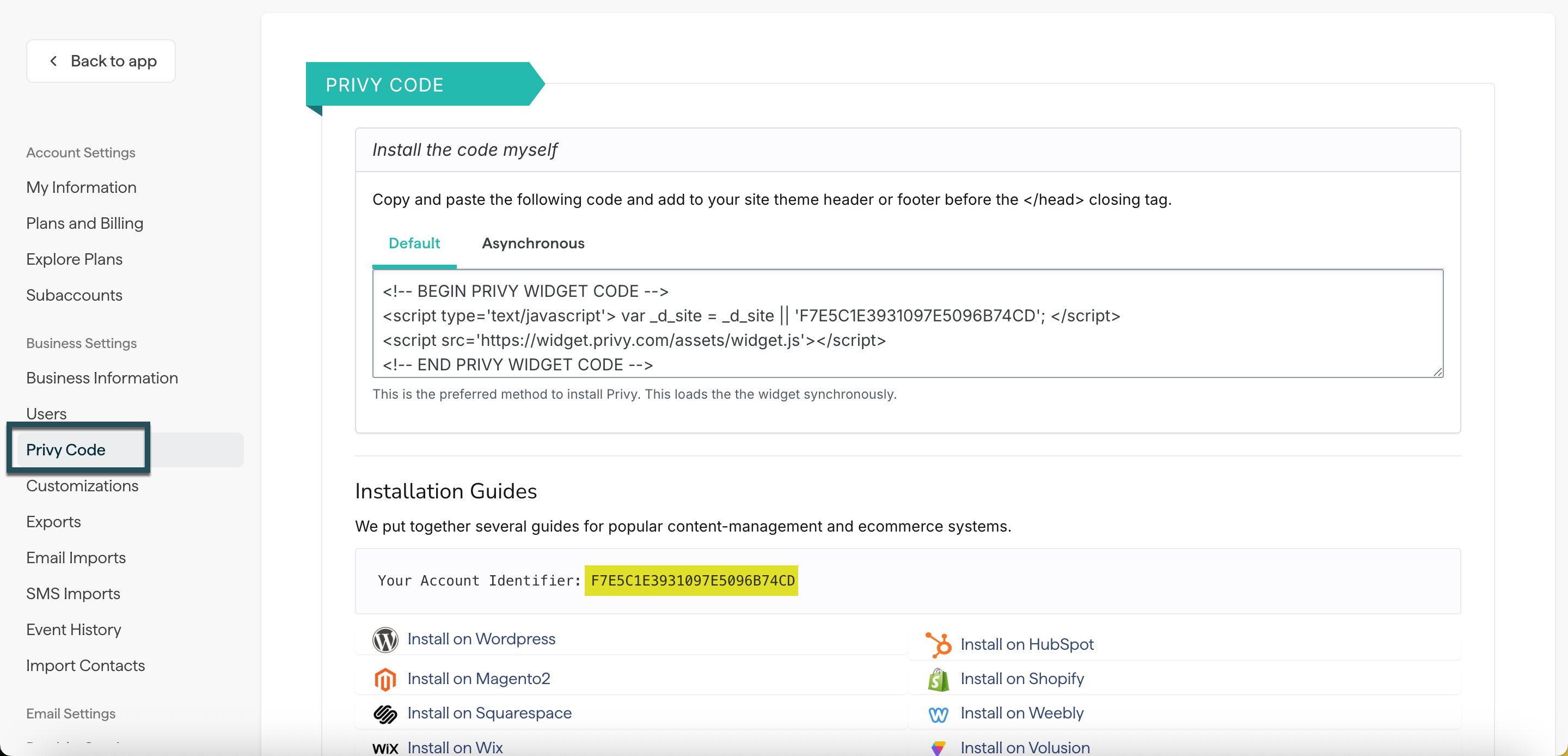
 * Navigate to the [Privy Code](https://dashboard.privy.com/settings/widget) page in your account's Settings.
* Locate and copy the code listed in the *Your Account Identifier* section, as shown below:
* Navigate to the [Privy Code](https://dashboard.privy.com/settings/widget) page in your account's Settings.
* Locate and copy the code listed in the *Your Account Identifier* section, as shown below:
 * In WordPress, enter the account identifier into the Privy Website Widget settings and save. Access the page by navigating to the **Admin dashboard** > **Settings** *>* **Privy Website Widget**.
And that's it! Now, your site will display any display where the plugin/widget is active.
## Install the code manually
If you need the code to load asynchronously, which means it will load last, you will need to install the code manually by following the steps below:
* Navigate to the [Privy Code](https://dashboard.privy.com/settings/widget) page in your account's Settings.
* Locate and select the **Default** or **Asynchronous** tab to reveal its details. The default code is the preferred method to install Privy, allowing it to load in line with everything else on your site. Meanwhile, the asynchronous code will load Privy last.
* Copy the selected code.
* Log in to your WordPress account.
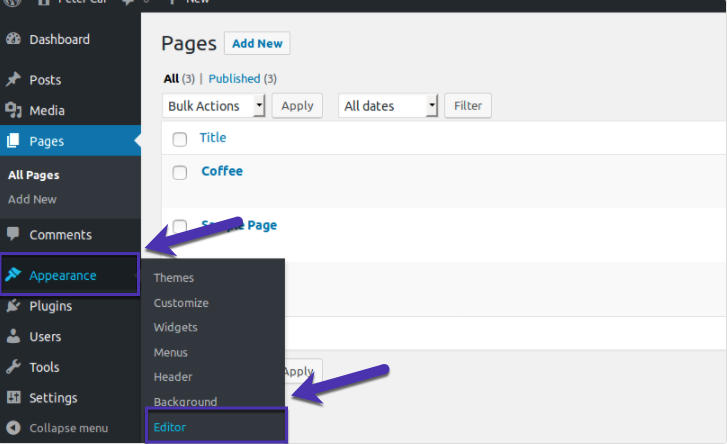
* In the left sidebar menu, navigate to **Appearance** > **Editor**.
* In WordPress, enter the account identifier into the Privy Website Widget settings and save. Access the page by navigating to the **Admin dashboard** > **Settings** *>* **Privy Website Widget**.
And that's it! Now, your site will display any display where the plugin/widget is active.
## Install the code manually
If you need the code to load asynchronously, which means it will load last, you will need to install the code manually by following the steps below:
* Navigate to the [Privy Code](https://dashboard.privy.com/settings/widget) page in your account's Settings.
* Locate and select the **Default** or **Asynchronous** tab to reveal its details. The default code is the preferred method to install Privy, allowing it to load in line with everything else on your site. Meanwhile, the asynchronous code will load Privy last.
* Copy the selected code.
* Log in to your WordPress account.
* In the left sidebar menu, navigate to **Appearance** > **Editor**.
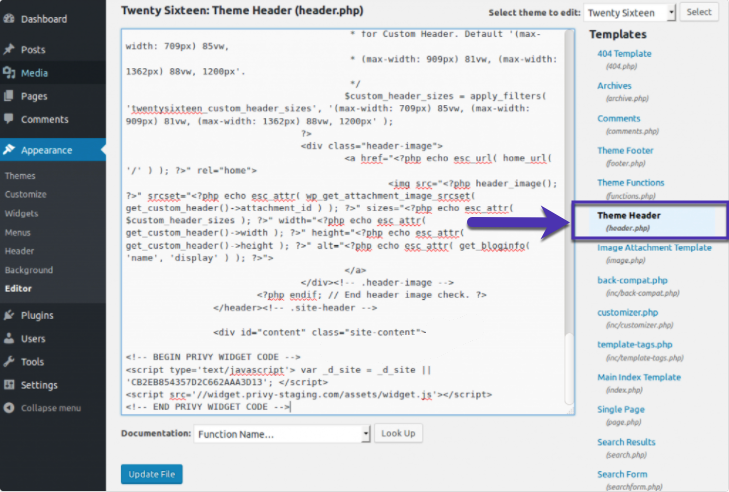
 * In the list of theme files on the right side of the editor, select your **Theme Header**.
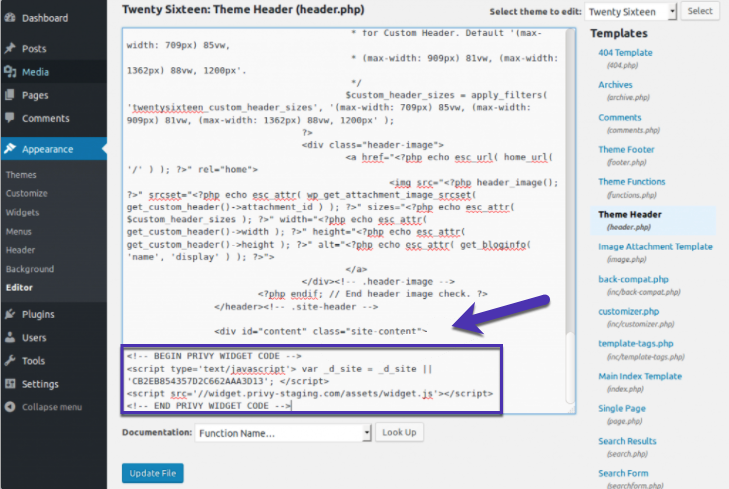
 * Scroll to the bottom of the file, paste in the tracking code, and select **Update File**. If you are running a caching plugin, you must clear your cache now in that plugin's settings.
 ## Verify the installation
The Privy code allows you to display your displays and monitor your website's events (e.g., display views). If your displays aren't displaying properly or event information is missing, verify that the code has been installed and that it's firing correctly:
* Navigate to the [Privy Code](https://dashboard.privy.com/settings/widget) page in your account's settings.
* In the *Installation Guides* section, locate and copy your Account Identifier.
* Open a page on your website and right-click anywhere on the page.
* In the dropdown menu, select **View page source** or **View source**.
* Use **CTRL-F** or **CMD-F** to search for the identifier that you copied.
## Verify the installation
The Privy code allows you to display your displays and monitor your website's events (e.g., display views). If your displays aren't displaying properly or event information is missing, verify that the code has been installed and that it's firing correctly:
* Navigate to the [Privy Code](https://dashboard.privy.com/settings/widget) page in your account's settings.
* In the *Installation Guides* section, locate and copy your Account Identifier.
* Open a page on your website and right-click anywhere on the page.
* In the dropdown menu, select **View page source** or **View source**.
* Use **CTRL-F** or **CMD-F** to search for the identifier that you copied.
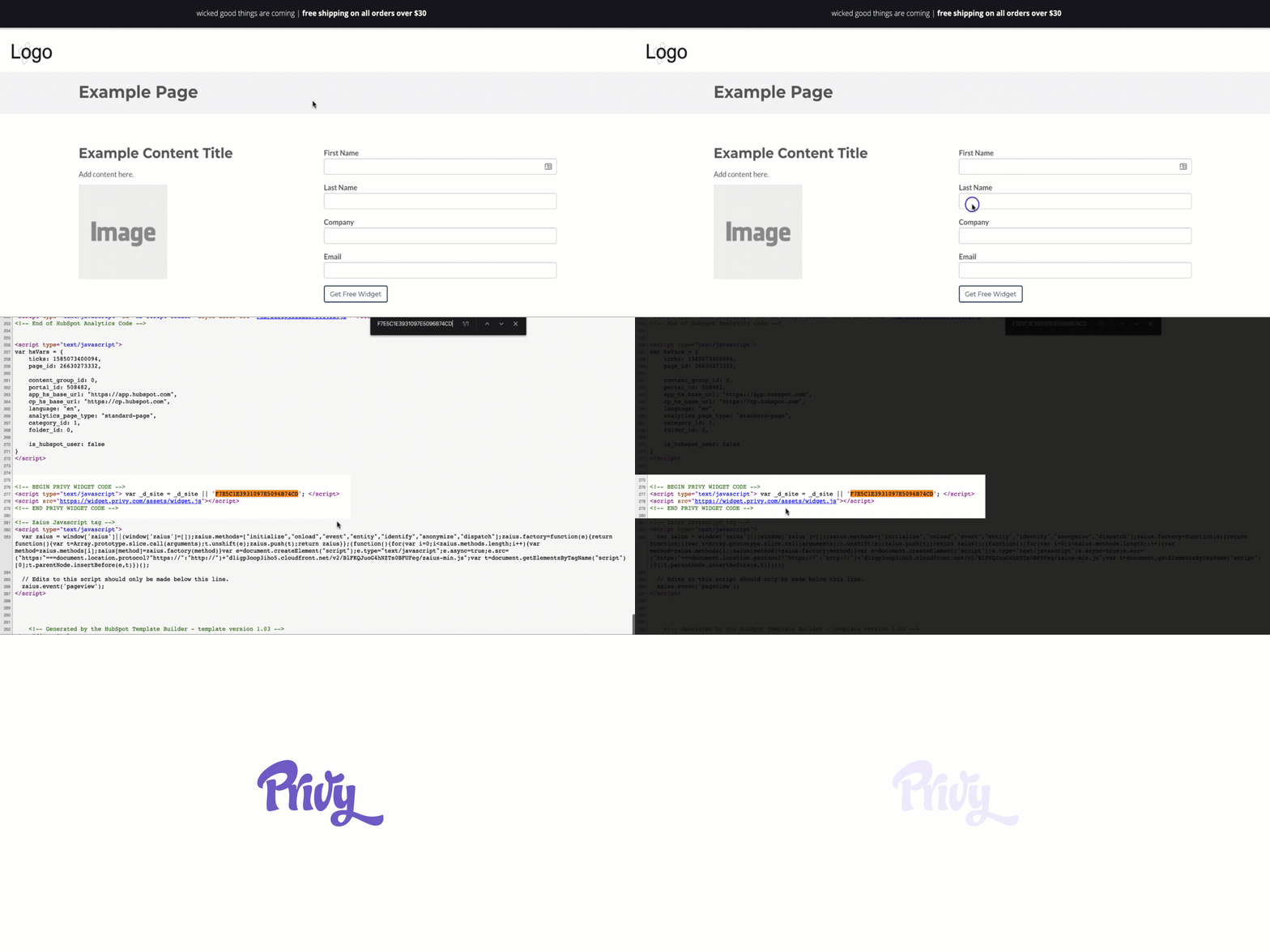 * If the code appears, verify that it has been copied and pasted correctly from your settings.
If the Privy code does not appear or is incorrect, follow the instructions under the Plug-In section of this article to install it properly. If your code appears and has been copied and pasted correctly, verify that it's firing:
* Open a page on your website and right-click anywhere on the page.
* In the dropdown menu, select **Inspect Element** or **Inspect**. A toolbar will appear at the bottom or side of your screen.
* Click the **Network** tab, then refresh your page.
* Click the **Name** column to sort the elements alphabetically, then look for widget\_.js\_.
* Next to *widget.js,* you should see *304 Not Modified* or *200 OK* in the *Status* column.
* If the code appears, verify that it has been copied and pasted correctly from your settings.
If the Privy code does not appear or is incorrect, follow the instructions under the Plug-In section of this article to install it properly. If your code appears and has been copied and pasted correctly, verify that it's firing:
* Open a page on your website and right-click anywhere on the page.
* In the dropdown menu, select **Inspect Element** or **Inspect**. A toolbar will appear at the bottom or side of your screen.
* Click the **Network** tab, then refresh your page.
* Click the **Name** column to sort the elements alphabetically, then look for widget\_.js\_.
* Next to *widget.js,* you should see *304 Not Modified* or *200 OK* in the *Status* column.
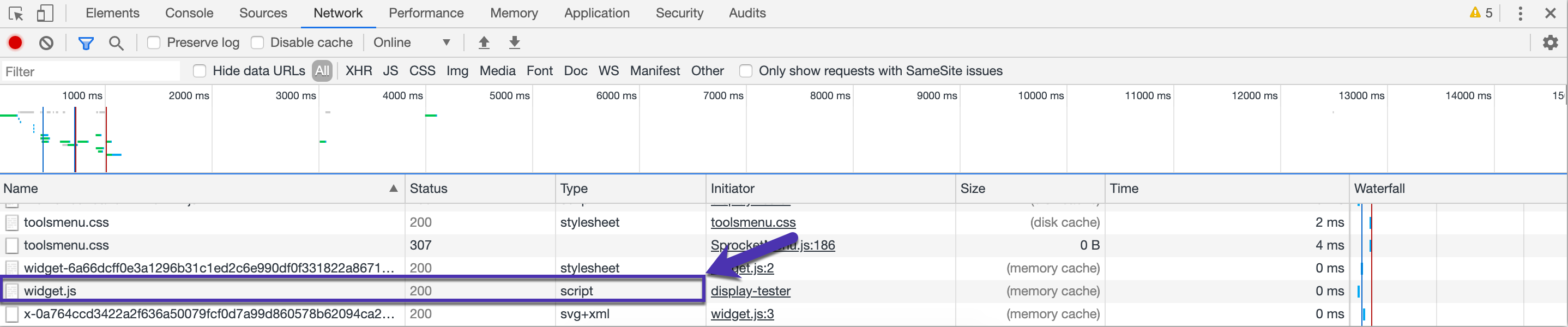 If you see any other status or the .js code is not found, your tracking code may not be firing correctly. [Contact Support](mailto:support@privy.com) for further troubleshooting steps and assistance.