> ## Documentation Index
> Fetch the complete documentation index at: https://help.privy.com/llms.txt
> Use this file to discover all available pages before exploring further.
# Send an SMS Campaign
> Drive more revenue & engage with your mobile contacts by sending AMA campaigns.
SMS Campaigns are highly effective for time-sensitive announcements such as the start of a big sale, new product launches, or exclusive VIP offers — you can send them to your entire SMS list, or use [Custom & Smart Segments](https://help.privy.com/docs/learn/email-campaigns/segmentation) to target a specific audience. Follow this step-by-step guide to learn how to create and send an SMS Campaign in Privy.
**Before we get started...**
You must be on a plan that includes SMS.
You need to have an [approved toll-free number](https://help.privy.com/docs/learn/compliance/toll-free-verification).
You must have [textable contacts](https://help.privy.com/docs/learn/compliance/understand-sms-consent).
## Create a new text message
To start a new SMS Campaign:
* Navigate to [Campaigns](https://dashboard.privy.com/message-campaigns) from your Privy dashboard.
* Select **Send SMS** in the top right corner.
* Name your message and press **Continue**.
## Write your message
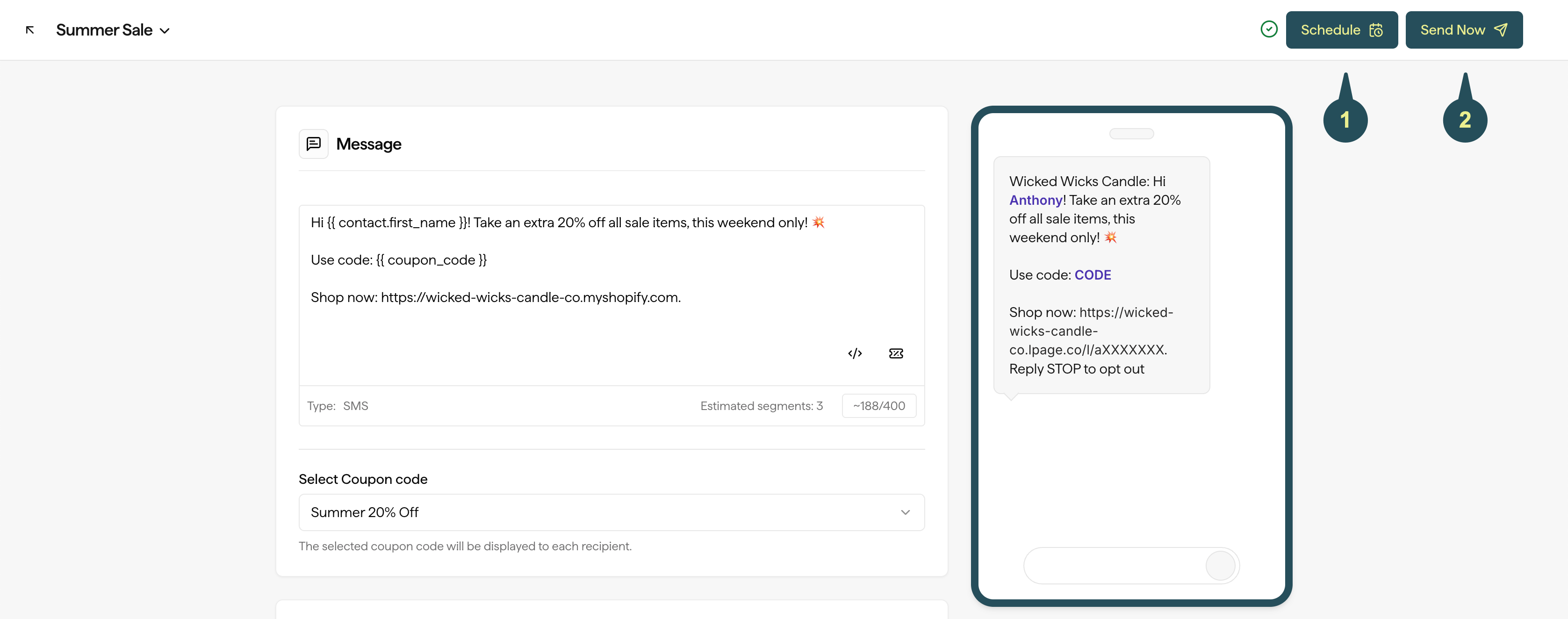
Under **Message**, start to type out and write your message. A preview of your message will appear on the right.
### Personalize your text
To personalize your message with your contact's name, your Business Name, or your Business URL, click on the **variable icon** in the bottom right corner of your message:
**Note:** If a textable contact does not have a name associated with their profile, a blank space will appear.
### Add a Coupon Code
To insert a coupon code into your message:
* Click the **Coupon** icon in the bottom right corner of your message.
* Attach your desired code from the dropdown beneath *Select Coupon Code*.
### Add an Image
To send an MMS message (a text message with an image file):
* Click **Add Image or Contact Card** above your message content.
* Select **Add Image** from the menu.
* Select an image to upload into your message. A preview will appear on the right.
Note: Your file must be a PNG, JPEG, or GIF. The max size for image files is 600KB.
To replace or remove your message's image:
* Select **Update Image** to replace the current image with a different file.
* Select the **Trash** icon to completely remove the image from your message.
### Add a Contact Card
To add a contact card to your message:
* Click **Add Image or Contact Card** above your message content.
* Select **Add Contact Card** from the menu.
If you've never created a Contact Card, you'll be prompted to set one up in [your Text Settings](https://dashboard.privy.com/settings/contact-card) as shown below.
## Target your message
In the *Recipients* card underneath your message, you can select one or more segments to target your message to. You also have the option to exclude segments as well.
Selecting multiple segments allows you to combine audiences for a single campaign without creating a new segment. Recipients who appear in more than one selected segment will only receive the message once.
## Send a test SMS
Before launching, send the campaign to your own phone to confirm formatting, shortened URLs, coupon codes, and any image or contact card attachments render correctly.
* From the SMS campaign editor, open the campaign header menu and select **Send Test SMS**.
* Enter the phone number you want to receive the test, then click **Send**.
A test send delivers the campaign body — including shortened URLs and any MMS attachments — exactly as a real recipient would receive it. The test send counts against your normal SMS sending limits and, on plans governed by SMS credits, against your credit balance; the dialog shows an estimated credit cost before you send.
Test SMS uses the same delivery pipeline as a live campaign, so it's subject to the same per-business throttles. If you hit a rate limit, wait a moment and try again.
## Send or Schedule your campaign
Once you're happy with your message, get ready to send or schedule your campaign.
By clicking **Send**, you'll be sending the message immediately and will be prompted to confirm your decision.
By clicking **Schedule**, you'll be able to specify the date and time you'd like your message to send in the future.
 **Note:** To avoid overwhelming cell phone carriers with too many messages at once, scheduled text messages may send a couple minutes prior to the scheduled time.
**Can I unschedule a text campaign?**
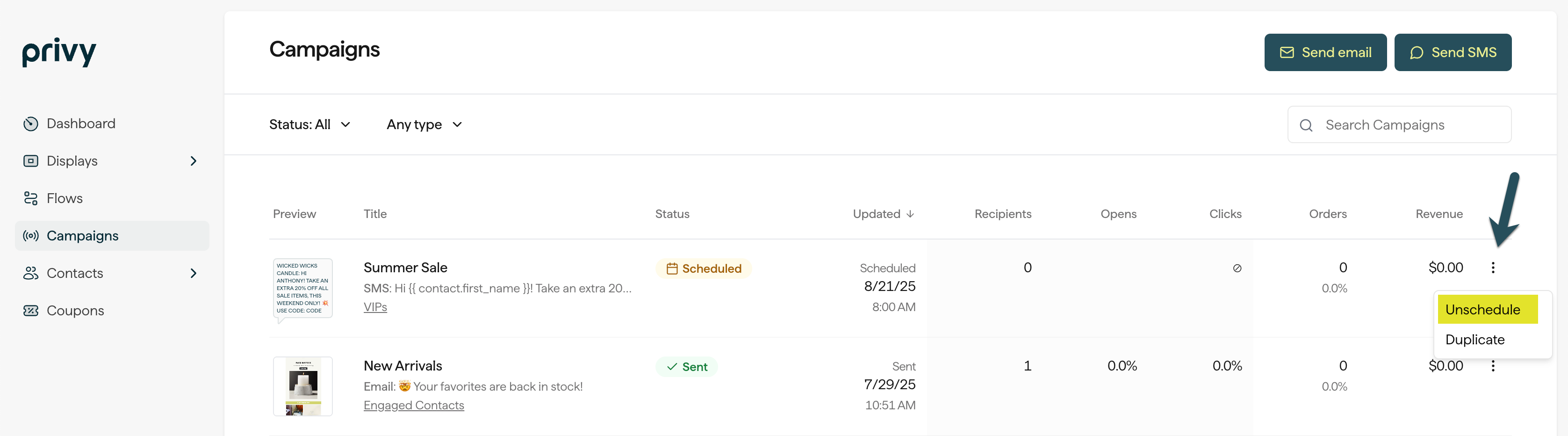
Yes! Head to [Campaigns](https://dashboard.privy.com/message-campaigns), locate your scheduled message, and select the 3 dots to its right. Select Unschedule, and your message will revert to a draft status.
**Note:** To avoid overwhelming cell phone carriers with too many messages at once, scheduled text messages may send a couple minutes prior to the scheduled time.
**Can I unschedule a text campaign?**
Yes! Head to [Campaigns](https://dashboard.privy.com/message-campaigns), locate your scheduled message, and select the 3 dots to its right. Select Unschedule, and your message will revert to a draft status.
 After your campaign is sent, you can [review its performance](https://help.privy.com/docs/learn/sms-campaigns/text-campaign-reporting) at any time.
## Text message guidelines
SMS is a tightly regulated channel, which means there are more limitations in place than there are for email marketing. Keep the following guidelines in mind when writing and sending your text messages:
The business name and Reply STOP to opt out are required for each message. Update your business name in [Business Settings](https://dashboard.privy.com/settings/business-info).
Quiet hours are enforced from 8 PM to 9 AM in the recipient’s time zone, subject to regulations. Messages outside these hours will be queued.
For optimal readability, keep messages under 240 characters.
After your campaign is sent, you can [review its performance](https://help.privy.com/docs/learn/sms-campaigns/text-campaign-reporting) at any time.
## Text message guidelines
SMS is a tightly regulated channel, which means there are more limitations in place than there are for email marketing. Keep the following guidelines in mind when writing and sending your text messages:
The business name and Reply STOP to opt out are required for each message. Update your business name in [Business Settings](https://dashboard.privy.com/settings/business-info).
Quiet hours are enforced from 8 PM to 9 AM in the recipient’s time zone, subject to regulations. Messages outside these hours will be queued.
For optimal readability, keep messages under 240 characters.