

Setting up the integration
Connecting Gorgias requires an SMS-capable Privy account. If SMS isn’t set up yet, complete Toll-Free Verification first. The Gorgias connection will be unavailable until SMS is ready. To connect Privy with your Gorgias account:- In Gorgias, go to Settings → App Store → All Apps → Privy and click Install.
- You’ll be redirected to Privy, where the Gorgias connect dialog opens with your subdomain pre-filled.
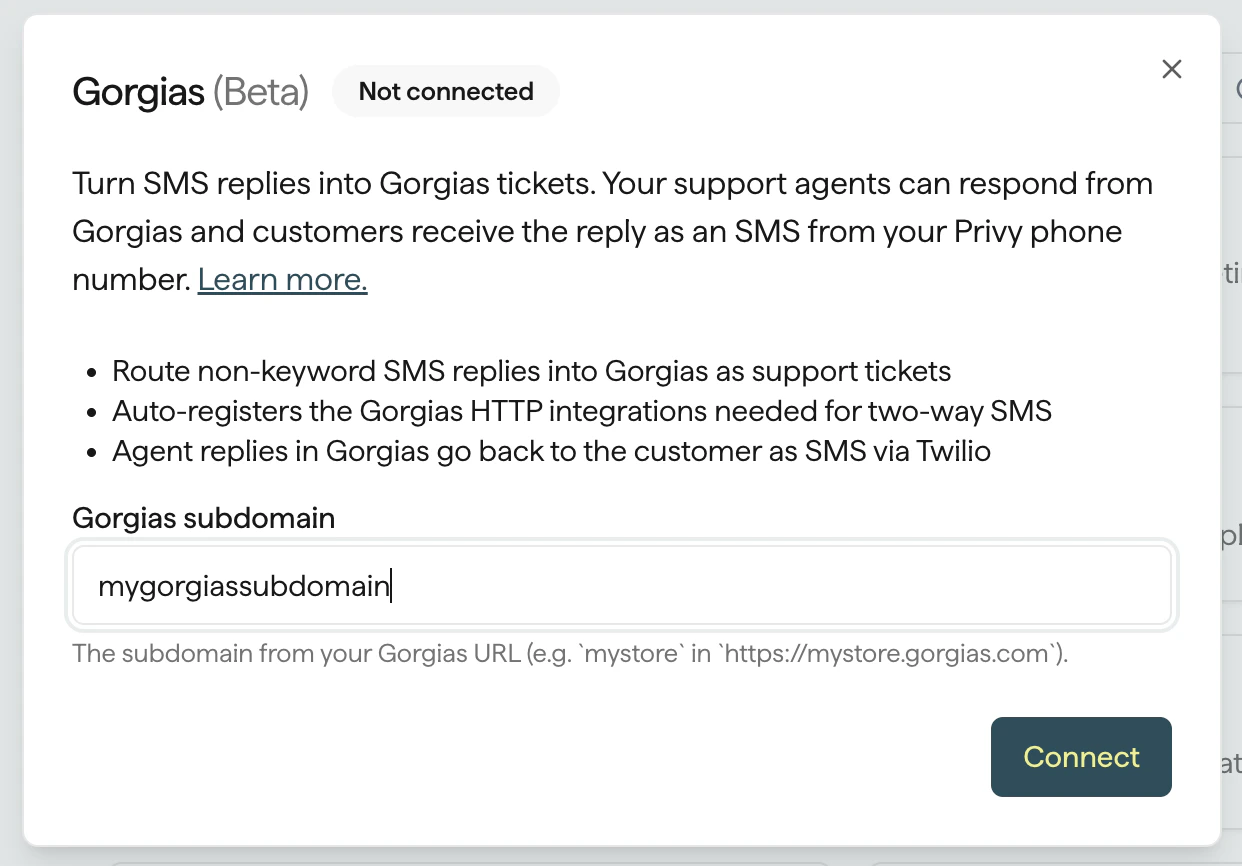
- Click Connect. You’ll be redirected back to Gorgias to authorize the connection.
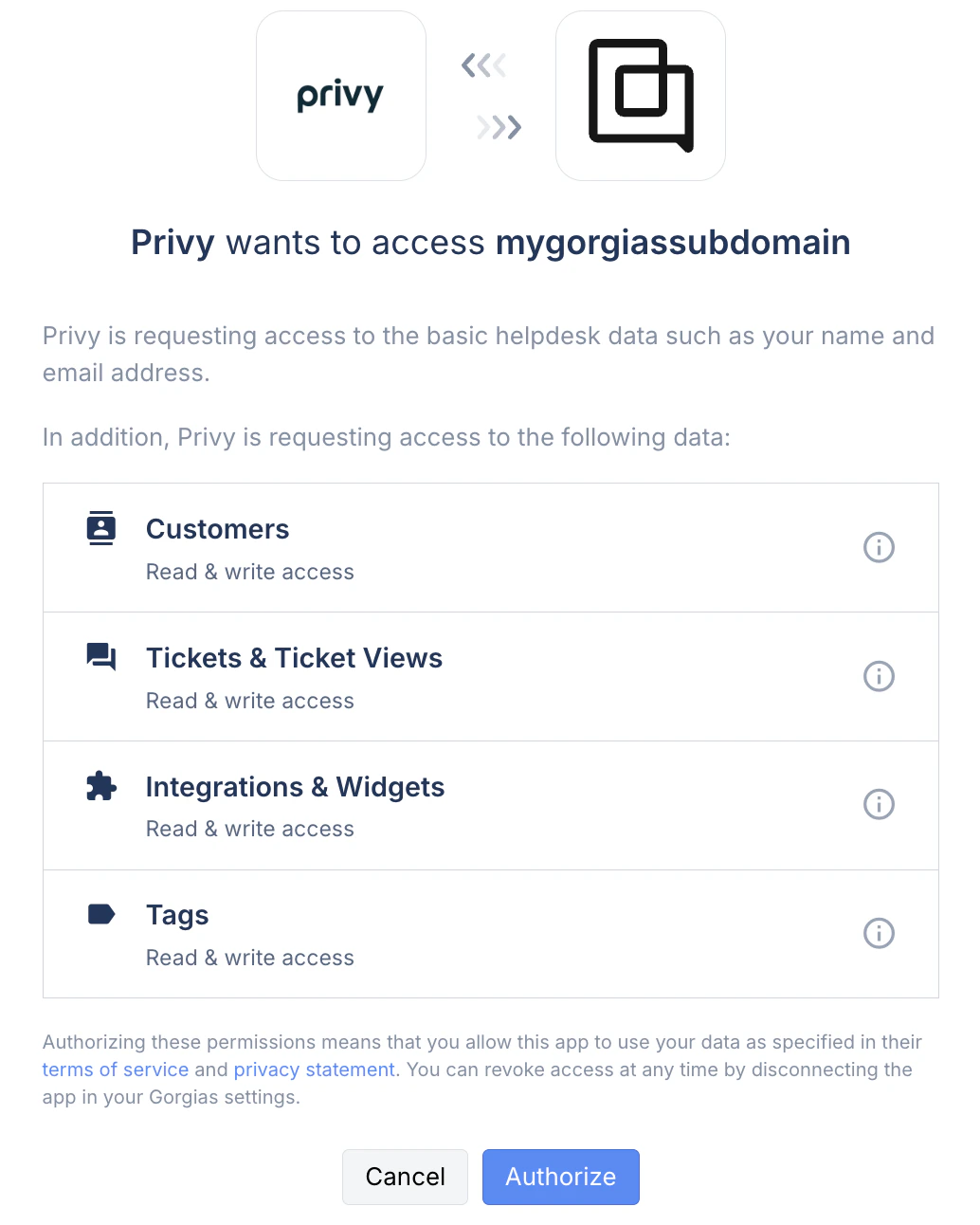
- On Gorgias’s consent screen, click Authorize to grant Privy access.
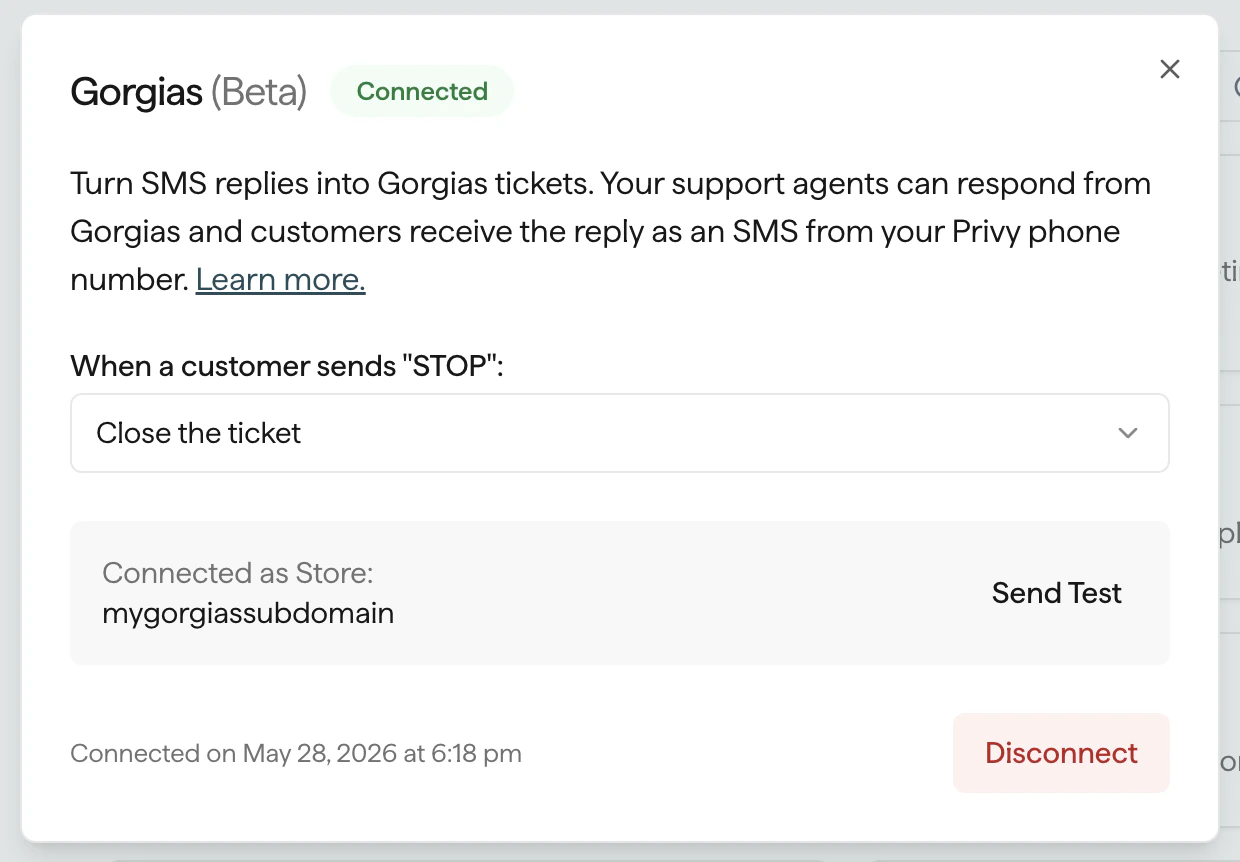
Starting from Privy instead
You can also start the connection from Privy. Navigate to Settings → Integrations, open the Gorgias integration, and enter your Gorgias subdomain (the part before.gorgias.com in your account URL, for example mystore for https://mystore.gorgias.com). Click Connect and complete the Gorgias authorization as above.
How it works
After connecting, every SMS conversation between your customers and your Privy phone number flows through Gorgias.Inbound SMS becomes a Gorgias ticket
When a customer texts your Privy SMS number:- Privy creates a Gorgias customer record (if one does not already exist) using the customer’s phone number.
- A new Gorgias ticket is opened with the customer’s message as the first entry.
- If Privy already knows the customer’s name, that name is set on the Gorgias customer record so agents see who they are talking to.
Agent replies go back as SMS
When an agent replies in Gorgias:- Gorgias notifies Privy via webhook.
- Privy delivers the reply as SMS to the customer through your existing Privy phone number.
- Replies are only sent to customers who have opted into SMS. If a reply can’t be delivered, Privy posts an internal note on the ticket so the agent knows.
Ticket status stays in sync
When an agent closes, solves, or reopens a ticket in Gorgias, Privy mirrors the status on the conversation record. Conversation analytics and segmentation in Privy reflect the latest state without manual updates.When a customer opts out
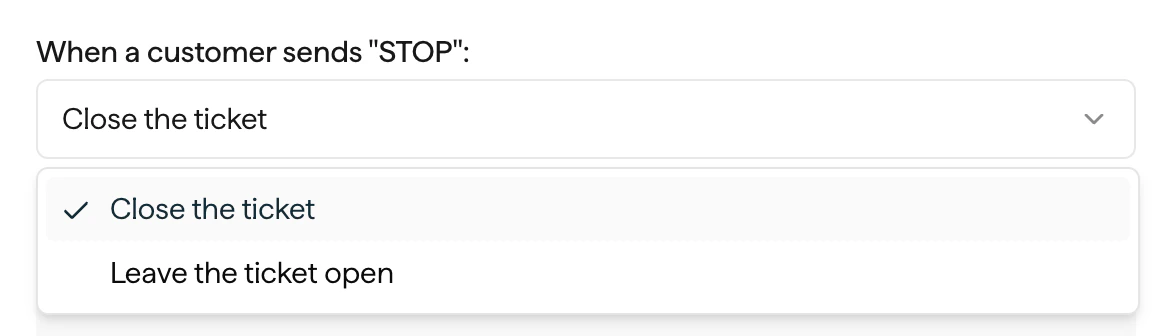
If a customer texts a consent keyword like STOP, Privy unsubscribes them from SMS immediately and posts an internal note on the active Gorgias ticket so agents see the change in context. The customer’s reply itself isn’t forwarded to Gorgias; only the note explaining what happened. By default, Privy then closes the ticket so it doesn’t sit in your open queue. If you prefer to leave the ticket open for follow-up via email, you can change this behavior in the Gorgias integration settings:- Open the Gorgias integration from your Integrations page.
- Under When a customer sends “STOP”, choose either Close the ticket (default) or Leave the ticket open.
When an agent opts a customer out
If a customer asks to stop receiving messages in conversation without sending the literal STOP keyword, an agent can opt them out by including#optout (or #opt-out, case-insensitive) anywhere in their reply.
When Privy sees the hashtag in an agent reply:
- The customer is marked as unsubscribed from SMS.
- The reply is not sent as SMS — the customer doesn’t receive the agent’s message.
- Privy posts an internal note on the ticket explaining what happened, and updates the ticket status per the “When a customer sends STOP” setting above.
When a reply can’t be delivered
If an agent sends a reply to a customer who has opted out, never confirmed their SMS subscription, or doesn’t have a Privy customer record on file, Privy doesn’t send the SMS. Instead, it posts an internal note on the ticket explaining why the reply was blocked so the agent gets feedback in-thread and can follow up another way.Disconnecting the integration
To disconnect your Privy and Gorgias integration:- Navigate to your Settings in the lower left corner of your dashboard.
- Head to your Integrations page, which can be found near the bottom of the left side menu.
- Locate the Gorgias integration and click Edit Integration.
- Click Disconnect to confirm your decision.