Connect Privy with Recharge to sync subscription customer data, build segments, and trigger Flows from subscription events.
The Privy integration with Recharge allows you to use subscription commerce data in Privy, including: Import Recharge customers and sync customer-level subscription properties into Privy. Segment contacts by Recharge properties, such as Active Subscriptions or Has Valid Payment Method. Personalize emails and SMS with Recharge properties, such as subscription counts. Trigger Flows based on Recharge events, such as Upcoming Charge or Subscription Cancelled.
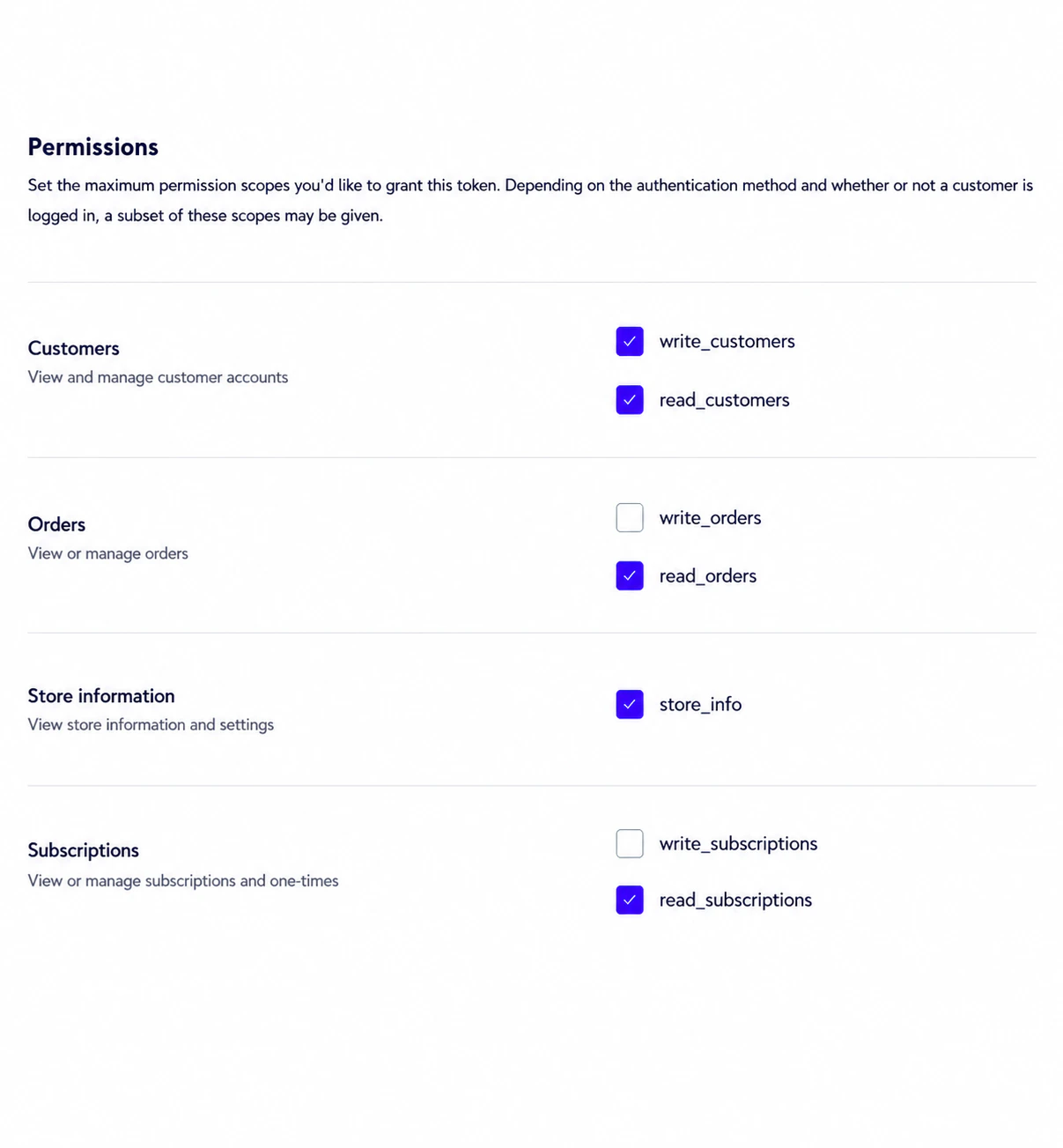
Before connecting Recharge to Privy, create an Admin API token in Recharge. You can learn more about Recharge API keys in the Recharge API key documentation.Give the token the following permissions:
Read and Write Customer
Read Orders
Store Info
Read Subscriptions
To connect Privy with your Recharge account:
Navigate to your Settings in the lower left corner of your dashboard.
Head to your Integrations page, which can be found near the bottom of the left side menu.
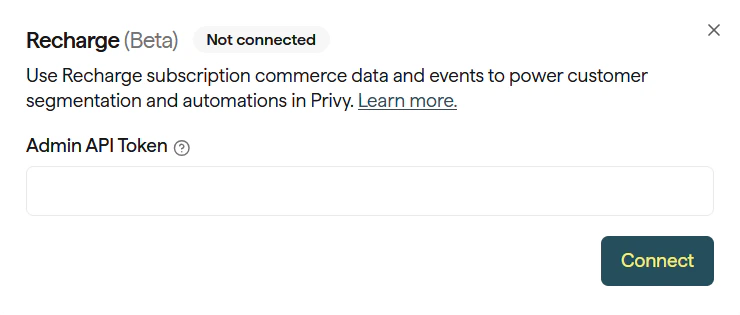
Locate the Recharge integration and click Connect.
Enter your Recharge Admin API token to establish the connection, then click Connect again.
Once you authorize the integration, Privy will import your Recharge customers in the background and register Recharge webhooks. Import times vary depending on the number of existing Recharge customers. New Recharge events will sync in real time after the integration is connected.
The following customer-level properties sync from Recharge to Privy. You can use these properties to create segments and personalize email and text message content.
You can use Recharge properties to create Custom Segments of your mailable and textable contacts in Privy. You can target these segments in your Email + SMS campaigns and Flows.To create a Custom Segment using Recharge properties:
Navigate to Contacts > Segments from the left side of your dashboard.
Click Create Segment in the upper right corner.
Name your segment.
Click the Choose category dropdown and select one of the properties under the Recharge category.
Qualify your selection as needed.
You can add other conditions to your segment, if desired. Click Create to save your new segment. Saved segments that use Recharge criteria show those rules with clear Recharge labels, so you can confirm the segment definition at a glance.
Personalize Emails and SMS with Recharge Properties
To inject personalized data from Recharge into a message, use the Merge Tag function when writing email or SMS content. Use the {{ contact.recharge.* }} fields where contact merge tags are supported. For example, use {{ contact.recharge.subscriptions_active_count }} to show a contact’s active subscription count.
These fields will only populate if the recipient has values for the fields. It’s recommended that you use segmentation that ensures a value is known. For example, a message that references active subscriptions should be segmented to contacts with an active subscription count greater than 0.
The following events sync from Recharge to Privy in real time. You can use these events to trigger automated Email + SMS Flows and react to your customers’ subscription activity.
Building a Flow that triggers after a Recharge event is a great way to automate subscription lifecycle messaging. For example, you could send an upcoming charge reminder or follow up when a subscription is cancelled.To build this Flow:
Use Recharge data in trigger filters and split nodes
You can use Recharge data in trigger filters and Split nodes to branch Flow logic based on subscription or customer details. For example, you could send different messages based on whether the customer has a valid payment method or whether their subscription is paused.
Add a Trigger Filter or Split node to your Flow.
Select a Recharge property such as Has Valid Payment Method or Active Subscriptions.
Set your condition.
Contacts who match the condition will continue through that path, while others will follow the alternate path.
To disconnect your Privy and Recharge integration:
Navigate to your Settings in the lower left corner of your dashboard.
Head to your Integrations page, which can be found near the bottom of the left side menu.
Locate the Recharge integration and click Edit Integration.
Click Disconnect to confirm your decision.
When disconnected, Privy removes the stored Recharge connection and attempts to deregister the Recharge webhooks that were created during setup.If you need assistance with managing your Privy and Recharge integration, please contact our support team at support@privy.com.
Was this page helpful?
Assistant
Responses are generated using AI and may contain mistakes.