

Setting up the integration
To connect Privy with your Canva account:- Navigate to your Settings in the lower left corner of your dashboard.
- Head to your Integrations page and find Canva under the Design category.
- Click Connect. You’ll be redirected to Canva to sign in and authorize the connection.
- On Canva’s consent screen, click Allow to grant Privy access to your designs.
Using your Canva designs
Anywhere you add an image in Privy — the email editor, the display editor, or your Brand page — select the image block, open Images, and click Design on Canva.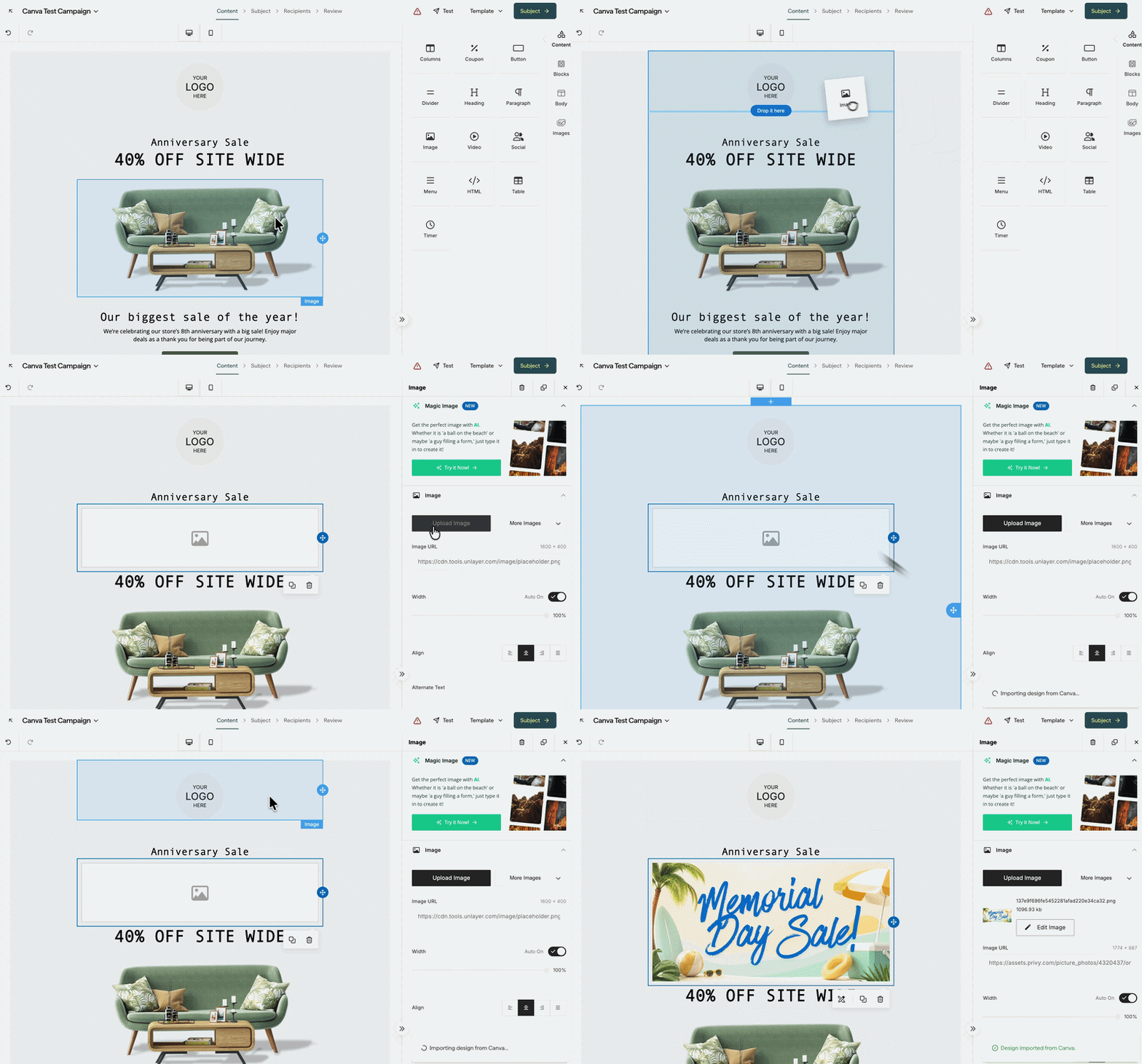
- Search your designs by name and sort by relevance, last modified, or title.
- Scroll through your whole library. Designs load as you go.
- Pick a page of a multi-page design using the arrows that appear on the design’s thumbnail. The caption below the design shows which page is selected.
Good to know
- Designs are imported as PNG images, one page at a time.
- Each import is a copy. If you update a design in Canva afterward, re-import it to get the new version — your Privy campaigns keep using the copy until you do.
- Imported designs won’t appear in your image gallery. They’re stored with your account but only show up where you placed them.
- Very large designs are compressed automatically during import. Images must be under 5 MB.
Importing a Canva email design
Beyond single images, you can bring a whole Canva Email design into the Privy email editor as a real email — text stays text, links stay clickable, and merge tags still work. In the email editor, open the Content panel and drag the Import Canva Email block onto your email. Click Select Email Design, pick a design, then click Select Design.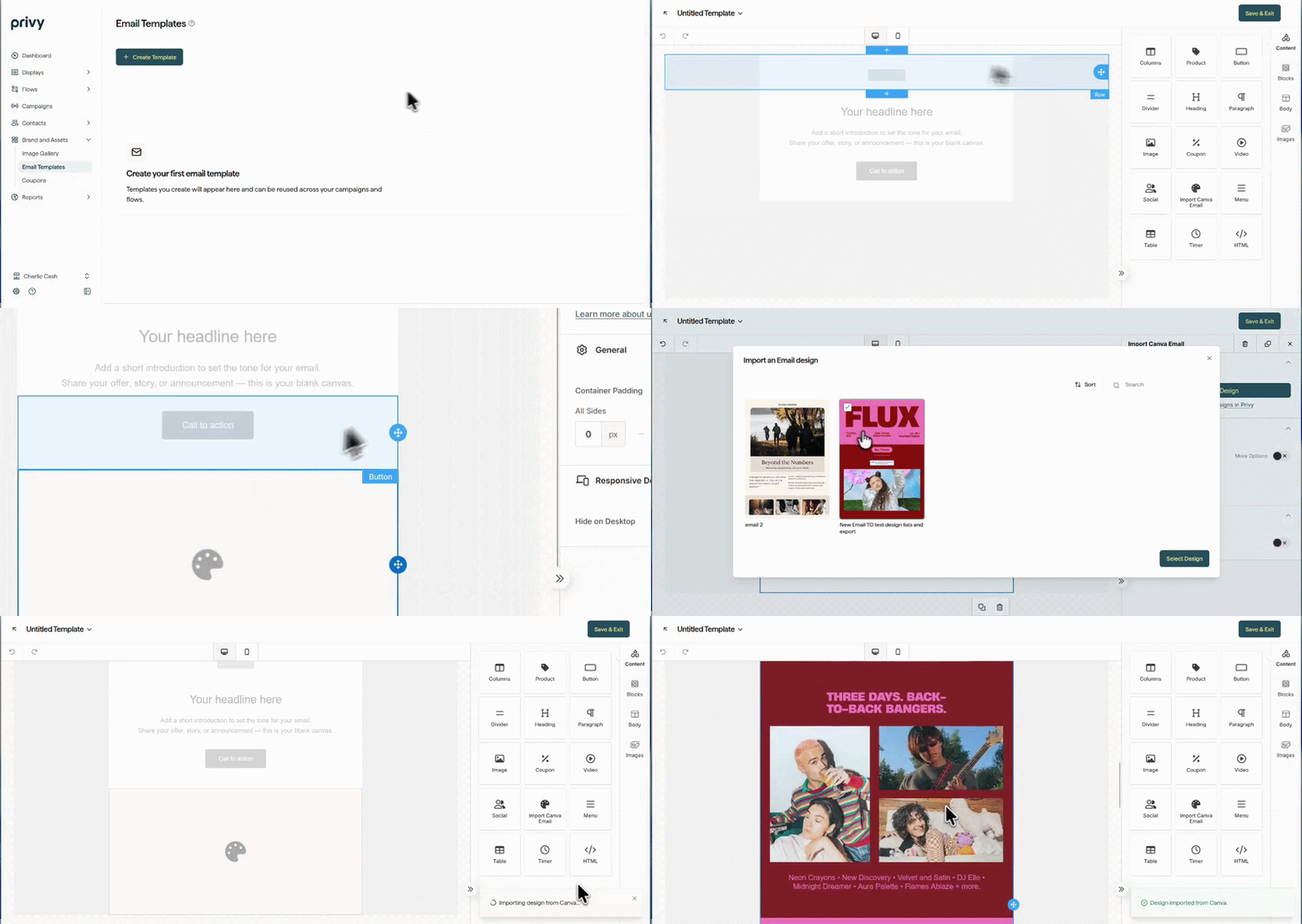
What you can do with an imported design
- Stack native blocks around it. The imported design sits in one block, so you can add Privy blocks — products, coupons, footers — above and below it.
- Use merge tags. Type a tag like
{{ contact.first_name }}into a text element in Canva and it resolves when the email sends. See the full list of supported merge tags. - Keep your links. Buttons and links you added in Canva carry over and keep working.
Good to know
- Imported designs can’t be edited in Privy. Edit in Canva, then import again.
- Only Email type designs appear in the picker. For other design types, use the Image block, select Upload Image, then choose Canva from the picker.
- Merge tags only resolve in real text, not in text baked into an image.
- Privy automatically appends a footer with your business address and unsubscribe link, keep that in mind when designing your email in Canva. See How to style an unsubscribe link for more detail.
- Send yourself a test email before sending to your list, to check the design, links, and merge tags look and work as expected.
Custom fonts from your Canva design only work if the font is added to your Privy account before you import the design. Not every email client supports custom fonts, so some recipients may see a fallback font instead.
Disconnecting the integration
To disconnect your Privy and Canva integration:- Navigate to your Settings in the lower left corner of your dashboard.
- Head to your Integrations page.
- Open the Canva integration and click Disconnect to confirm your decision.