

Setting up the integration
To connect Privy with your Judge.me account:- Navigate to your Settings in the lower left corner of your dashboard.
- Head to your Integrations page, which can be found near the bottom of the left side menu.
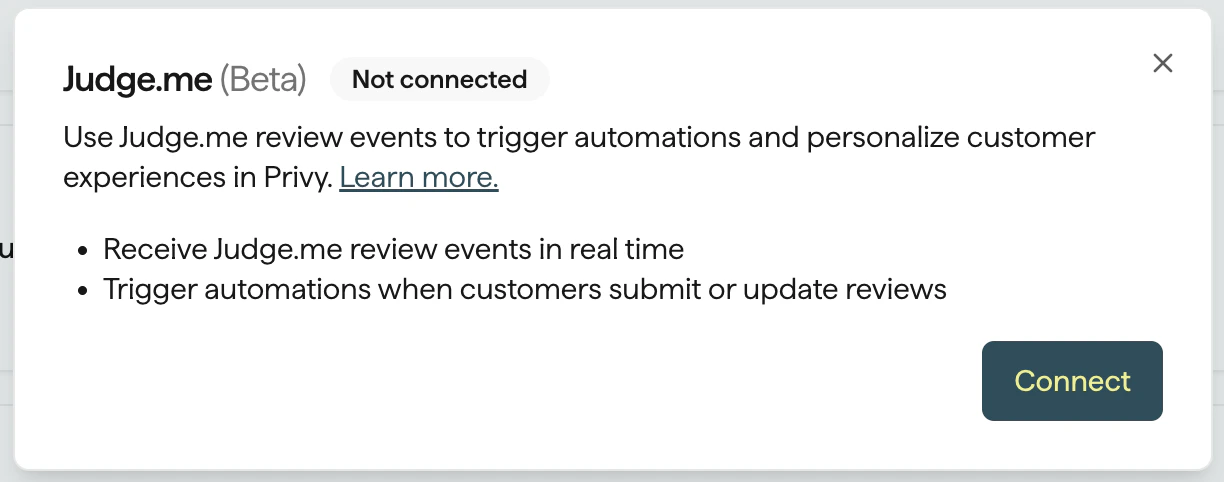
- Locate the Judge.me integration and click to open its settings, then click Connect.
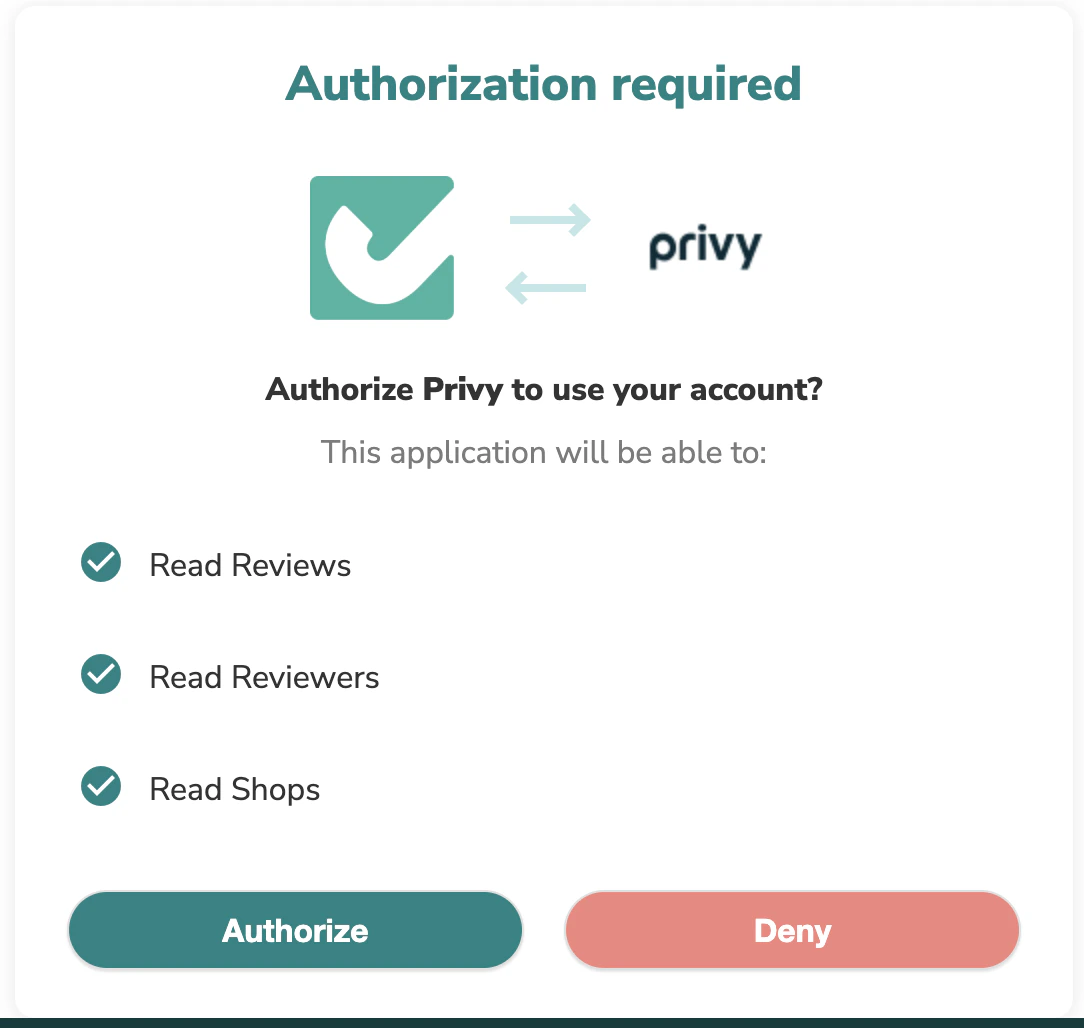
- You will be redirected to Judge.me to authorize the connection. Click Authorize to continue.
On first connect, Privy imports your existing Judge.me reviewers as contacts and their reviews in the background. Import time scales with the size of your Judge.me history; new reviews sync in real time once import finishes.
Judge.me Events
The following events sync from Judge.me to Privy in real time. Product reviews and store reviews have separate triggers so you can tailor your Flows to each type.- Product Review Created — Fires when a customer submits a new review for a specific product.
- Product Review Updated — Fires when an existing product review is modified (e.g., pinned or edited).
- Store Review Created — Fires when a customer submits a new review about the store as a whole.
- Store Review Updated — Fires when an existing store review is modified.
Review properties available for Flow conditions
When a review event is received, the following properties can be used in Flow trigger conditions and Split nodes:- Rating — The review rating (1–5).
- Verified Buyer — Whether the reviewer is a verified buyer.
- Has Published Pictures — Whether the review includes photos.
- Has Published Videos — Whether the review includes videos.
Trigger Flows by a Judge.me Event
Building a Flow that triggers after a Judge.me review event is a great way to follow up with customers who leave reviews. For example, you could send a thank-you email to 5-star reviewers or offer a discount code to encourage repeat purchases. To build this Flow:- Navigate to Flows from your dashboard.
- Click Create Flow in the upper right corner.
- Select the Integration Event option from the following menu.
- Click Customize Flow to continue.
- Click the dropdown menu under Integration Event on the right side of the builder.
- Select Judge.me and then one of Product Review Created, Product Review Updated, Store Review Created, or Store Review Updated.
Use Split nodes with Judge.me review properties
You can use Split nodes in your Flow to branch logic based on review properties. For example, you could send different follow-up messages depending on whether the reviewer gave a high or low rating.- Add a Split node to your Flow.
- Under Trigger Conditions, select a Judge.me property such as Rating.
- Set your condition (e.g., Rating is greater than 3).
Reviewer Tags
When the integration is connected, reviewer tags from Judge.me are synced to the contact’s tags in Privy. Tags are also kept up to date as new review events come in. You can use these tags to create segments and target specific groups of reviewers. To create a segment using reviewer tags:- Navigate to Contacts > Segments from the left side of your dashboard.
- Click Create Segment in the upper right corner.
- Name your segment.
- Click the Choose category dropdown and select Tags.
- Enter the Judge.me reviewer tag you want to filter by.
Disconnecting the integration
To disconnect your Privy and Judge.me integration:- Navigate to your Settings in the lower left corner of your dashboard.
- Head to your Integrations page, which can be found near the bottom of the left side menu.
- Locate the Judge.me integration and click Edit Integration.
- Click Disconnect to confirm your decision.