

Contacts must have a value for the date field you choose in the Flow trigger. Contacts without that date will not enter the Flow. Collect dates through sign-up forms or integrations that sync birthday or custom date fields (for example Rivo or Yotpo).
Create a new Special Occasion Flow
To get started:- Navigate to Flows and click Create Flow in the upper right corner.
- Select Special Occasion from the template list.
Customize trigger and audience settings
Select the Trigger block at the top of your Flow. The settings on the right control which date drives the Flow, when messages send relative to that date, and who may enter.1. Occasion date and send timing
Under Date, the Flow starts on or relative to a Date property you select. Open Select a Date and choose which field to use—for example Birthday, Contact’s Sign Up Date, Pet’s Birthday, or Wedding Anniversary. Only contacts with a value for that field can enter this Flow.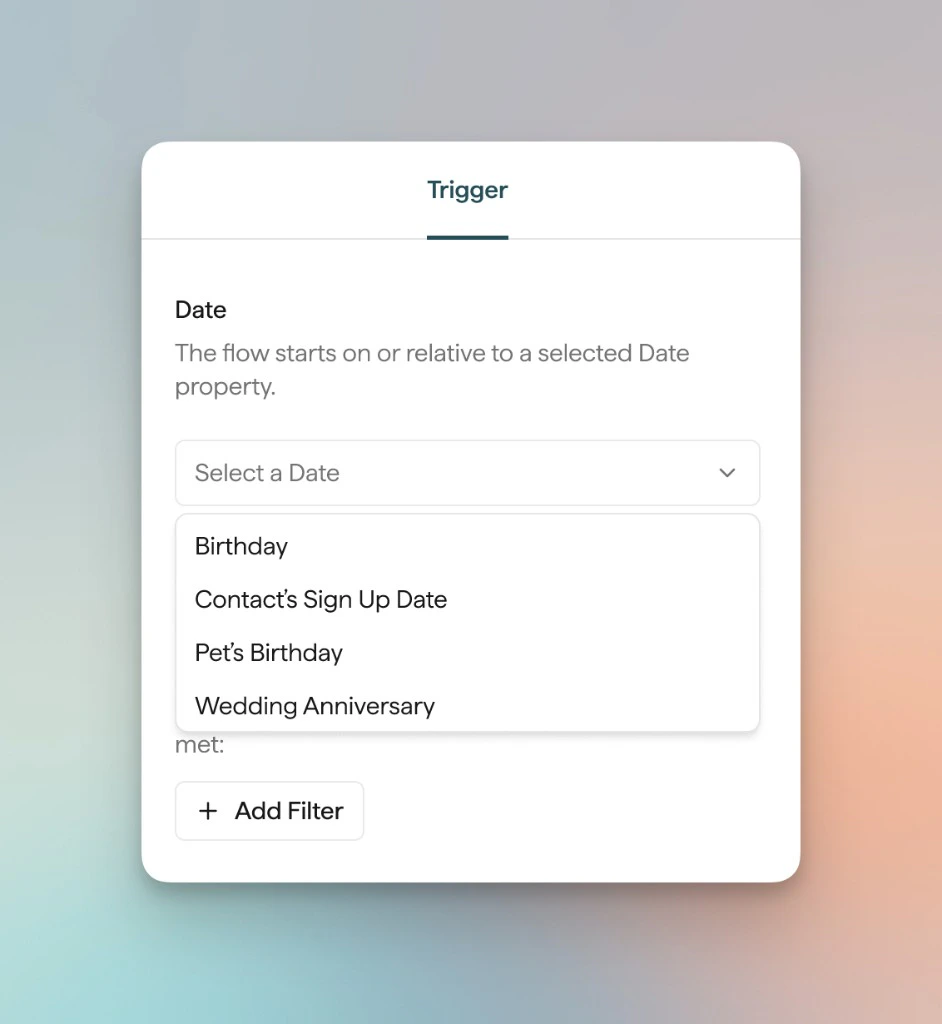
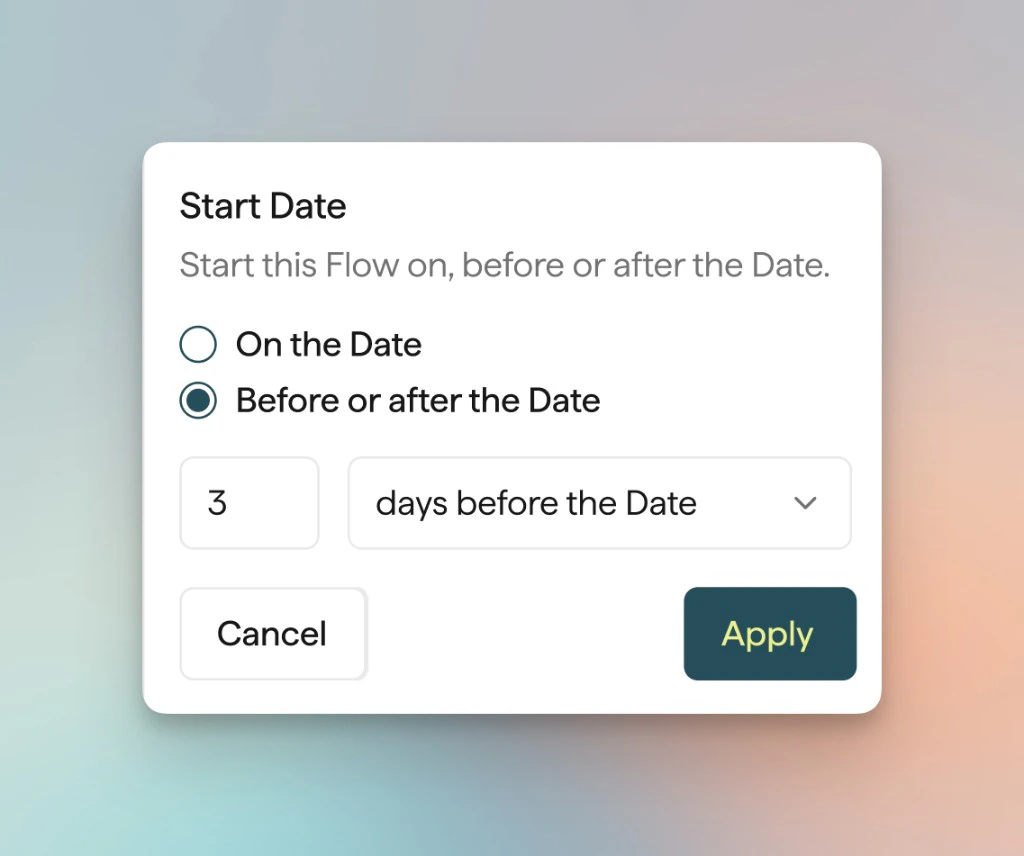
2. Flow Filters
Add Flow Filters (for example + Add Filter) to limit which contacts can enter—for example by list membership, tags, or other attributes. Filters apply on top of the date-field requirement.3. Exit Criteria
Optionally remove contacts from the Flow when they meet an exit condition (for example if they place an order while in the Flow), depending on your template and settings.4. Entry Frequency
Control how often a contact may re-enter after they have already gone through this Flow—for example No re-entry once per year versus Delayed re-entry after a cooling-off period. Choose what matches how often you want the same person to receive this series.Personalize messages
- Date Liquid tags: Use the
date.*merge tags (date.month,date.day,date.year,date.age,date.property_name) in Flow email and SMS content. See the Special Occasion table in Product Merge Tags in Flows. - Product content: In Flow emails, you can use product merge tags and Product blocks where supported so recommendations or creative match the Flow context.
- Tags: Use a Tag Contact action to label contacts as they move through the Flow (for example after they receive a birthday offer).